Steer the Pointer from Keys
The trackpad is hard to use — gestures misfire, clicks hurt, or fine control just is not happening. macOS Mouse Keys moves the pointer from the keyboard instead: number keys steer, other keys click. For clicking without pressing at all, pair it with Dwell.
TL;DR / Quick Fix
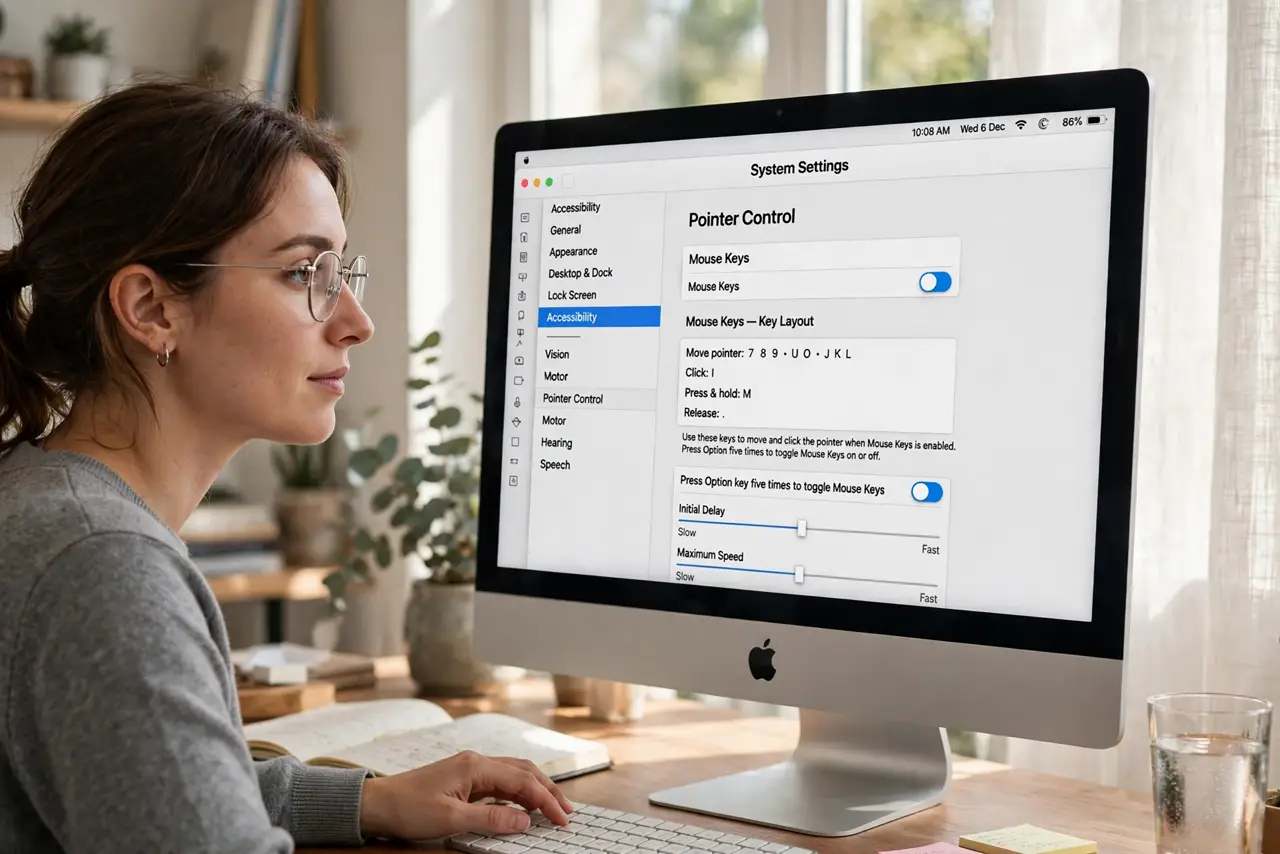
Quick fix: turn on Mouse Keys in System Settings > Accessibility > Pointer Control — the number keys then move the pointer and act as clicks. Set the initial delay low so it feels responsive. Press Option five times to toggle it fast when your trackpad misbehaves.
Follow these steps
- Enable Mouse Keys. Go to System Settings > Accessibility > Pointer Control and turn on Mouse Keys. A brief on-screen guide shows the key layout.
- Learn the movement keys. On a full keypad: 8 up, 2 down, 4 left, 6 right, diagonals on 7/9/1/3. On laptops without a keypad, the regular number row area takes over — check the on-screen diagram.
- Learn the click keys. Typically 5 clicks, with + for double-click and 0 to hold (for dragging). The exact layout is shown in the settings pane — glance at it once and you are set.
- Adjust speed and delay. Two sliders control how fast the pointer accelerates and how long before movement starts. Lower the initial delay first — sluggish starts are the top complaint.
- Use the quick toggle. Press the Option key five times to toggle Mouse Keys instantly. When the trackpad misbehaves mid-task, this is faster than opening Settings.
- Combine with Dwell for zero pressing. Mouse Keys moves; Dwell click clicks on hover. Together they can replace nearly all pointer pressing.
What NOT to do
- Do not enable it accidentally and wonder why typing numbers moves the cursor. The Option-five-times toggle turns it back off instantly.
- Do not expect trackpad speed immediately. Keyboard steering is precise but slower — it is a control tool, not a racing tool.
- Do not skip the speed settings. Default acceleration frustrates everyone; two minutes of tuning transforms it.
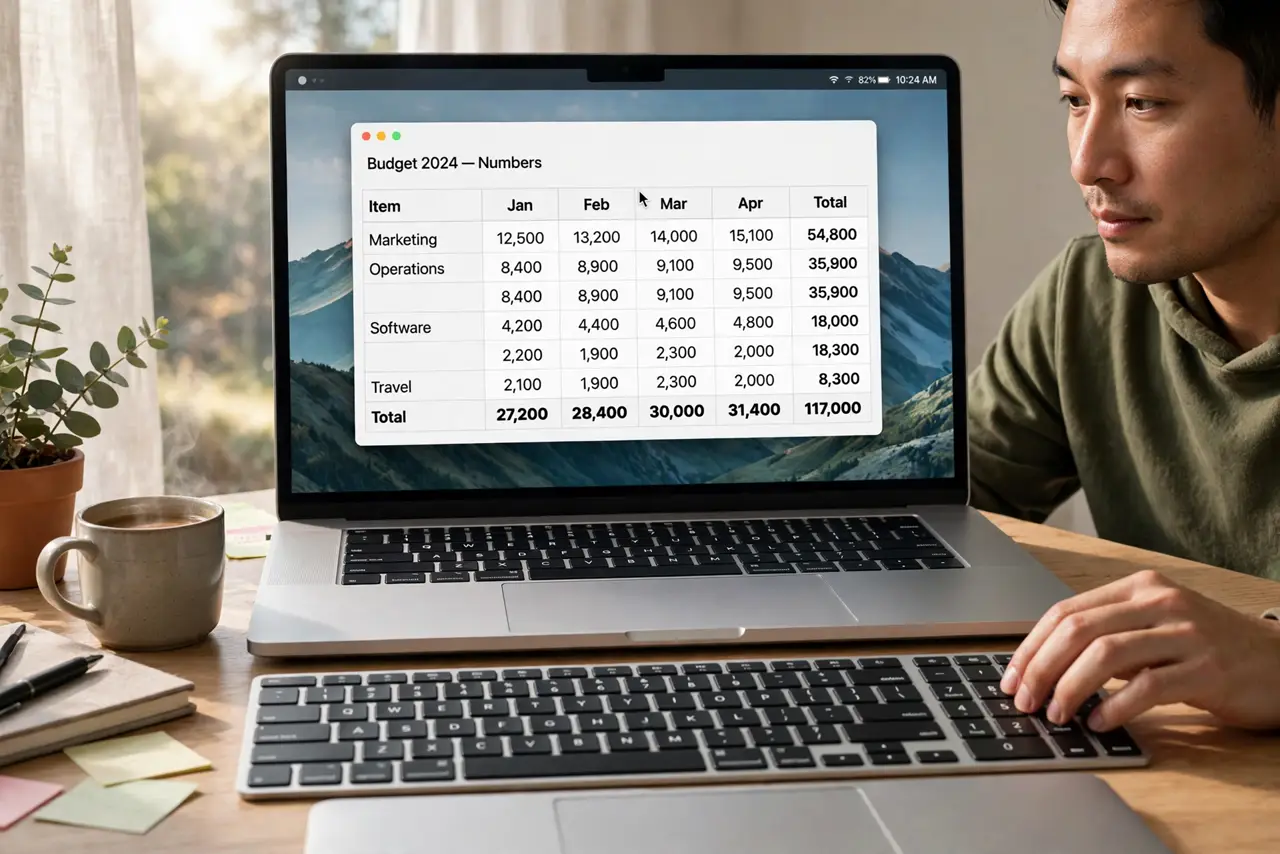
- Do not forget it affects the number keys. While active, those keys steer instead of typing — toggle off for spreadsheets.
Frequently asked questions
Can I drag with Mouse Keys?
Yes — the hold key (usually 0) grabs, movement keys drag, release to drop. Slow but fully working.
Why do my number keys move the pointer?
Mouse Keys is on — press Option five times to toggle it off.
Is this the same as Full Keyboard Access?
Related but different: Mouse Keys moves the pointer; Full Keyboard Access jumps between controls with Tab. Many people use both.