Add Another User on Mac
Sharing one Mac with a partner, kid, or roommate on a single account means shared browser history, mixed-up files, and no privacy. Separate user accounts give everyone their own desktop, files, and settings on the same Mac — set up in two minutes, switching in seconds.
TL;DR / Quick Fix
Quick fix: go to System Settings, Users and Groups, click Add User, and create a Standard account for the other person. Each user gets a private desktop, documents, and browser. Switch between accounts from the menu bar or login screen without restarting.
Follow these steps
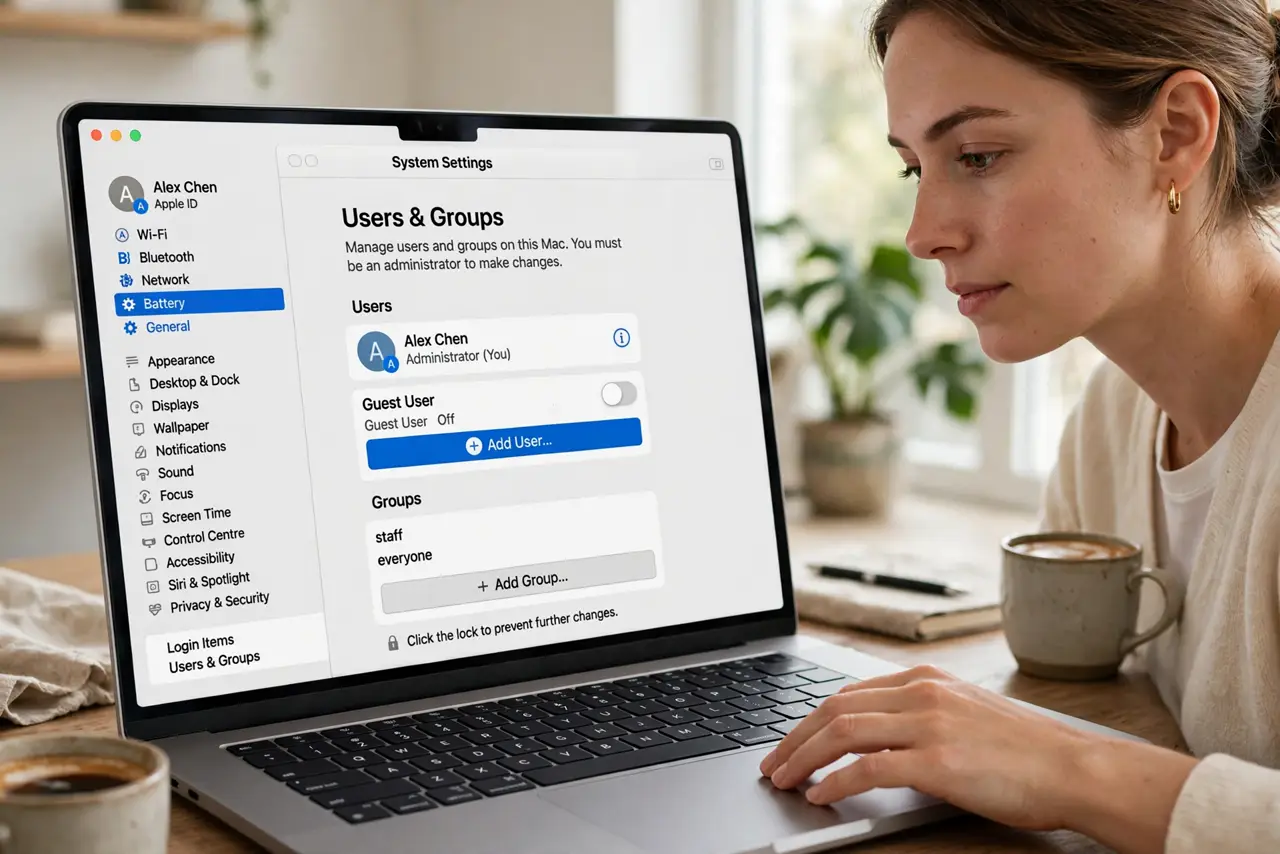
- Open Users and Groups. Go to System Settings, General, Users and Groups. Click the info button or Add User — you will need your administrator password to make changes.
- Choose Standard, not Administrator. For family and guests, Standard accounts cannot install system-wide software or change other users' settings. Keep one Administrator account for yourself and make everyone else Standard.
- Set a password for each account. Give every account its own login password — shared passwords defeat the purpose. Kids' accounts especially benefit from their own credentials.
- Decide what to share. Each account gets separate Documents, Desktop, and browser profiles automatically. Shared files go in the Shared folder inside Users — the one place all accounts can reach.
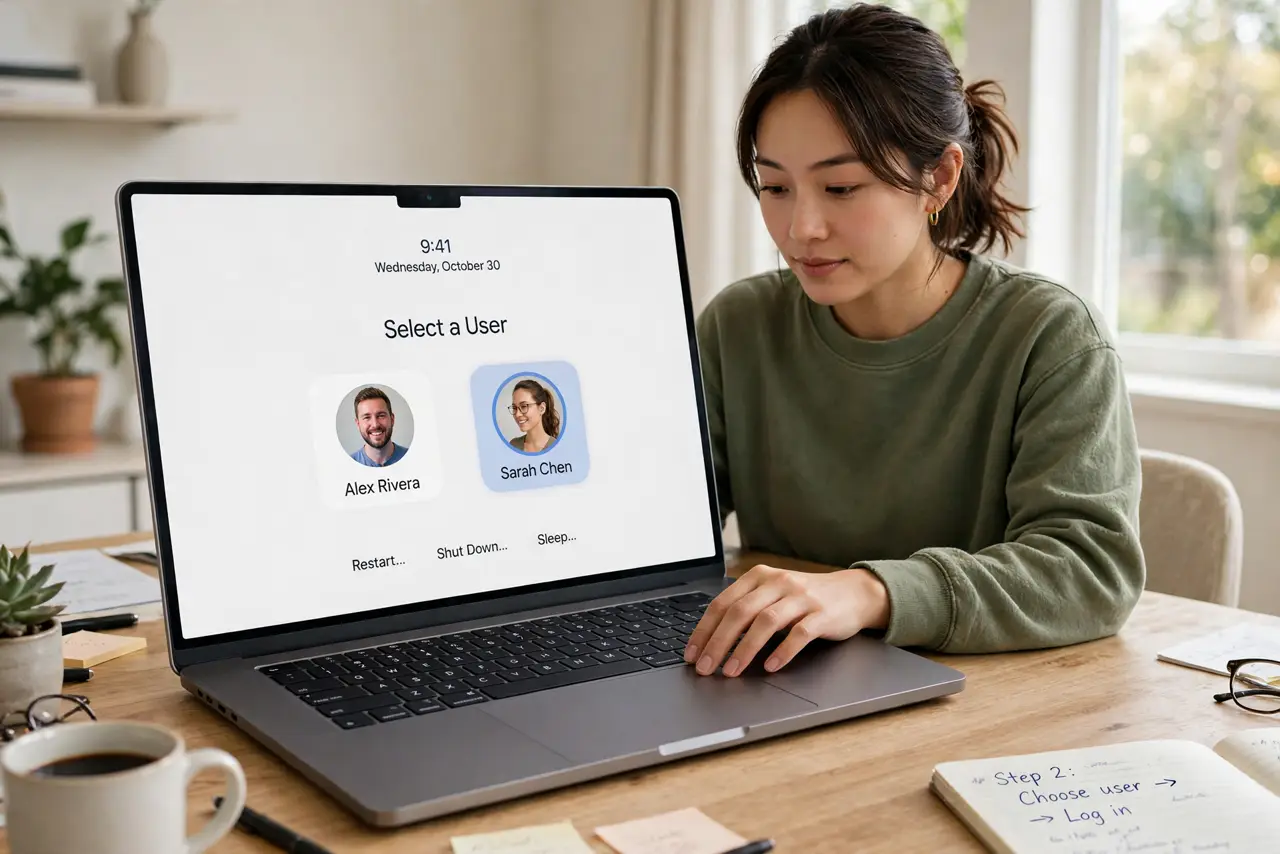
- Switch users without logging out. Use fast user switching from the menu bar or Control Center to hop between accounts instantly. Your apps stay open in the background — no restart needed.
- Clean up before selling instead of sharing. If the Mac is changing hands permanently rather than being shared, do not just add an account — erase it properly so none of your data travels with it.
What NOT to do
- Do not share one account 'to keep it simple.' Mixed files, shared passwords, and zero privacy cost far more than the two minutes setup takes.
- Do not make everyone an Administrator. One admin is enough — extra admins can install anything and change anyone's settings.
- Do not skip passwords on Standard accounts. Passwordless accounts let anyone snoop or make changes attributed to that user.
- Do not delete an account without checking its files. Deleting removes that user's entire home folder — move anything worth keeping to Shared first.
Frequently asked questions
Can two people use the Mac at the same time?
Not simultaneously on one screen, but fast user switching keeps both sessions live — switch in seconds without closing anything.
How much disk space does a new user take?
Almost none at first — accounts share the system and apps. Only their personal files consume extra space.
Should kids get Standard or Managed accounts?
Standard works for teens; younger kids benefit from Screen Time limits on top of a Standard account — set both in Settings.