Set Up a New Mac Right
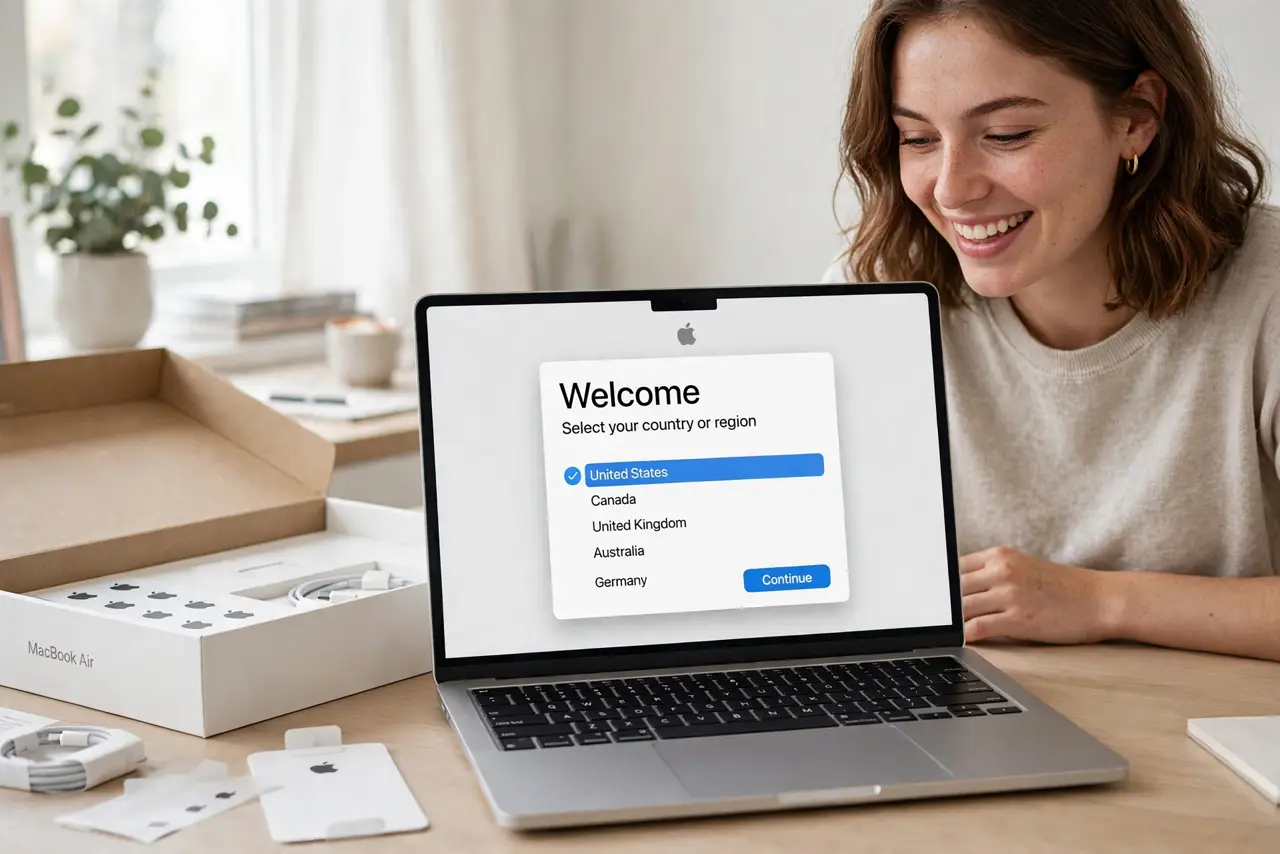
A new Mac is exciting for about ten minutes, then the setup questions start piling up: Apple Account, iCloud, FileVault, migration. The order you do things matters — a calm first hour saves a messy first week. Here is the sequence that gets a Mac set up right the first time, without redoing anything.
TL;DR / Quick Fix
Quick fix: set up a new Mac in this order — Apple Account sign-in, Wi-Fi, software updates, FileVault encryption, then Time Machine backups. Migrate data only after the basics are done. Skipping encryption and backups is the one mistake that actually hurts later.
Follow these steps
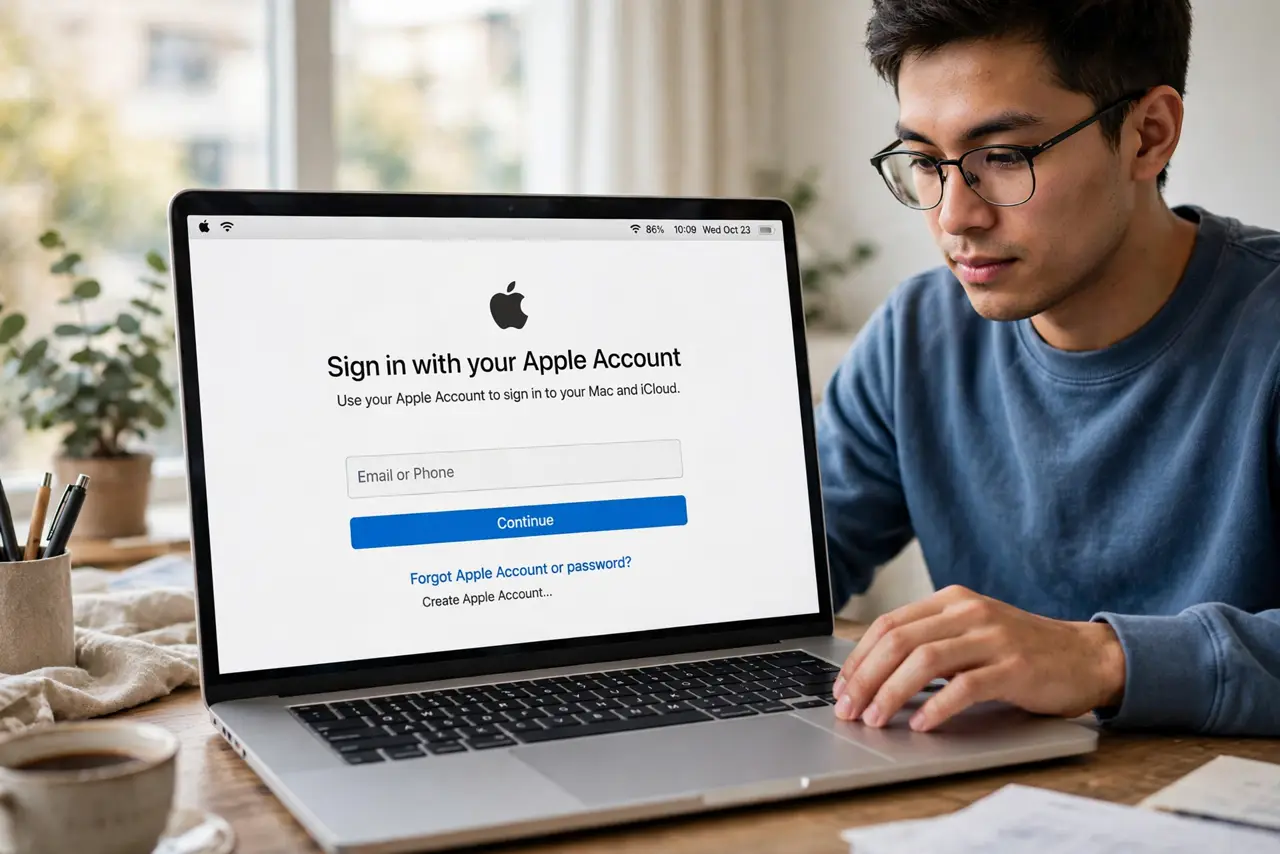
- Sign in with your Apple Account first. Everything — iCloud, the App Store, Messages — hangs off this. Sign in during setup, not later, so services configure themselves.
- Connect Wi-Fi and run software updates. Before anything else, update macOS. Setup-day updates patch bugs and security holes; doing it first means everything after runs on the latest.
- Turn on FileVault. FileVault encrypts your whole drive, so a stolen Mac does not mean stolen data. Enable it in System Settings under Privacy and Security, and save the recovery key.
- Set up Time Machine backups. Plug in an external drive and let macOS offer Time Machine. A backup configured on day one is the difference between an annoyance and a disaster later.
- Migrate your old data — after the basics. Use Migration Assistant once updates, encryption, and backups are done. Migrating first, then changing system settings, causes half the 'weird Mac' stories.
- Install only the apps you actually use. A fresh Mac is a chance to skip the clutter. Install your core apps from the App Store or official sites, and leave the rest behind.
What NOT to do
- Do not skip FileVault because it sounds scary. Encryption is invisible in daily use and protects everything if the Mac is lost.
- Do not postpone backups until 'later.' Later is when the drive fails — set up Time Machine on day one.
- Do not migrate before updating. An old macOS plus migrated settings is the classic recipe for strange behavior.
- Do not sign in with someone else's Apple Account. Untangling a shared account later is far harder than setting up your own now.
Frequently asked questions
Should I use Migration Assistant or start fresh?
Start fresh if your old Mac was slow or messy — you keep only what you need. Use Migration Assistant if you want everything carried over exactly.
Do I need antivirus on a new Mac?
macOS has built-in protections; a third-party antivirus is optional. Keeping macOS updated matters more.
What if setup gets stuck on an update?
Give it time — first updates are large. If it truly stalls, restart; macOS resumes safely.