Checklists in Notes
Your shopping list is a jumble of half-remembered items, and you always forget the one thing you went for. Checklists in Apple Notes turn any list into tappable checkboxes — groceries, packing, tasks — that sync to your iPhone and check off with a satisfying tap.
TL;DR / Quick Fix
Quick fix: in Notes, tap checklist button to turn lines into checkboxes, or select text and format it as a checklist. Tap circles to check items off; checked items sink to the bottom. Share the note to build a list with family. Swipe to indent items under headers for sub-lists.
Follow these steps
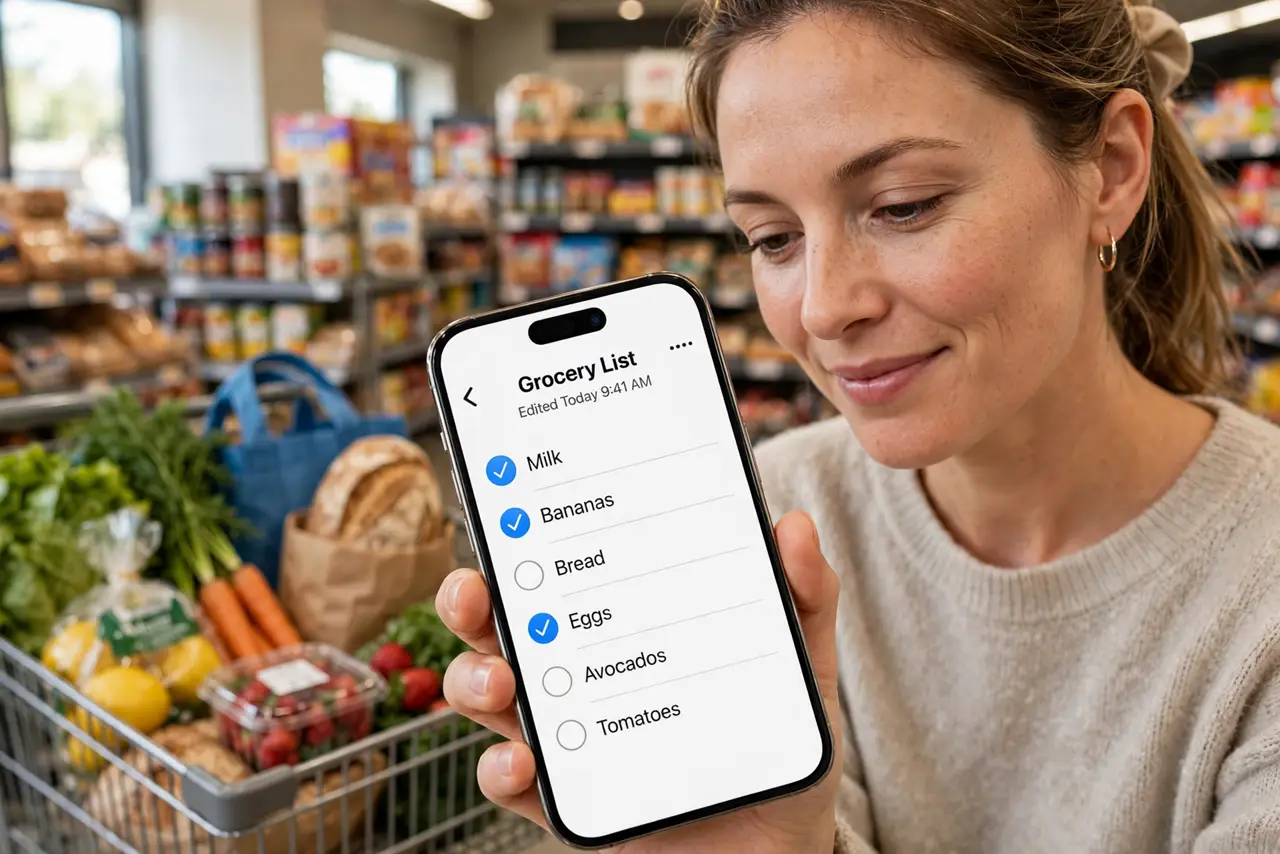
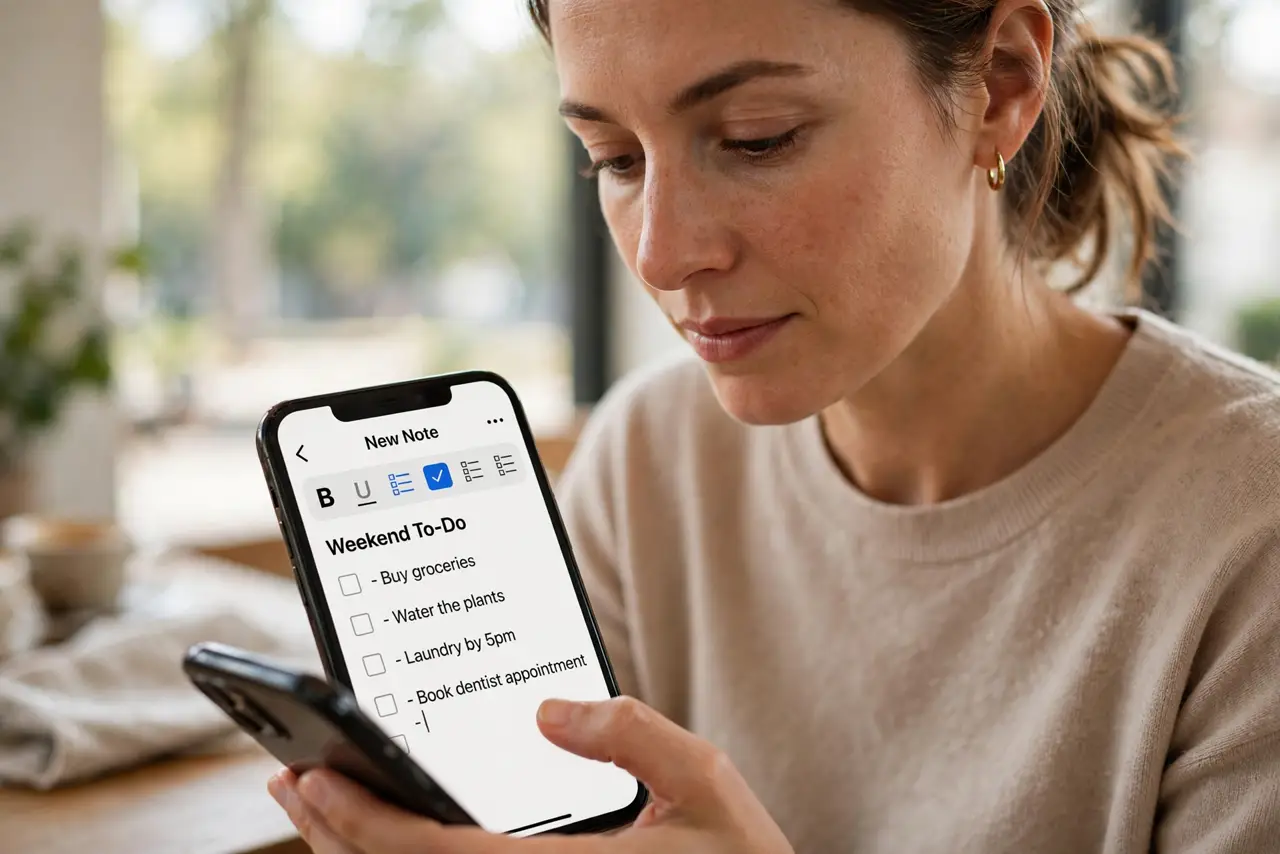
- Create a checklist. Open a note, tap the checklist icon in the toolbar. Every new line becomes a checkbox — type your items one per line.
- Convert existing text. Select plain list text, then choose Format, Checklist. A pasted jumble becomes tappable in one move.
- Check items off. Tap the circle to check an item. Checked items collapse to the bottom so the remaining tasks stay visible.
- Organize with indentation. Swipe right on an item to nest it under a header. Produce, Dairy, Frozen — sub-lists beat one endless column.
- Share the list. Tap Share to collaborate with family. Everyone checks off in real time — no more double-buying milk.
- Level up with tags and folders. For bigger systems, combine checklists with note tags or smart folders to find any list instantly.
What NOT to do
- Do not use checklists for paragraphs. Long sentences in checkbox form are unreadable — keep items short.
- Do not delete checked items immediately. Keep them until the trip ends in case you need to uncheck something.
- Do not share with edit access lightly. Anyone with edit rights can delete the whole list — share view-only when unsure.
- Do not forget checklists sync. A list edited offline merges later — conflicts are rare but possible on flaky connections.
Frequently asked questions
Can I reorder checklist items?
Yes — drag the handle on any item to move it. Checked items can be dragged back up too.
Do checklists work on iPhone?
Fully. Create, check, and share from iPhone or Mac — everything syncs through iCloud.
Can I print a checklist?
Yes, though checked circles print as-is. For a clean paper list, duplicate the note and uncheck all first.