Scan in Notes
Paper piles up — receipts, letters, kids' artwork — and the scanner is in another room. Your iPhone scans documents straight into Apple Notes: point, capture, and the scan lands in the note, searchable and synced. The paper pile finally has an exit strategy.
TL;DR / Quick Fix
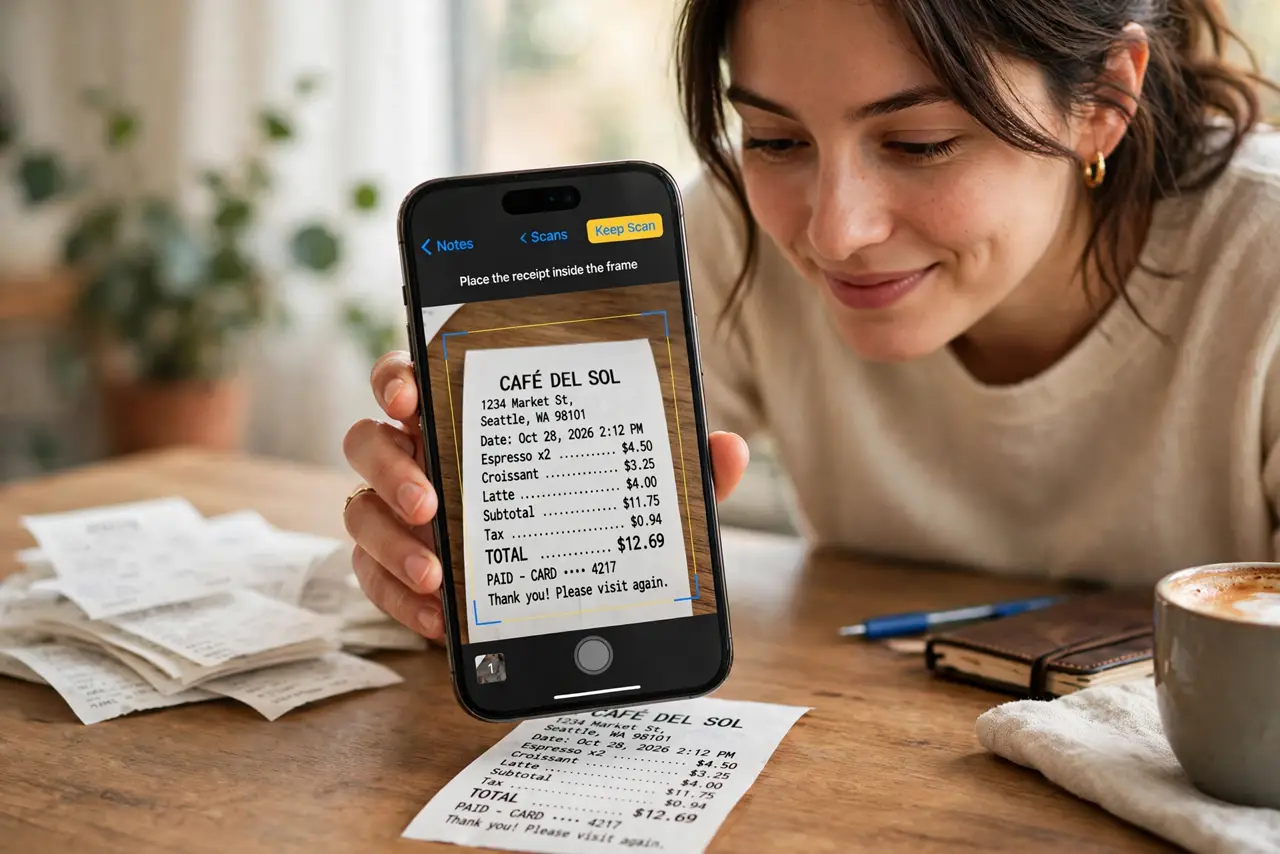
Quick fix: in a note, tap the camera icon and choose Scan Documents. Hold the iPhone over the page — it auto-captures when aligned. Adjust the corners, tap Keep Scan, and save. The scan becomes searchable text via OCR. For multi-page documents, keep scanning pages into the same note.
Follow these steps
- Open a note and tap the camera. In any note, tap the camera icon above the keyboard and choose Scan Documents. The camera opens in scan mode.
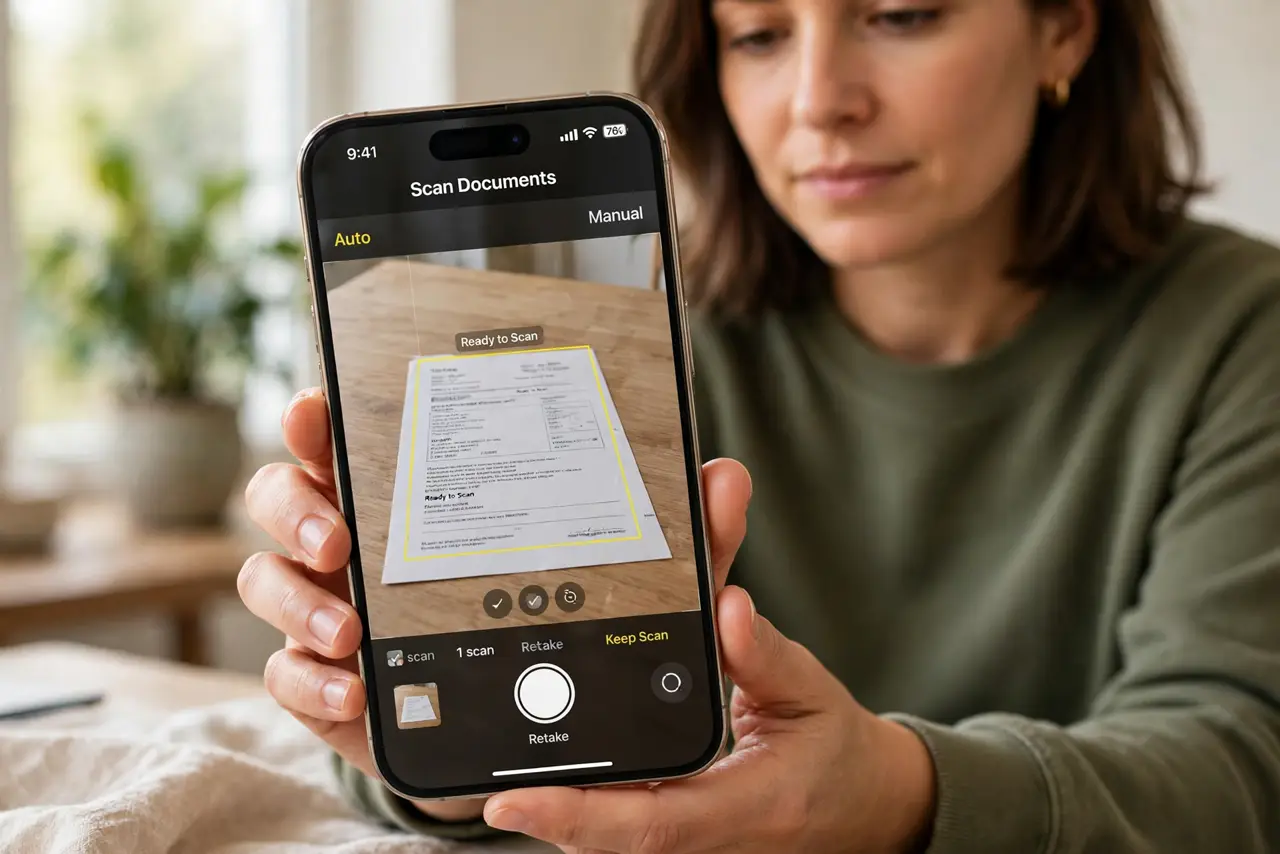
- Position over the page. Hold the iPhone steady over the document. It detects edges and captures automatically — or tap the shutter for manual control.
- Adjust the corners. Drag the corner handles to the page edges. Clean corners mean clean OCR later — see the OCR guide for making scans searchable.
- Keep scanning for multi-page. Tap Keep Scan after each page to continue. A ten-page contract becomes one note, in order.
- Save and name the note. Tap Save, then title the note clearly — Receipt 2026-10 — so future-you can find it.
- Pair with checklists and tags. Scanned receipts plus a checklist make expense reports almost pleasant. Organization turns scans into a system.
What NOT to do
- Do not scan in dim light. Shadows become permanent smudges — scan near a window or lamp.
- Do not forget to check the capture. A blurry auto-capture is worse than no scan — retake fuzzy pages immediately.
- Do not keep the paper forever by default. Once scanned and backed up, most paper can be shredded — check legal retention first.
- Do not scan sensitive documents to shared notes. Shared notes mean shared scans — keep financial scans private.
Frequently asked questions
Where do the scans go?
Into the note as attachments, synced via iCloud to all your devices. Export as PDF anytime.
Is the scan quality good enough?
For documents, yes — crisp text at typical phone resolutions. For photos, use the camera properly instead.
Can I sign a scanned document?
Yes — open the scan and use Markup to sign, then share the signed PDF.