Scan Documents in Apple Notes
The paper form, the receipt, the kid's drawing — all deserve a digital copy, and the scanner in your pocket beats the flatbed you never use. Apple Notes scans documents with auto edge detection, straightening, and multi-page capture. On the Mac, your iPhone does the scanning via Continuity.

TL;DR / Quick Fix
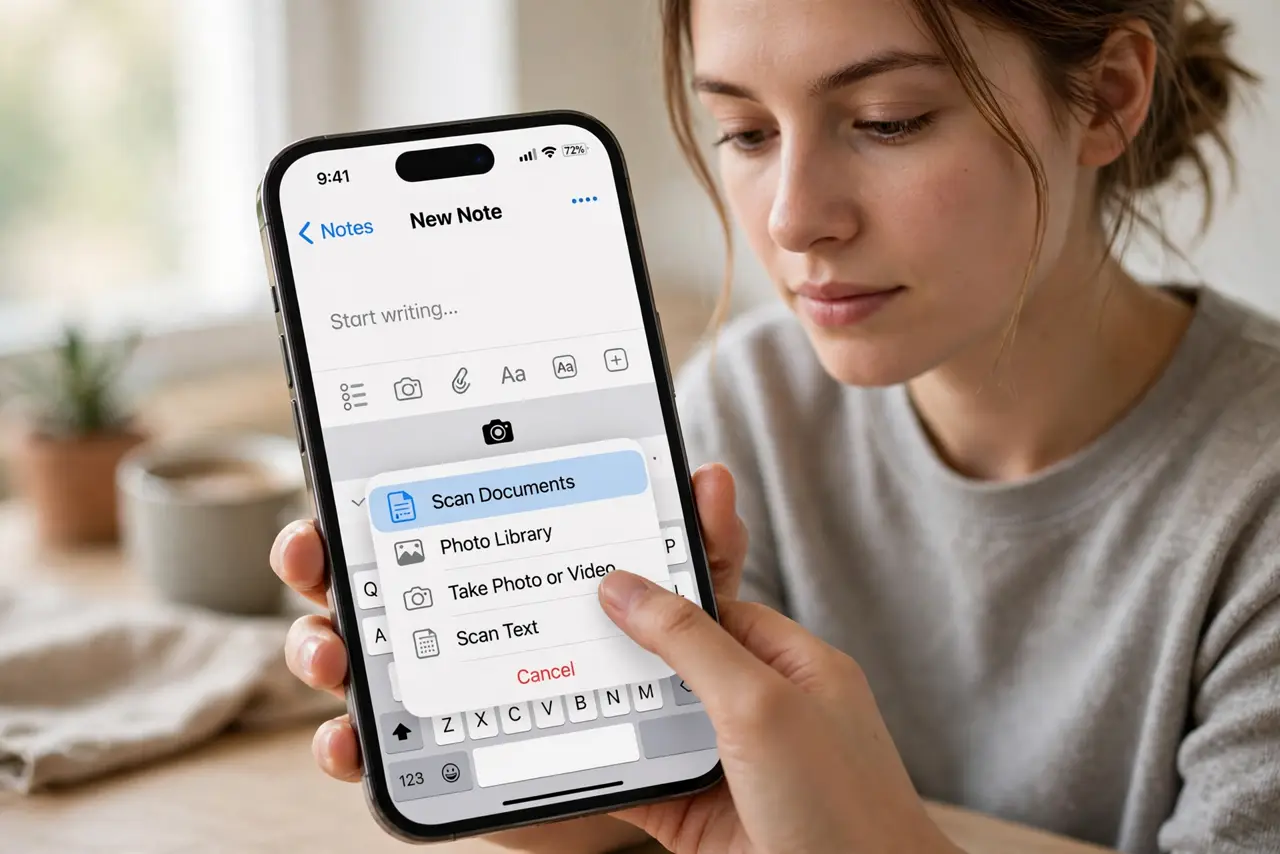
Quick fix: on iPhone, open Notes, start a new note, tap the camera icon, and choose Scan Documents — point, and it captures automatically. On the Mac, choose File > Import from iPhone > Scan Documents with the iPhone nearby, and the scan lands straight in the Mac note.
Follow these steps
- Start a new note on the iPhone. Open Notes, create a note, tap the camera icon above the keyboard, and choose Scan Documents.
- Point at the document. The yellow box finds the edges automatically and captures — or tap the shutter for manual control. It straightens and crops on its own.
- Add pages to one scan. Keep pointing at the next page — Notes stacks them into a single multi-page document. Tap Save when the stack is complete.
- Scan from the Mac via Continuity. On the Mac: File > Import from iPhone > Scan Documents. The iPhone camera opens remotely; scans land directly in the Mac note.
- Keep both devices close and signed in. Continuity needs the same Apple ID, Wi-Fi, and Bluetooth on both. The iPhone must be nearby — same room, not same city.
- Name the note and file it. A scan named 'Scan 47' is lost forever. Rename it immediately and drop it in the right folder — future you says thanks.
What NOT to do
- Do not photograph documents instead of scanning. A photo keeps the perspective warp and shadows; the scanner straightens and cleans.
- Do not scan sensitive documents on a shared note. A shared note syncs to collaborators — keep IDs and contracts private.
- Do not ignore the lighting. Harsh shadows become permanent grey blobs — scan near a window, not under a single bulb.
- Do not forget to save the multi-page stack. Tapping away mid-scan can abandon pages — hit Save before switching apps.
Frequently asked questions
Why is the scan blurry?
Hold still until the capture fires, and wipe the camera lens — a smudged lens is the top cause of soft scans.
Can I scan to PDF?
Yes — share the scanned note and choose a PDF destination, or print the note to PDF from the Mac.
The Mac option says no iPhone found — why?
Continuity requirements: same Apple ID, both radios on, devices near each other. Check all three before retrying.