Copy Text from Scans in Preview
You scanned a document and now you're retyping it because the PDF 'has no text' — but your Mac can probably read it already. Recent macOS versions do Live Text recognition right inside Preview: open the scan, select the words, copy. Here's how to check and what to do when it doesn't work.
TL;DR / Quick Fix
Quick fix: open the scanned PDF in Preview on a recent macOS and try selecting the text — Live Text recognizes printed words automatically. If nothing selects, rescan at 300 DPI with Image Capture and try again. For handwriting or older macOS versions, a dedicated OCR step is still needed.
Follow these steps
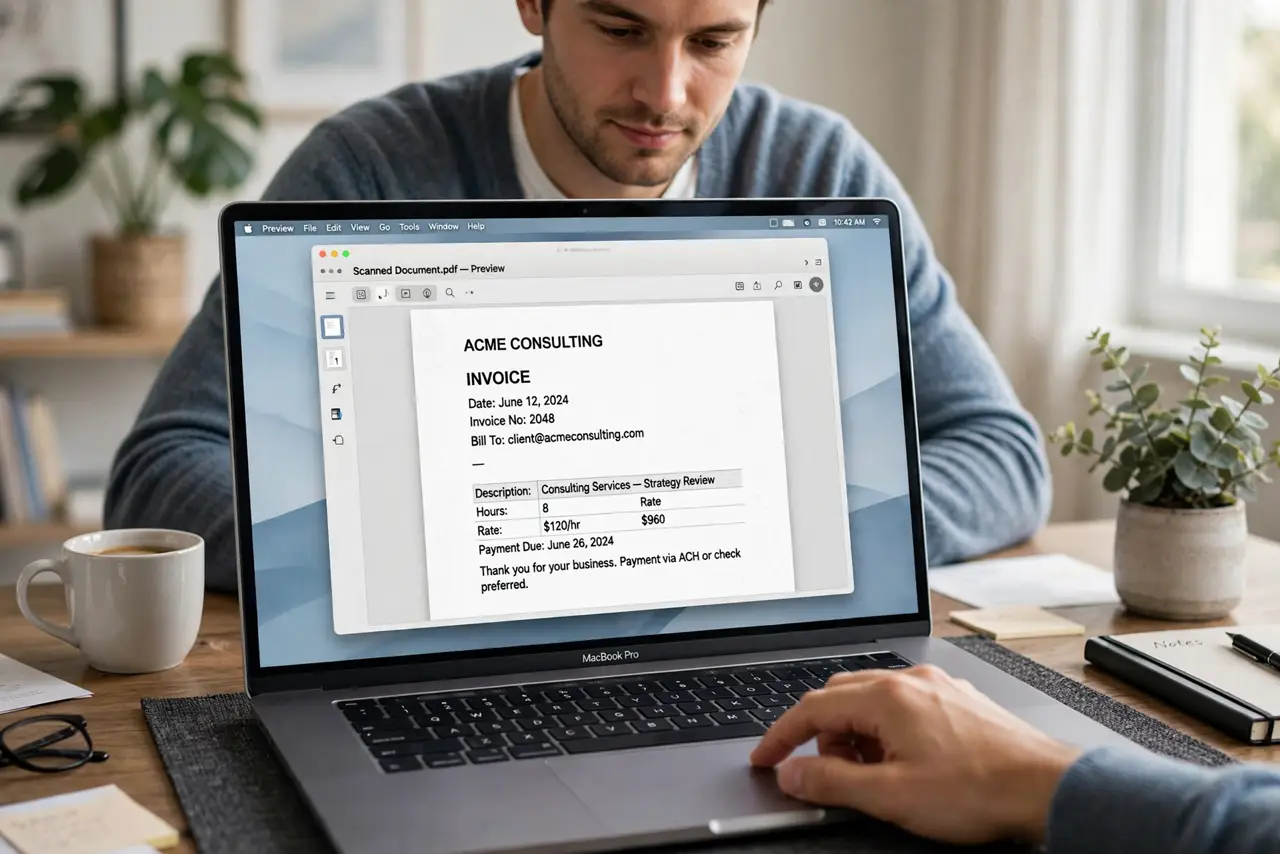
- Open the scanned PDF in Preview. Double-click the scan — it should open in Preview. If another app grabs PDFs, right-click, Open With, Preview.
- Try selecting the text. Click and drag over the words. If they highlight, Live Text already recognized them — copy and paste like any text. That's the whole trick on recent macOS.
- Check your macOS version if it fails. Live Text in Preview needs a recent macOS. If nothing selects and you're on an old version, updating is the fix — or use a dedicated OCR app as a workaround.
- Rescan at 300 DPI with Image Capture. If the scan is too low-resolution, recognition fails. Rescan at 300 DPI using Image Capture — clean input is what OCR needs.
- Mind the language. Live Text recognizes the languages your Mac supports. For non-Latin scripts or unusual fonts, results vary — check before relying on it.
- Use a dedicated OCR step for tough cases. Handwriting, old macOS, or terrible originals need real OCR software. Get the text out once, then you're back to normal copy-paste.
What NOT to do
- Do not retype before checking selectability. Thirty seconds of trying to select saves thirty minutes of typing — check first.
- Do not expect OCR on ancient macOS. Live Text in Preview is a recent feature — old systems need an update or a separate OCR tool.
- Do not scan at tiny resolutions. A 75-DPI scan is unreadable mush to OCR — 300 DPI is the sweet spot for text.
- Do not forget Live Text needs a recent macOS. The feature simply doesn't exist on old versions — that's not a bug, it's a version gap.
Frequently asked questions
Why can't I select text in my scanned PDF?
Either Live Text isn't recognizing it (low-res scan, old macOS) or it's an image-only PDF. Rescan at 300 DPI or update macOS.
Does it work with handwriting?
Poorly — Live Text targets printed text. Handwriting needs dedicated OCR and even then it's unreliable.
Which languages are supported?
The major Latin-script languages work well; coverage varies for others. Test with a sample page before committing to a big job.