Smart Folders in Notes? How To
Tags scattered across hundreds of notes, and you want every #receipt or #project-alpha in one place — without dragging anything. Smart Folders are saved searches: define the filters once, and matching notes gather themselves automatically, forever.

TL;DR / Quick Fix
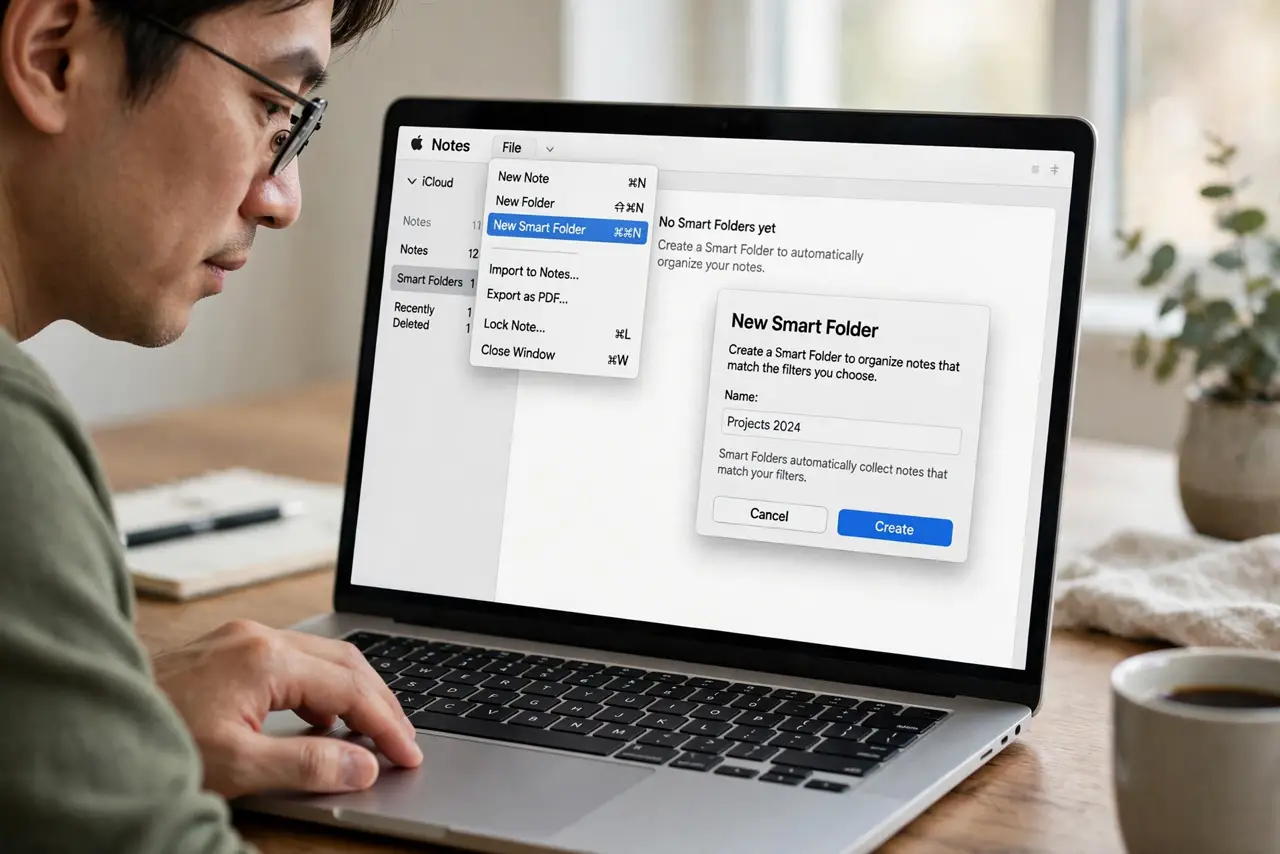
Quick fix: in Notes, choose File > New Smart Folder, name it, and add filters — tags, date created, attachments, checklists. Every note matching the filters appears automatically. Tag notes with #words anywhere in the text to feed the folders.
Follow these steps
- Create the Smart Folder. File > New Smart Folder. Name it for what it collects — 'Receipts 2026', 'Project Alpha', whatever you will recognize.
- Add your filters. Combine rules: tag is #receipt, date created is this year, has attachments. Filters stack with AND logic — all must match.
- Tag notes to feed it. Type #receipt or #project-alpha anywhere in a note's text. Tags are just words with a hash — no special field needed.
- Watch it populate itself. Matching notes appear instantly and stay current. New tagged notes join on their own — no filing, ever.
- Edit the rules any time. Right-click the Smart Folder > Edit. Loosen a filter that is too strict, tighten one that catches strays.
- Use them for [[pinned-note|mac-notes-pin-top]] overflow. When the pinned section overflows, a Smart Folder per project keeps the daily notes findable without pinning twenty things.
What NOT to do
- Do not build a Smart Folder per tag and stop tagging. The folder is only as good as the tagging habit — tag at creation time.
- Do not stack contradictory filters. Tag is #a AND tag is #b on notes that never carry both gives you a beautiful empty folder.
- Do not confuse Smart Folders with regular folders. Smart Folders hold no notes themselves — delete one and the notes stay put.
- Do not nest your whole life in filters. Three to five Smart Folders beat thirty — the rest is just search with extra steps.
Frequently asked questions
What's the difference between a tag and a Smart Folder?
A tag labels a note; a Smart Folder collects notes by rules. Tags are the ingredients, Smart Folders are the recipe.
Can a note be in two Smart Folders?
Yes — if it matches both rule sets. Notes are never 'moved' — they just appear wherever they match.
Do Smart Folders sync to iPhone?
Yes — they sync through iCloud like everything else in Notes.