Use Passkeys in Safari
Websites keep offering 'sign in with passkey' and it sounds like magic — no password to type, just Touch ID. Passkeys really are simpler and safer than passwords: they cannot be phished, guessed, or leaked. Here is how to start using them in Safari on your Mac.
TL;DR / Quick Fix
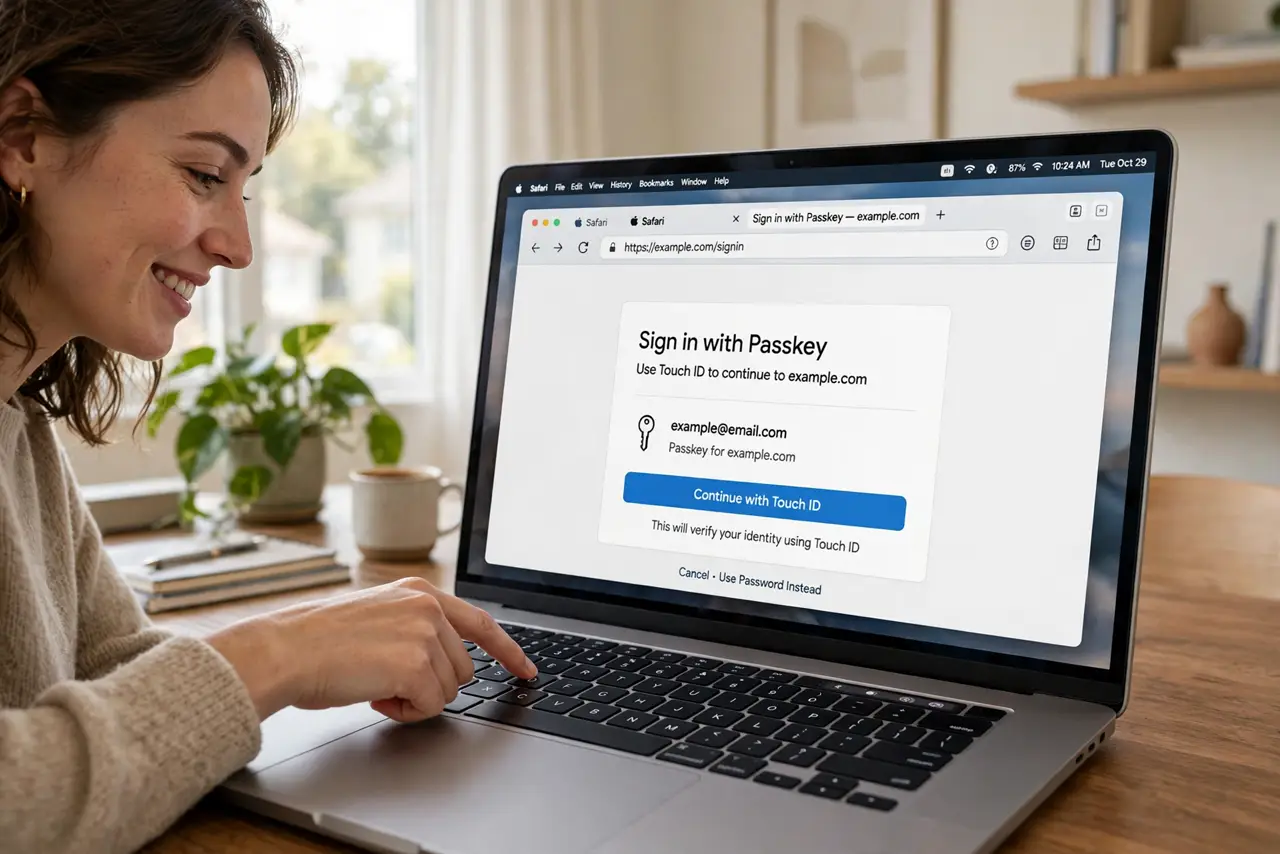
Quick fix: when a site offers to create a passkey, accept — Safari saves it to your Passwords app, unlocked by Touch ID. Next visit, choose sign in with passkey and touch the sensor. Keep iCloud Keychain on so passkeys sync to your iPhone too.
Follow these steps
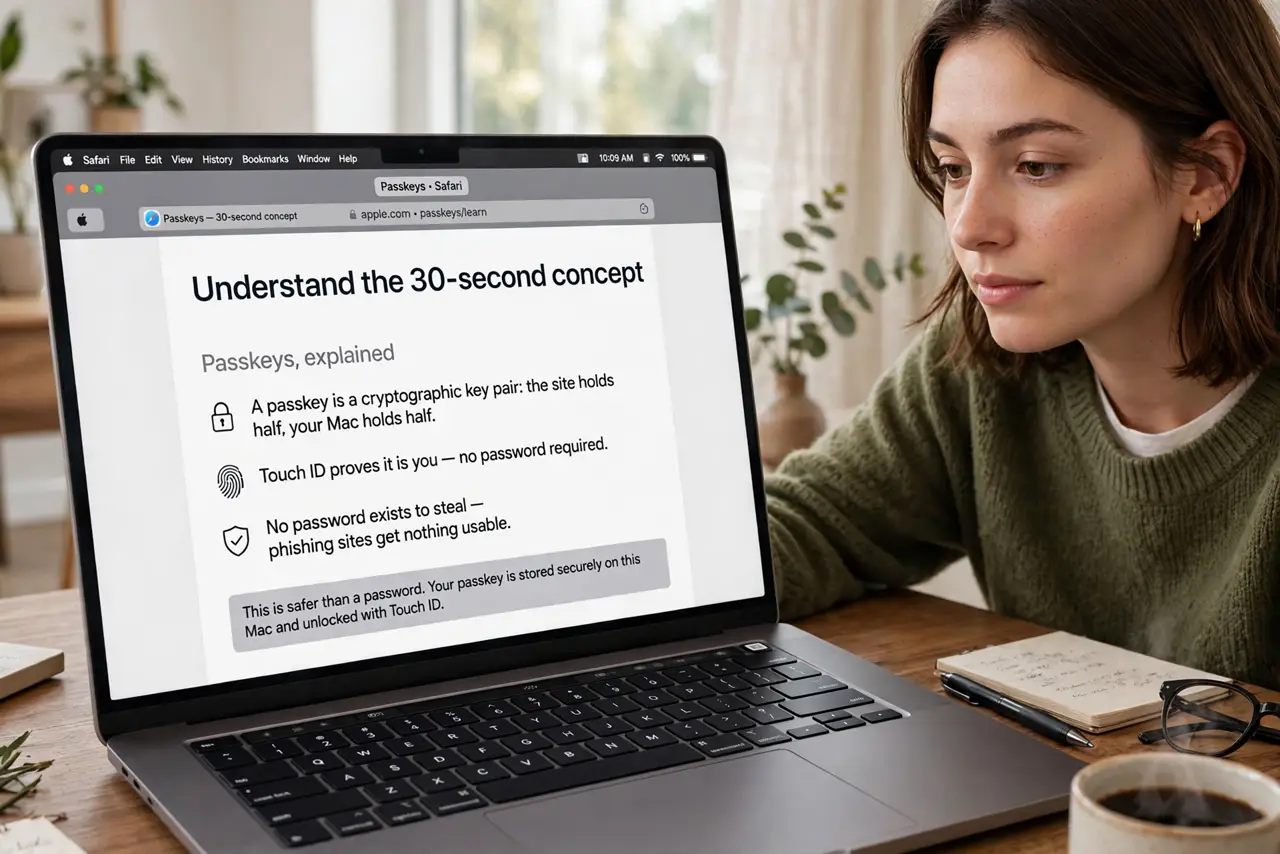
- Understand the 30-second concept. A passkey is a cryptographic key pair: the site holds half, your Mac holds half, and Touch ID proves it is you. No password exists to steal — phishing sites get nothing usable.
- Create a passkey when offered. On supported sites, account settings offer 'Create a passkey.' Accept, authenticate with Touch ID, and Safari stores it in the Passwords app automatically.
- Sign in with Touch ID next time. On return visits, choose the passkey option and touch the sensor. No typing, no codes — the fastest login you have ever used.
- Keep iCloud Keychain on. In System Settings, Apple ID, iCloud, ensure Passwords sync is on. Your passkeys then work on iPhone and iPad too — create once, use everywhere.
- Manage them in the Passwords app. Open Passwords to see which sites use passkeys, delete old ones, and share them with family through shared groups — same vault as your saved passwords.
- Keep a fallback sign-in method. Until passkeys are universal, keep your password and recovery options on each account. If you lose all Apple devices, account recovery — not the passkey — is your way back in.
What NOT to do
- Do not delete your password before the passkey works. Confirm passkey sign-in succeeds twice before removing the old password.
- Do not turn off iCloud Keychain casually. Your passkeys live there — disabling sync strands them on one device.
- Do not expect every site to offer passkeys. Adoption is growing but uneven — passwords remain the fallback for most of the web.
- Do not share passkeys by screenshot. They cannot be screenshotted usefully anyway — use the Passwords app's proper sharing instead.
Frequently asked questions
Are passkeys really safer than passwords?
Yes — there is nothing to phish, guess, or leak. The private key never leaves your device, and each passkey only works on its real site.
What if I switch to Android or Windows?
Passkeys sync through iCloud; cross-platform use works via QR-code sign-in on other devices. The ecosystem is converging, with some friction remaining.
Can someone steal my passkey?
They would need your unlocked device plus your biometrics — far harder than stealing a password from a breach database.