Import to Passwords App
Your passwords live in Chrome, but Safari and your iPhone use Apple's Passwords app — and retyping hundreds of logins by hand is not happening. The Passwords app can import them all from a Chrome export in minutes. Here is the safe way to move everything without leaving plain-text passwords lying around.
TL;DR / Quick Fix
Quick fix: on Mac, open the Passwords app, look for the import option, and bring in the CSV file you exported from Chrome — your logins land in iCloud Keychain. Delete the CSV file afterward since it holds plain-text passwords. Turn on iCloud Keychain sync to use them everywhere.
Follow these steps
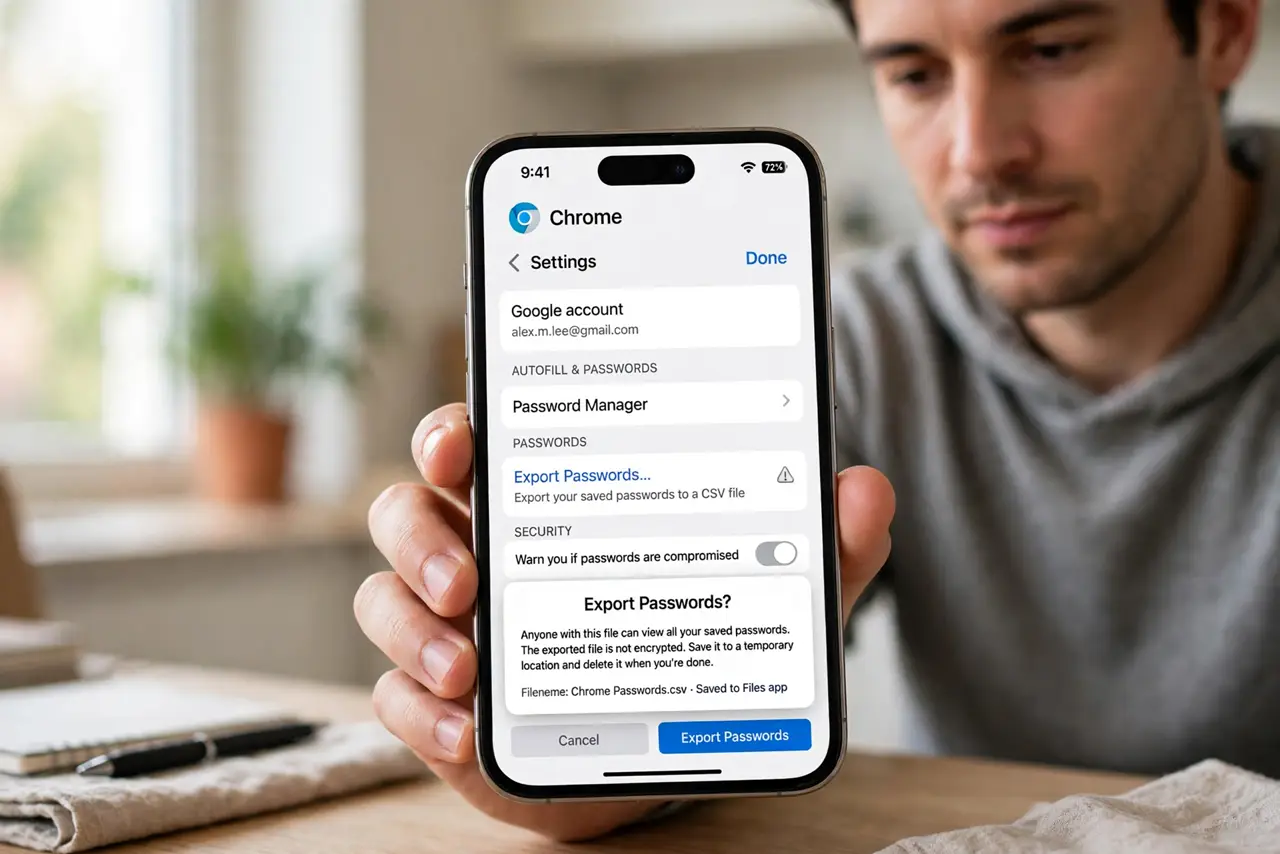
- Export from Chrome. In Chrome settings, Passwords, export your passwords to a CSV file. Save it somewhere temporary — you will delete it in a few minutes. Learn the Passwords app basics if you have never opened it.
- Open the Passwords app. Find Passwords in Applications or Launchpad and unlock it with Touch ID or your Mac password. This is the vault everything moves into.
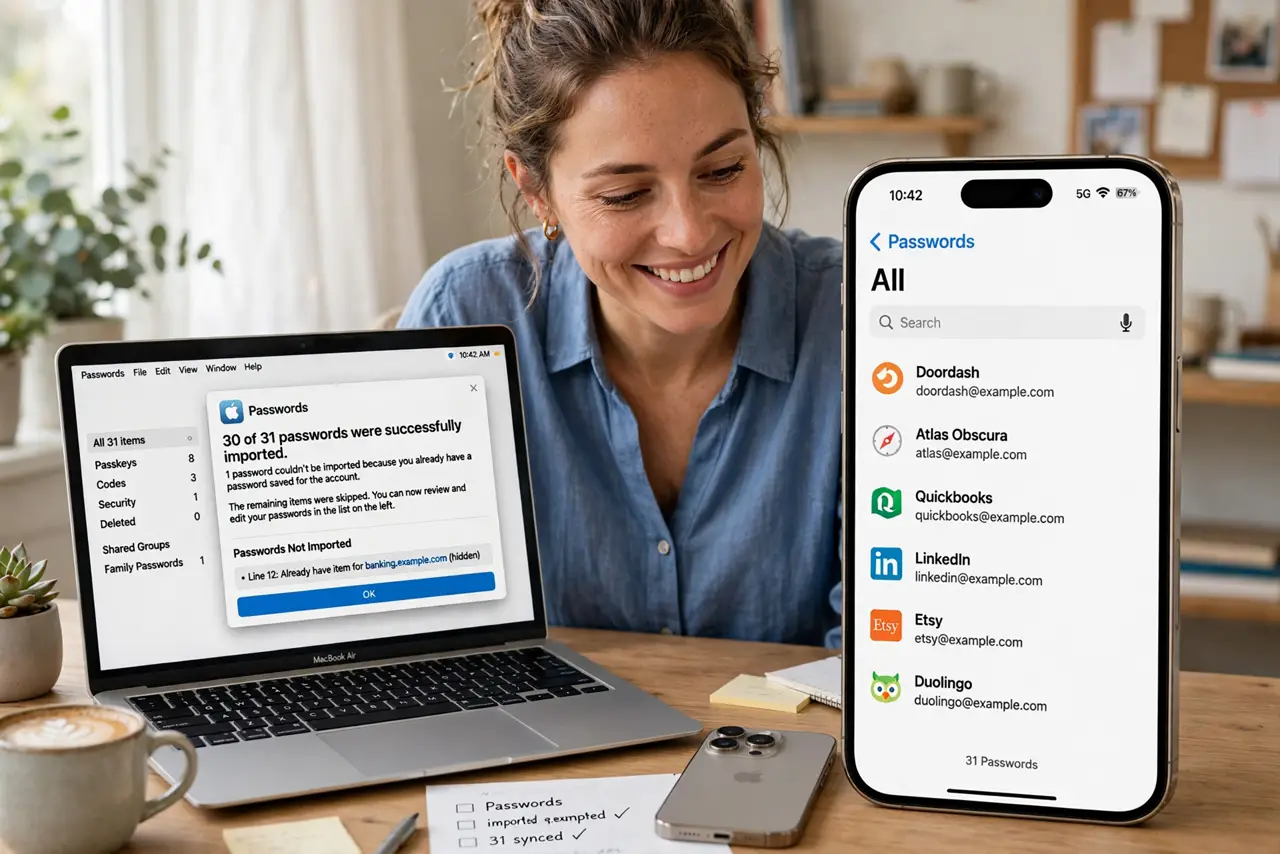
- Import the CSV. Use the app's import option and select the Chrome CSV. The app pulls in every login — usernames, passwords, and sites — in one pass.
- Verify a few logins. Spot-check three or four important sites — open them and confirm the entries look right. Imports are reliable, but a glance beats a surprise later.
- Delete the CSV file. This is the critical step: the CSV holds every password in plain text. Delete it, then empty the Trash. Do not skip this.
- Turn on iCloud Keychain sync. In System Settings, your name, iCloud, Passwords, enable sync. Your imported logins now flow to iPhone and iPad automatically.
What NOT to do
- Do not leave the CSV file on your disk. It is every password in plain text — delete it and empty the Trash immediately after import.
- Do not email the CSV to yourself. Email is not a secure transport for a file containing all your passwords — export and import on the same Mac.
- Do not skip the verification. A quick spot-check of a few logins catches the rare garbled import before it matters.
- Do not forget to remove them from Chrome after. Two password managers means confusion — clear Chrome's saved passwords once the import is verified.
Frequently asked questions
Is importing safe?
Yes, done on your own Mac — the passwords never leave your computer during import. The danger is only the temporary CSV file, which you delete.
What about two-factor codes?
Chrome exports passwords, not authenticator seeds. Move two-factor separately — most sites let you re-enroll the new device.
Will duplicates be created?
The app usually merges or flags duplicates. A quick cleanup pass after import handles any stragglers.