The Podcasts App? Basics
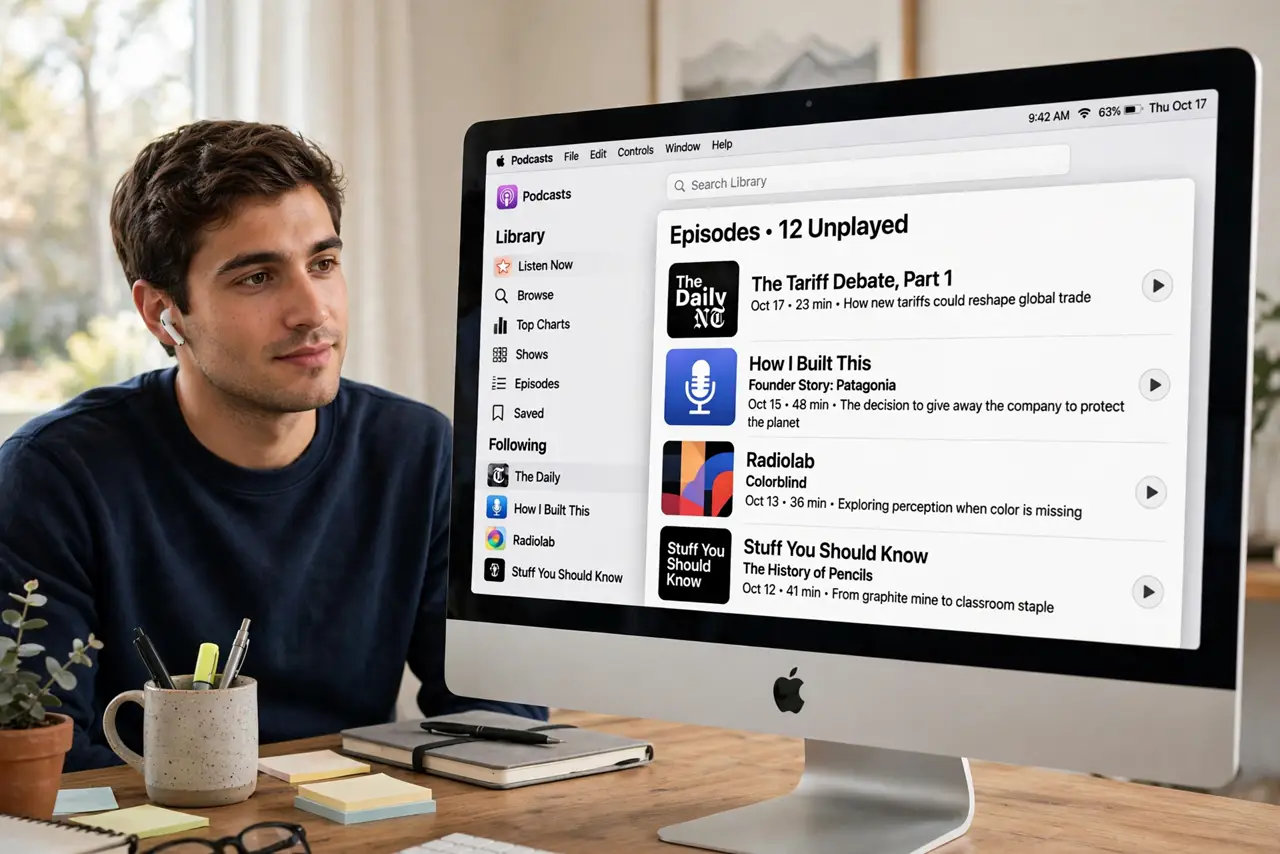
The Podcasts app on Mac is Apple's built-in way to listen to shows — no subscription needed, and it syncs with your iPhone. If you have never opened it, the library, downloads, and playback speed controls are worth two minutes of setup. Episodes can pile up and eat storage though, so the download settings matter. Here is the plain tour.
TL;DR / Quick Fix
Quick fix: open the Podcasts app on your Mac and sign in with your Apple ID to sync with your iPhone. Search for a show, click Follow, and new episodes appear automatically. In Settings, limit downloads to recent episodes so old ones do not fill your drive.
Follow these steps
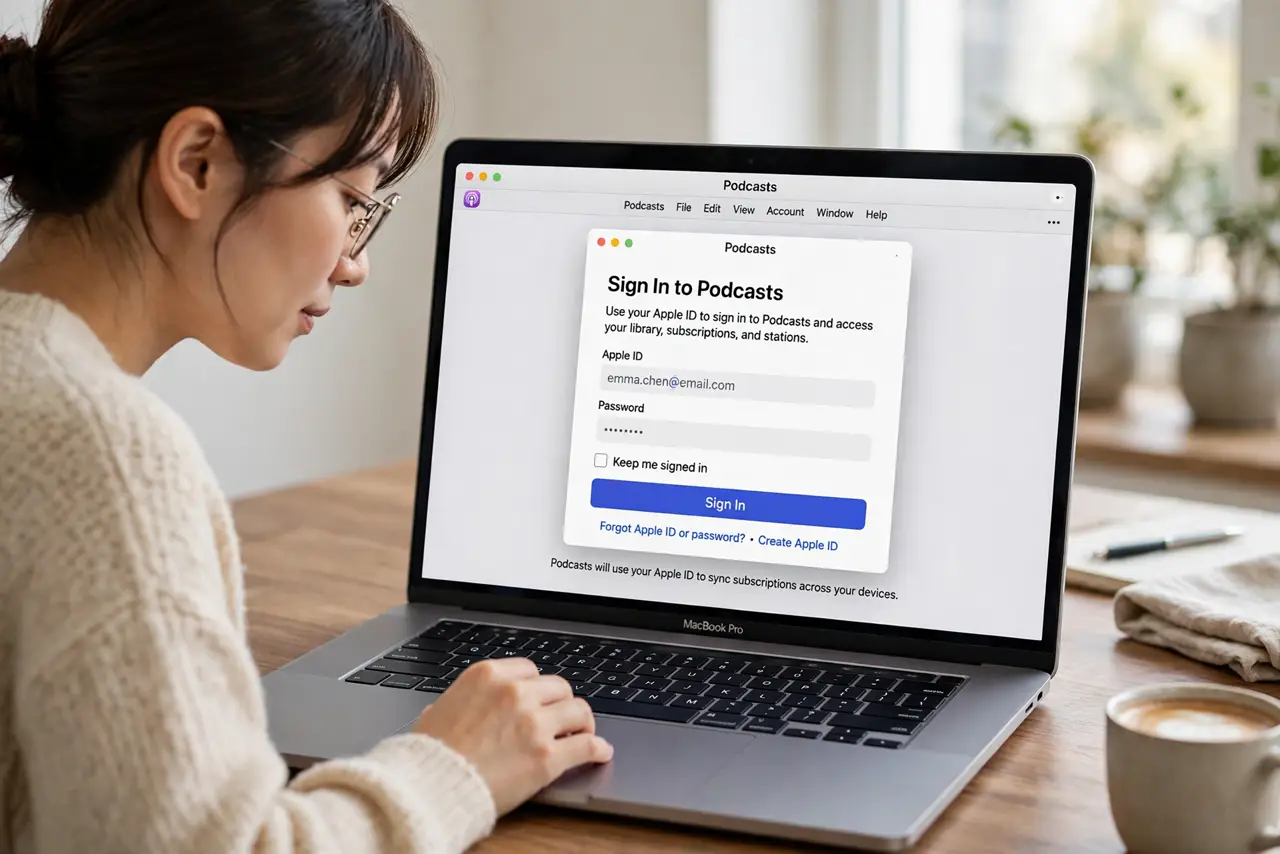
- Open the app and sign in. Find Podcasts in your Applications folder or Launchpad and open it. Sign in with your Apple ID so follows and playback position sync with your iPhone. Without sign-in, each device lives its own life.
- Find and follow a show. Use the search field or browse the categories. Click a show, then click Follow — new episodes download or stream automatically from then on. Following is free and you can unfollow anytime.
- Set download limits. Open Podcasts, Settings, and look at download options. Limit downloads to the most recent few episodes so the library does not silently grow to tens of gigabytes. Streaming an episode uses no permanent storage.
- Learn the playback controls. The mini-player shows play, skip back 15 seconds, skip forward 30, and playback speed. Long-press or right-click the speed button for fine control — 1.25x is the sweet spot many listeners settle on.
- Manage storage when it grows. If Podcasts eats disk space, open Settings and remove played episodes automatically. You can also delete downloads show by show without unfollowing — the episodes stay listed, just not stored.
- Sync with your iPhone. With the same Apple ID on both devices, an episode paused on the Mac resumes on the iPhone. Check iCloud sync is on in the app's settings if handoff is not working.
What NOT to do
- Do not download every episode of a long show. Hundreds of episodes can swallow your drive — limit downloads to recent ones.
- Do not ignore the storage settings. The app never asks before downloading, so check the limits once and forget about it.
- Do not confuse Follow with a subscription. Following is free; some shows sell premium subscriptions inside, which are optional.
- Do not delete the app to free space. Removing downloads in Settings frees the same space without losing your library.
Frequently asked questions
Is the Podcasts app free?
Yes — listening to podcasts is free. Some shows offer optional paid subscriptions for bonus episodes, but the vast majority cost nothing.
Why is the Podcasts app using so much storage?
Automatic downloads of every new episode add up. Open Settings and limit downloads to recent episodes, and enable removing played episodes.
Can I listen on my iPhone where I left off on Mac?
Yes, with the same Apple ID signed in on both and sync enabled. Playback position follows you between devices.