Present with Yourself on Screen
You share your screen on a call and vanish — just a disembodied voice over slides, while your expressions and gestures, half the communication, disappear. macOS presenter overlay fixes this: your face appears in a movable bubble (or large, beside your content) over the shared screen, so the audience sees you and the material together. It works in FaceTime, Zoom, Teams, and Meet — no app support needed.

TL;DR / Quick Fix
Quick fix: presenter overlay puts your face in a bubble over your shared screen — enable it from the video icon in the menu bar, choosing large or small. It works in Zoom and Teams too. Park the bubble away from key content, and check framing before the meeting starts.
Follow these steps
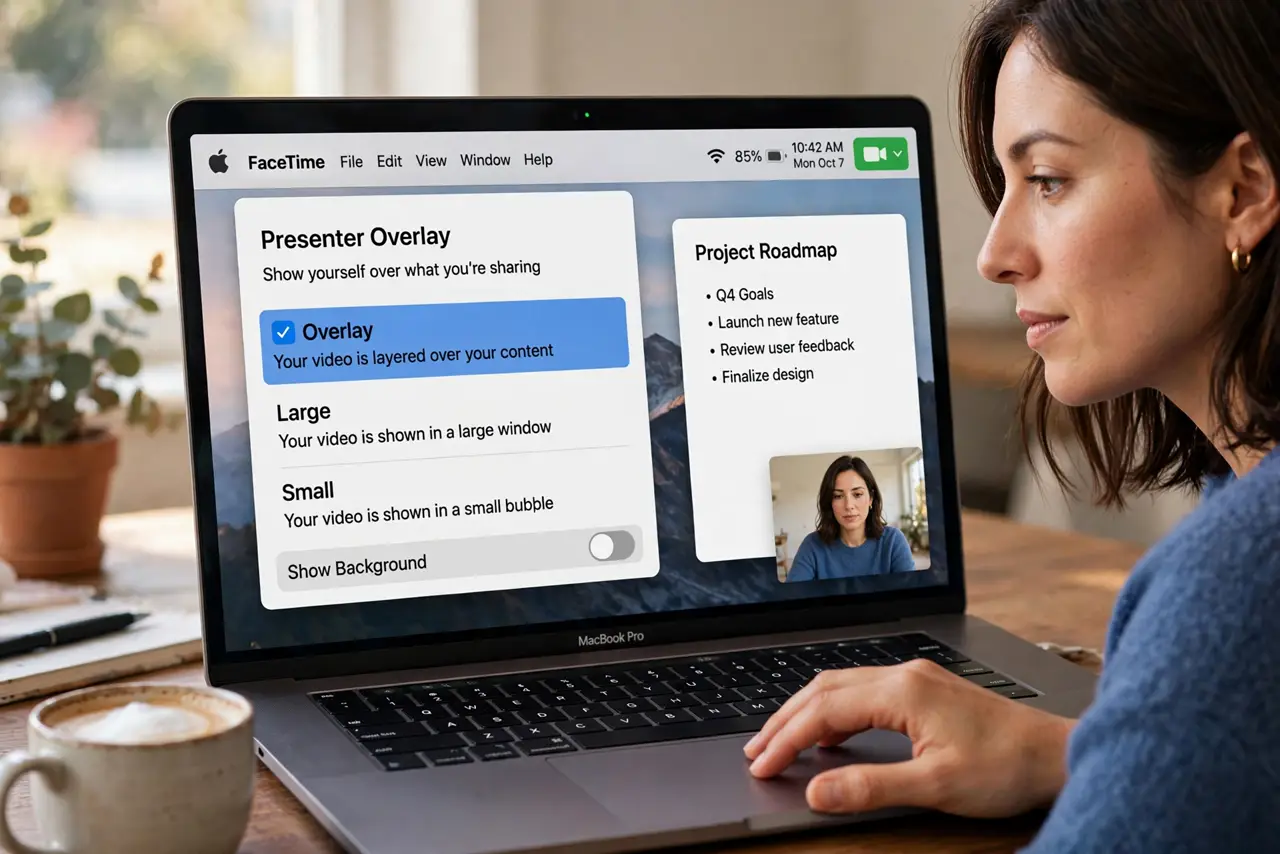
- Find the overlay control. During any video call, click the video/FaceTime icon in the menu bar — the one that appears when your camera is active. Presenter Overlay sits there with Small and Large options. It works system-wide, in any calling app.
- Choose small or large. Small puts your face in a movable circle — good for slides where content is king. Large places you beside your shared screen, desk-newscaster style — better for demos where your reactions matter. Try both; the audience experience differs a lot.
- Share your screen, then position the bubble. Start screen sharing, then drag the overlay bubble where it covers nothing important — a corner, over a margin. Check the shared view (not just your view) to confirm placement; what you see and what they see can differ.
- Mind your background and framing. The overlay crops to your face and shoulders — tidy the visible background and frame yourself with headroom. A floating head over slides draws eyes; make sure it draws them well.
- Turn off Reactions first. Hand gestures triggering fireworks over your professional overlay is a special kind of chaos — disable FaceTime Reactions before presenting. Overlay for polish, reactions off for dignity.
- Rehearse once. Do a one-minute test recording or a call with a friend. Overlay, bubble position, audio, screen content — the rehearsal catches the bubble-over-the-key-chart problem before the client does.
What NOT to do
- Do not park the bubble over key content. The number you are explaining is always under the bubble — check the audience's view, not yours.
- Do not use Large overlay for dense slides. Large steals screen real estate; dense content plus large presenter equals nothing readable.
- Do not forget it is still your camera. The overlay does not hide a messy room — it spotlights you. Background check still applies.
- Do not enable it mid-sentence without warning. A face suddenly appearing over the deck startles people — set it up before you share, or announce it.
Frequently asked questions
Does it work in Zoom and Teams?
Yes — it is a macOS system feature, not an app feature. Any app using the camera gets the overlay; the app does not need to support anything.
Can the audience move my bubble?
No — only you control position and size. But they see exactly where you put it, so place it thoughtfully.
Does it record in meeting recordings?
The overlay is part of your video feed, so yes — recordings capture what the audience saw, bubble included.