Keep Awake With the Lid Closed
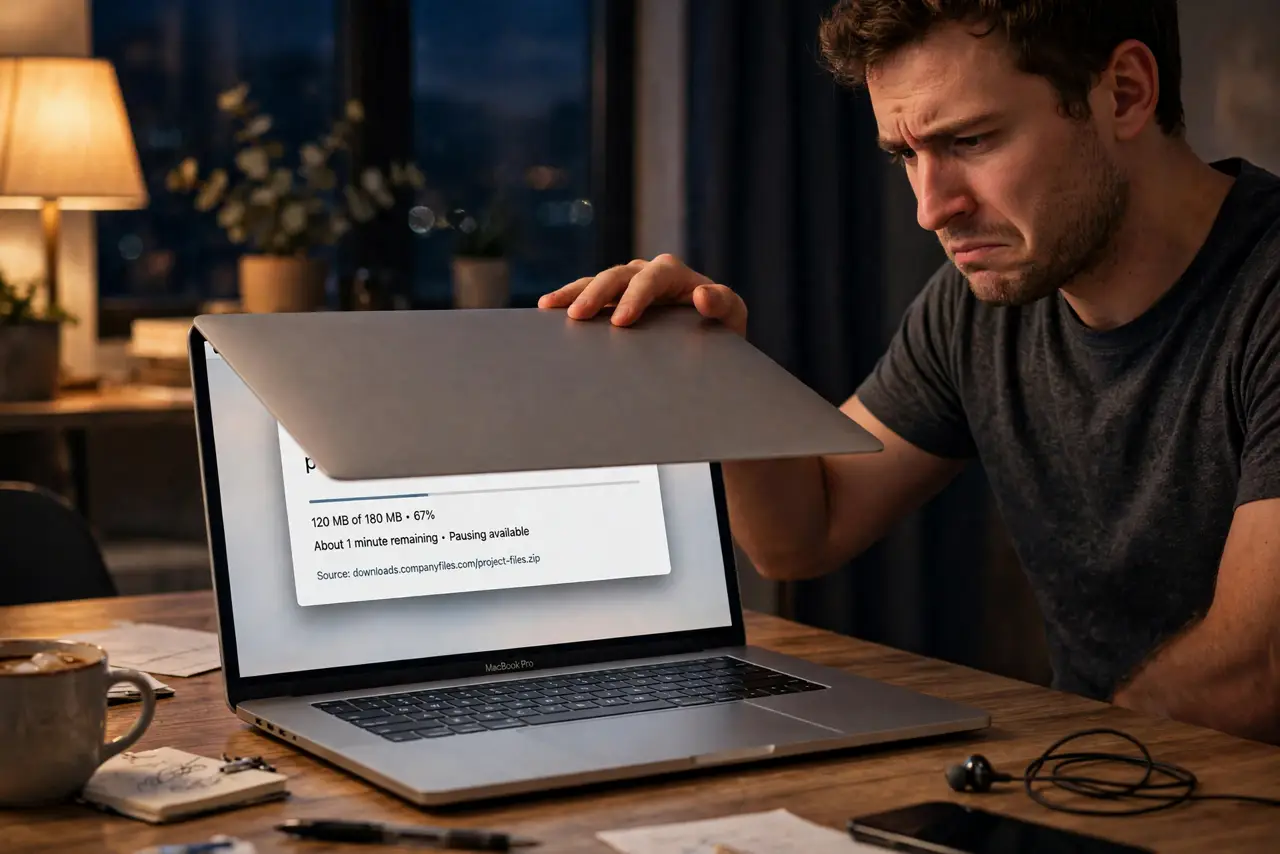
You close the MacBook lid and a download dies, a call drops, or a render stops halfway. macOS sleeps a closed MacBook by design — and on battery, nothing overrides that. But with the right setup, a closed Mac can keep working all night. Here is what actually works and what does not.
TL;DR / Quick Fix
Quick fix: a MacBook with the lid closed sleeps unless the charger and an external display are connected — that is clamshell mode. For lid-open use, go to System Settings, Battery, and set Prevent automatic sleeping when the display is off. Lid-closed use without a monitor needs a third-party utility.
Follow these steps
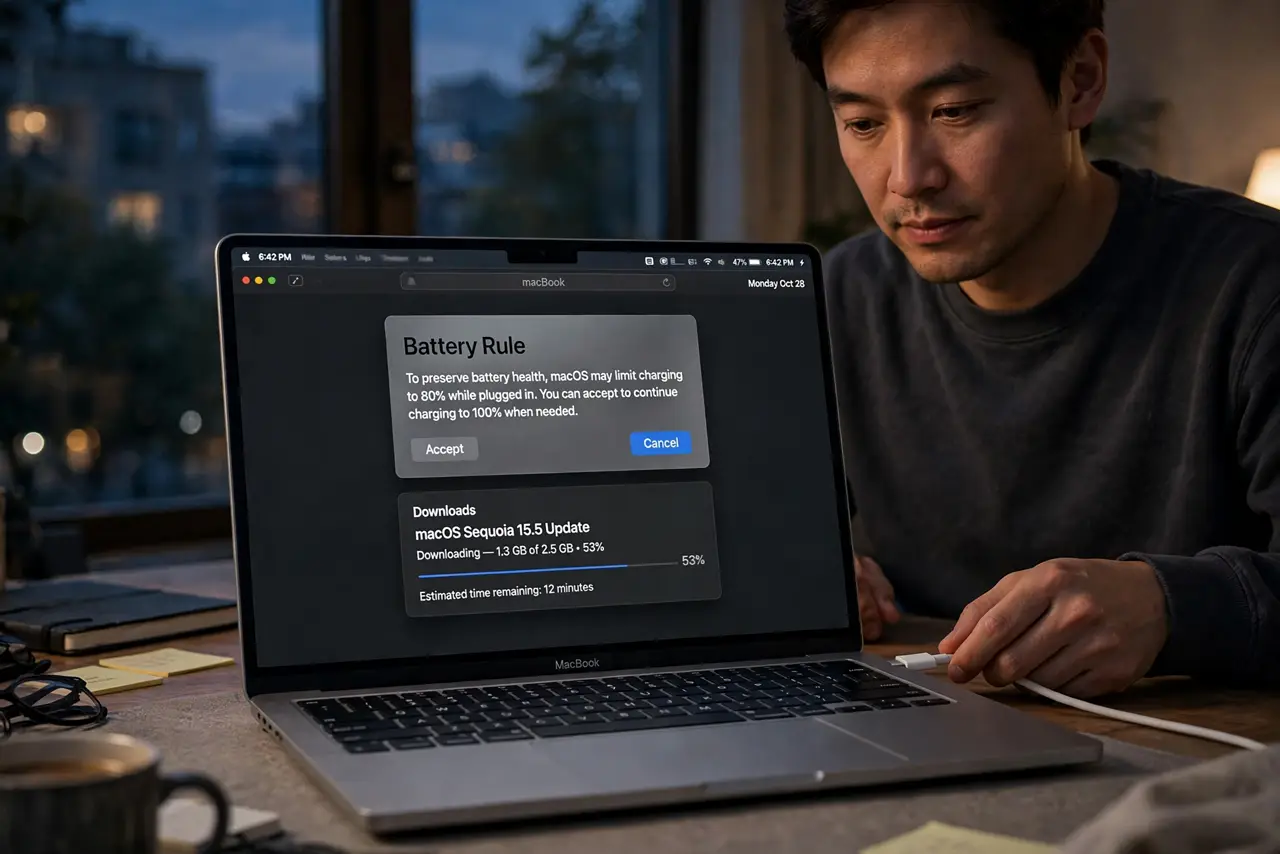
- Accept the battery rule. On battery power, a closed lid always means sleep. This is hardware-level behavior — no setting changes it. Plug in the charger first.
- Use clamshell mode for a closed lid. Charger plus external display plus keyboard or mouse keeps the Mac fully awake with the lid shut — see the full clamshell guide.
- Stop lid-open sleep in Battery settings. In System Settings, under Battery, set the Mac to prevent automatic sleeping when the display is off. Downloads and renders now survive a dark screen.
- Separate display sleep from system sleep. Letting the display sleep saves power; letting the system sleep kills tasks. Configure them independently — display can rest while the Mac works.
- Use a third-party utility for lid-closed server duty. Apps that assert 'no sleep' can keep a closed, plugged-in Mac awake without a monitor. Only go this route if you understand the heat implications.
- Check what woke or slept the Mac. If sleep still interrupts tasks, something else is triggering it — a schedule, a hot corner, or Low Power settings. Audit each one.
What NOT to do
- Do not expect any setting to beat the battery rule. Lid closed plus no charger equals sleep — always.
- Do not run a closed Mac in a bag. Without airflow, a kept-awake MacBook overheats fast — ventilate it or leave the lid open.
- Do not install a 'no sleep' utility and forget it. A Mac that never sleeps drains and heats — use these tools for specific tasks, then quit them.
- Do not confuse display sleep with system sleep. A dark screen is fine; a sleeping system is what kills your download.
Frequently asked questions
Can I download overnight with the lid closed?
Only plugged in, and only with clamshell mode or a no-sleep utility. On battery, the answer is no — close the lid and it sleeps.
Why did my render stop when I closed the lid?
Closing the lid slept the system, pausing all processes. Prevent display-off sleep for lid-open work, or use clamshell for lid-closed.
Is it bad to never let the Mac sleep?
Occasional all-nighters are fine. Weeks without sleep can cause memory bloat and missed maintenance — restart weekly.