Screenshots Copy Instead of Saving? Fix It
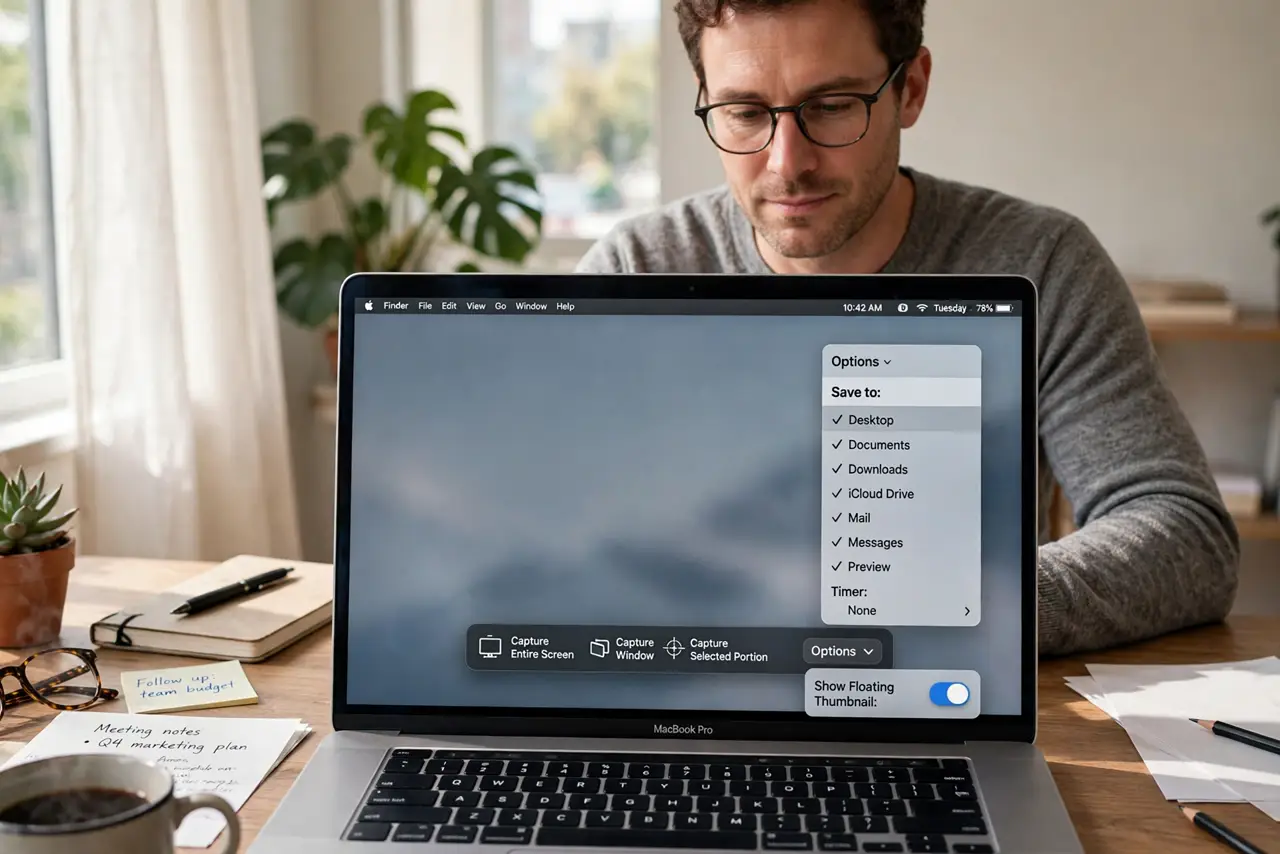
When screenshots copy instead of saving, pressing the screenshot keys puts the image on the clipboard, but no file appears on the desktop or in your folder. The destination setting changed, often to Clipboard, so the fix is to change it back to a folder in the screenshot options.
TL;DR / Quick Fix
Quick fix: press Shift, Command, and 5 to open screenshot options, click Options, and set Save to Desktop or your chosen folder, instead of Clipboard. Take a test screenshot and confirm a file appears in that folder right away after you capture it.
Follow these steps
- Open screenshot options. Press Shift, Command, and 5. The screenshot toolbar appears, with an Options button that controls where captures go.
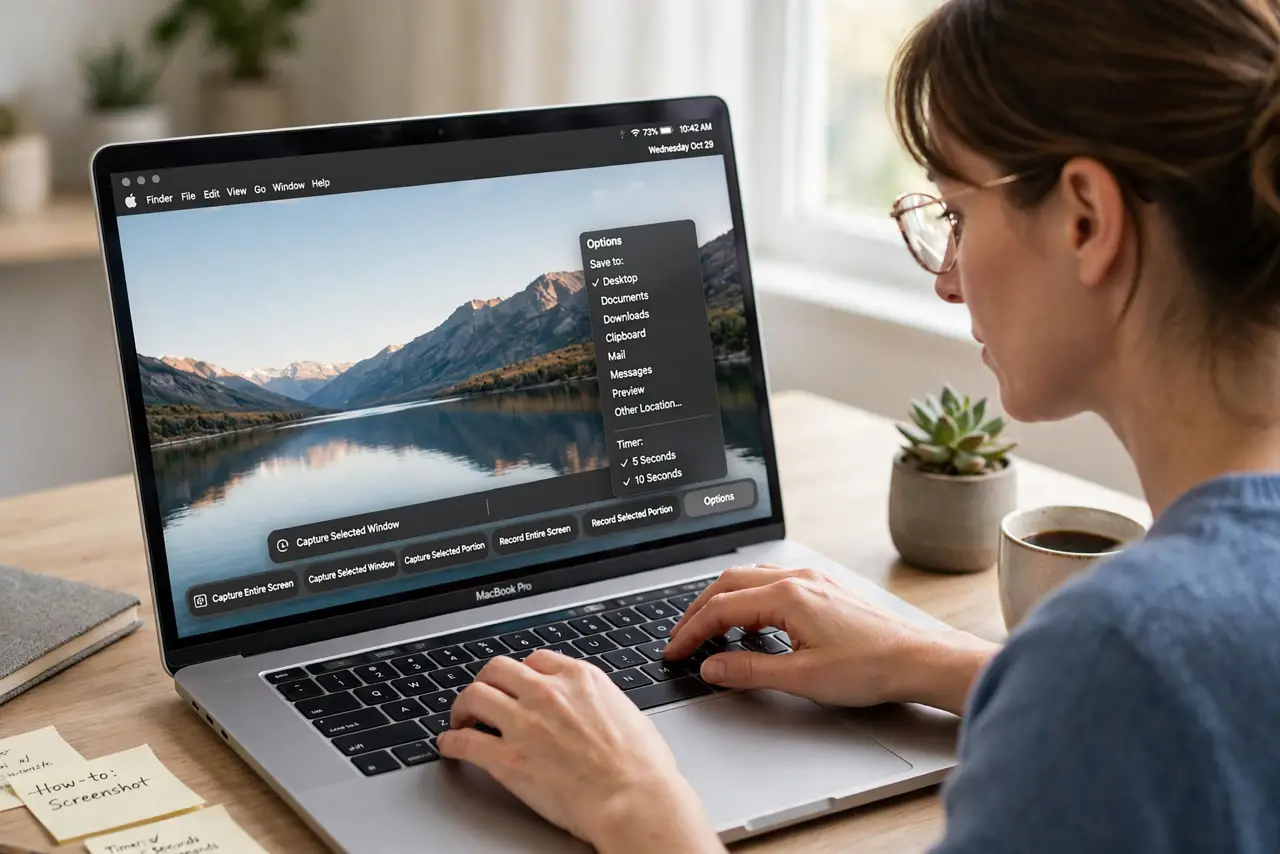
- Set Save to a folder. Click Options, then under Save to, choose Desktop or the folder you prefer. Do not choose Clipboard if you want files, because Clipboard holds the image only in memory.
- Take a test screenshot. Capture a small part of the screen and check the chosen folder at once. A file should appear there within a second or two.
- Check the clipboard shortcut too. Remember that Control plus Shift, Command, and 4 copies to the clipboard on purpose. If you used that combination, the copy behavior was intentional, not a fault.
- Check third-party screenshot tools. If you use another screenshot tool, check its own save setting. A third-party tool can override the built-in destination, even when the built-in options look correct.
- Restart the screenshot tool if needed. If the setting looks right but captures still copy, restart the Mac or quit the third-party tool, then take another test screenshot.
What NOT to do
- Do not keep pasting screenshots into documents to save them. Pasting works once, but it is slow, and a folder destination saves every capture automatically.
- Do not delete screenshots from the clipboard expecting a file to appear. The clipboard holds only the latest copy, and no file is created until you paste it somewhere.
- Do not reinstall macOS because screenshots copy. The destination is a single option in the screenshot toolbar, and reinstalling is far out of proportion.
- Do not set Save to a folder you cannot find. Choose Desktop or a folder you open often, so test screenshots are easy to confirm.
Frequently asked questions
Why did screenshots suddenly start copying?
Because the Save to destination changed to Clipboard, often after using a clipboard shortcut or a third-party tool. Changing it back to a folder restores files.
What is the difference between copy and save?
Copy puts the image on the clipboard for one paste. Save writes a file to a folder, which you can open, rename, and share later.
Can I have both a file and a clipboard copy?
Yes, in many setups. Set Save to a folder, and use the clipboard shortcut only when you want a copy for an immediate paste.