Merge PDFs in Preview
Two PDFs that belong together — the report and its appendix, the form and its cover letter. Preview merges them with drag and drop: thumbnails sidebar open, drag pages in, save. No website upload, no sketchy free tool, no watermark.
TL;DR / Quick Fix
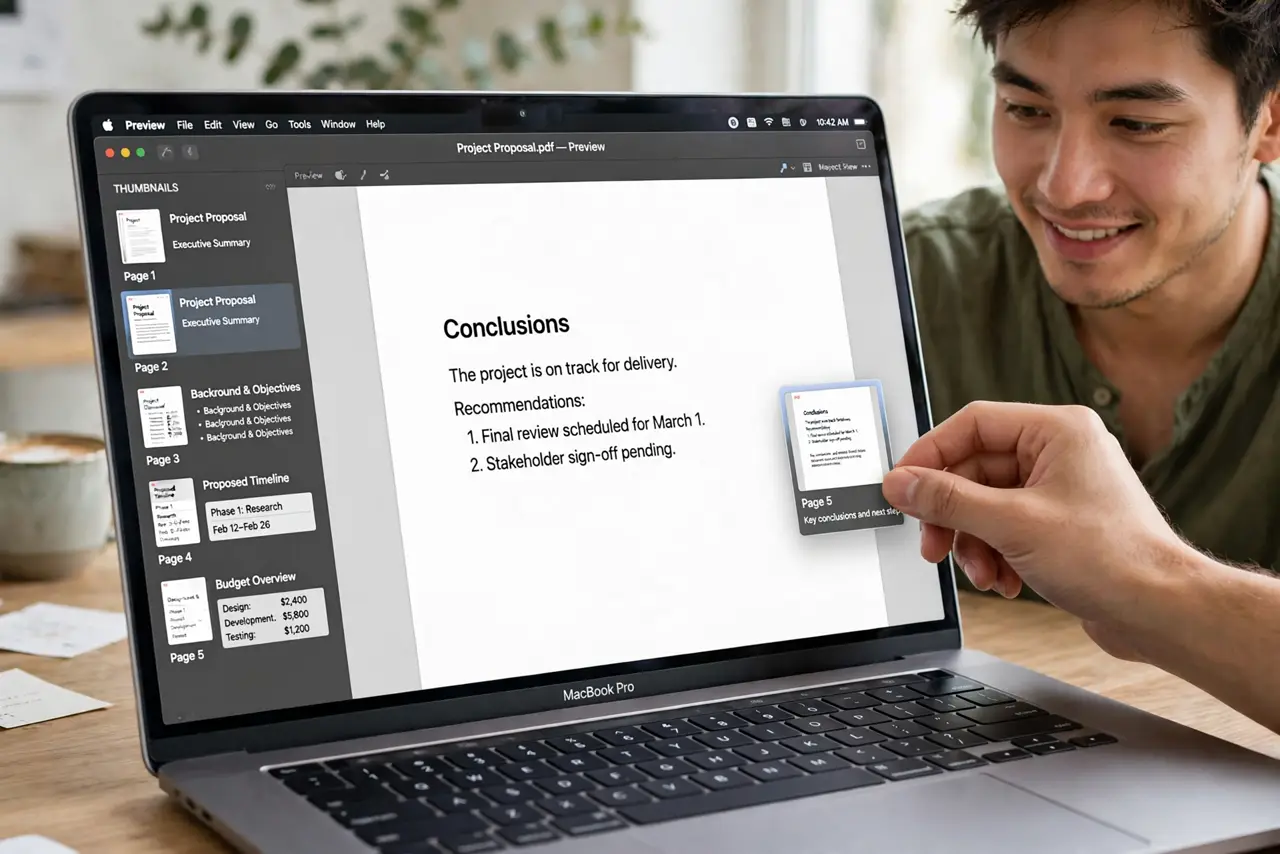
Quick fix: open the first PDF in Preview, choose View > Thumbnails, then drag the second PDF's file — or its pages — into the thumbnail sidebar where you want them. Save with Command-S. Work on a copy if the originals matter.
Follow these steps
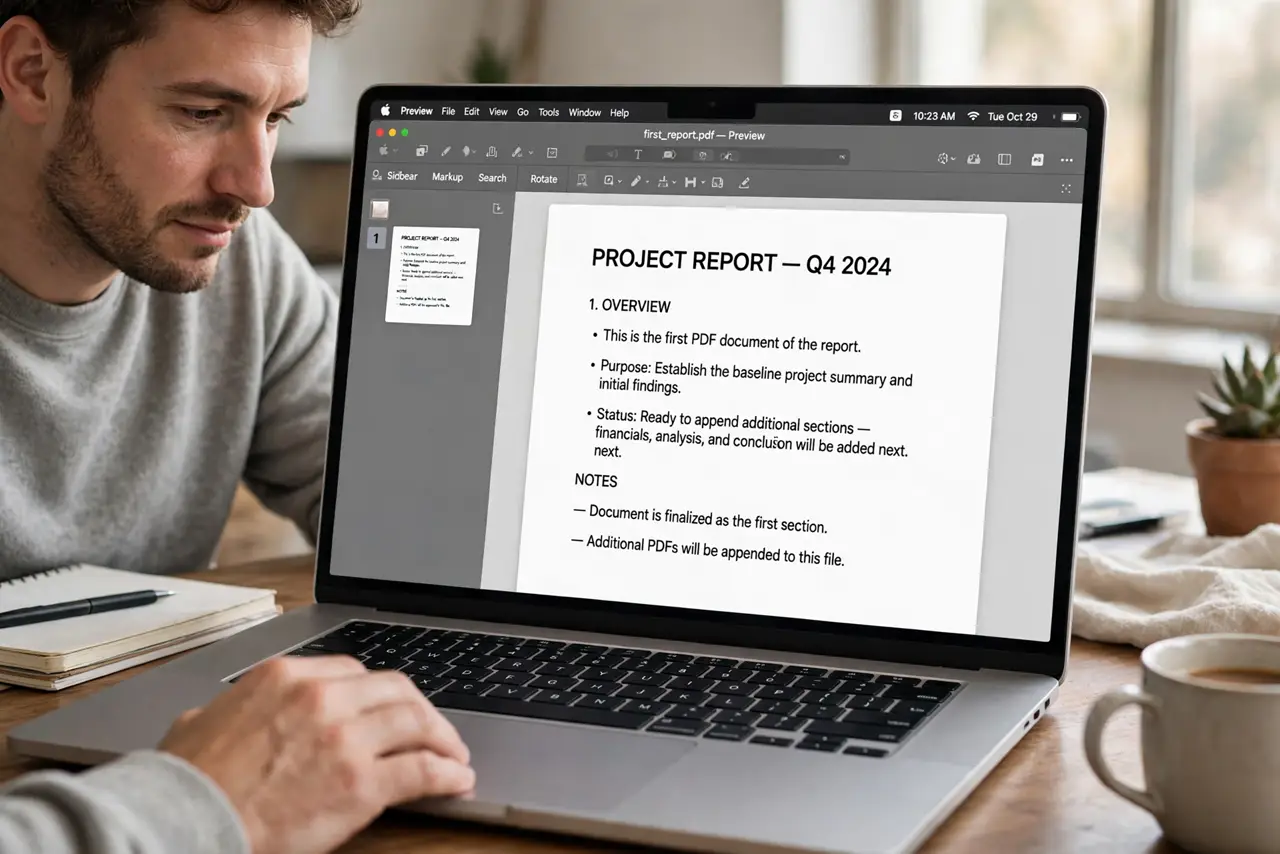
- Open the first PDF in Preview. This becomes the base document. Everything else gets appended to or inserted into it.
- Show the thumbnails sidebar. View > Thumbnails. The page strip appears on the left — this is your merge workspace.
- Drag the second PDF into the sidebar. Drag its file icon into the thumbnails at the insertion point. Or open it separately and drag individual pages across.
- Arrange the page order. Drag thumbnails up and down to sequence them. Delete strays by selecting and pressing Delete — see reordering pages for fine control.
- Save the merged file. Command-S overwrites the base PDF — safer: File > Export as PDF to create a new merged file and keep the originals.
- Verify the page count. Scroll the thumbnails after saving. A dropped drag can silently miss pages — count before you send.
What NOT to do
- Do not merge by printing to PDF. That rasterizes everything — your crisp text becomes a blurry image and the file balloons.
- Do not upload sensitive PDFs to free merge websites. Preview does it locally — your tax forms never need to leave the Mac.
- Do not overwrite the only originals. Export as PDF creates the merged copy; Command-S on the base destroys its original form.
- Do not merge password-locked PDFs and expect editing. Locked files merge as images of their pages — fill or unlock first.
Frequently asked questions
Can I merge more than two PDFs?
Yes — keep dragging files or pages into the sidebar. There is no practical limit for normal documents.
Why did the merged file get huge?
One source was probably scanned images. Merging preserves each page as-is — it does not compress.
The pages landed in the wrong spot — now what?
Drag the thumbnails to reorder, or undo with Command-Z if you catch it immediately.