Fill a PDF Form in Preview
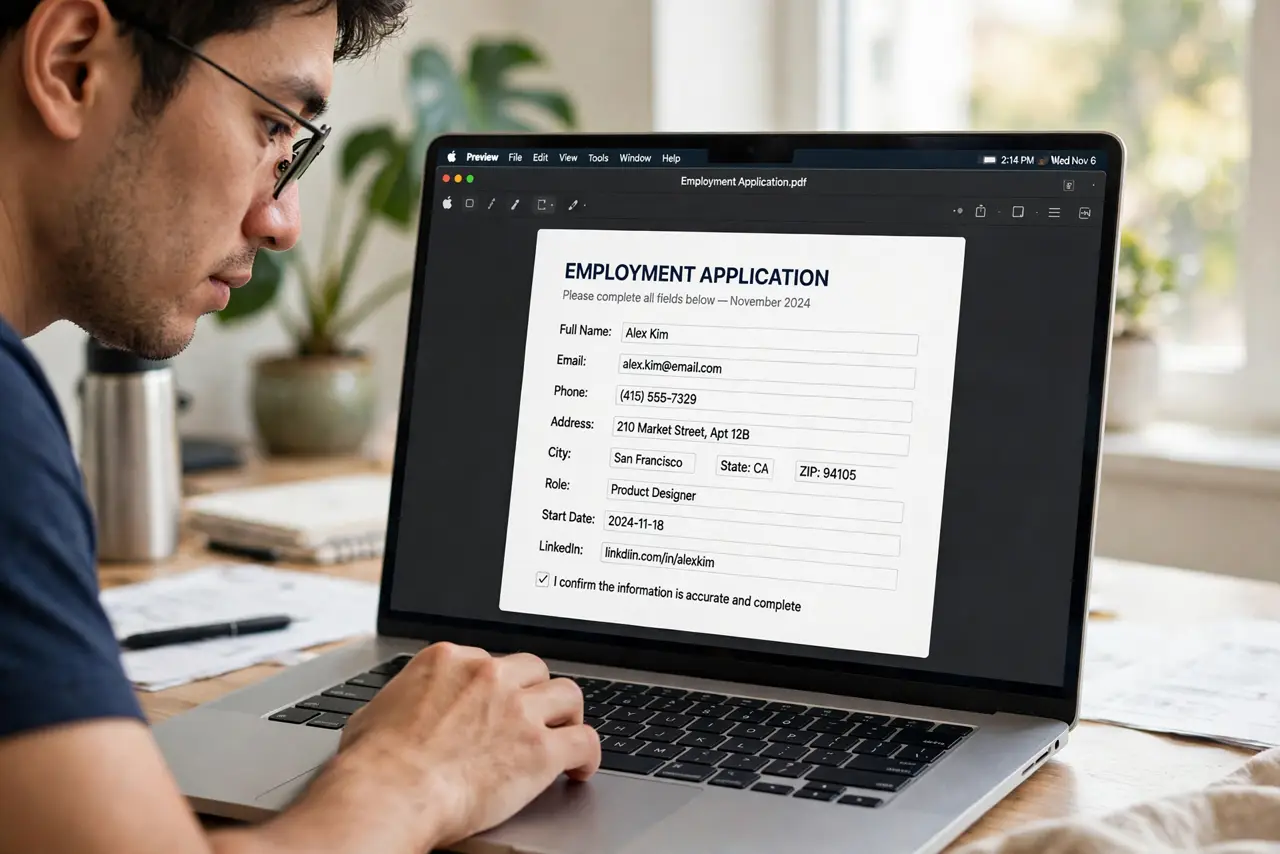
The form arrived as a PDF, the fields are begging to be typed in, and your handwriting belongs nowhere near an official document. Preview fills real form fields natively — click, type, save. For stubborn flat PDFs, text-box markup does the job almost as well.
TL;DR / Quick Fix
Quick fix: open the PDF in Preview and click a field — if it highlights, it is fillable: type, Tab to the next field, and save. For flat PDFs with no real fields, use the markup Text tool to place text boxes over each blank, then export.
Follow these steps
- Click a field to test it. Fillable fields highlight blue on click. If nothing highlights, the PDF is flat — skip to the text-box method below.
- Type and Tab through the form. Fill each field, Tab to jump to the next. Preview handles checkboxes and dropdowns the same way.
- For flat PDFs, add text boxes. View > Show Markup Toolbar > Text tool. Click each blank on the form and type — drag the box to fit, match the font size.
- Sign it with the [[trackpad signature|mac-preview-trackpad-signature]] if needed. Forms often want a signature too — Preview's signature tool drops it right onto the page.
- Export the finished form. File > Export as PDF flattens your entries into the document. Send the exported copy, keep your working copy.
- Print to check alignment. Text boxes can drift a pixel or two. One test print — or a zoomed on-screen check — catches misaligned entries before the form goes out.

What NOT to do
- Do not handwrite a form you could type. Typed forms look professional and never get rejected for illegibility.
- Do not flatten before you are done. Exporting bakes the text in — keep the editable version until the form is accepted.
- Do not email the form with your data and forget. Filled forms carry personal details — send to the right address, then delete the sent copy if it is sensitive.
- Do not assume every PDF is fillable. Scanned forms are pictures of forms — the text-box method is the honest fix, not a failure.
Frequently asked questions
Why can't I click any field?
The PDF has no real form fields — it is a flat scan. Use markup text boxes placed over each blank.
My typed text disappears after saving — why?
You saved without exporting, or the viewer flattened oddly. Use File > Export as PDF to bake entries in.
Can I save a half-filled form and finish later?
Yes — save normally (not export) and the fields stay editable. Export only when it is final.