Preview's Hidden PDF Tools
Preview — the app that opens every PDF on your Mac — hides a genuinely useful toolkit behind one small toolbar button: markup, signatures, form filling, page rearranging, and PDF merging. Most people never click it and pay for apps to do what Preview does free. This is the tour of what is already on your Mac.
TL;DR / Quick Fix
Quick fix: Preview on Mac edits PDFs for free — click the markup toolbar button to annotate, sign, and fill forms. It handles highlighting, notes, signatures, and form filling well. No extra software needed for most common everyday PDF tasks.
Follow these steps
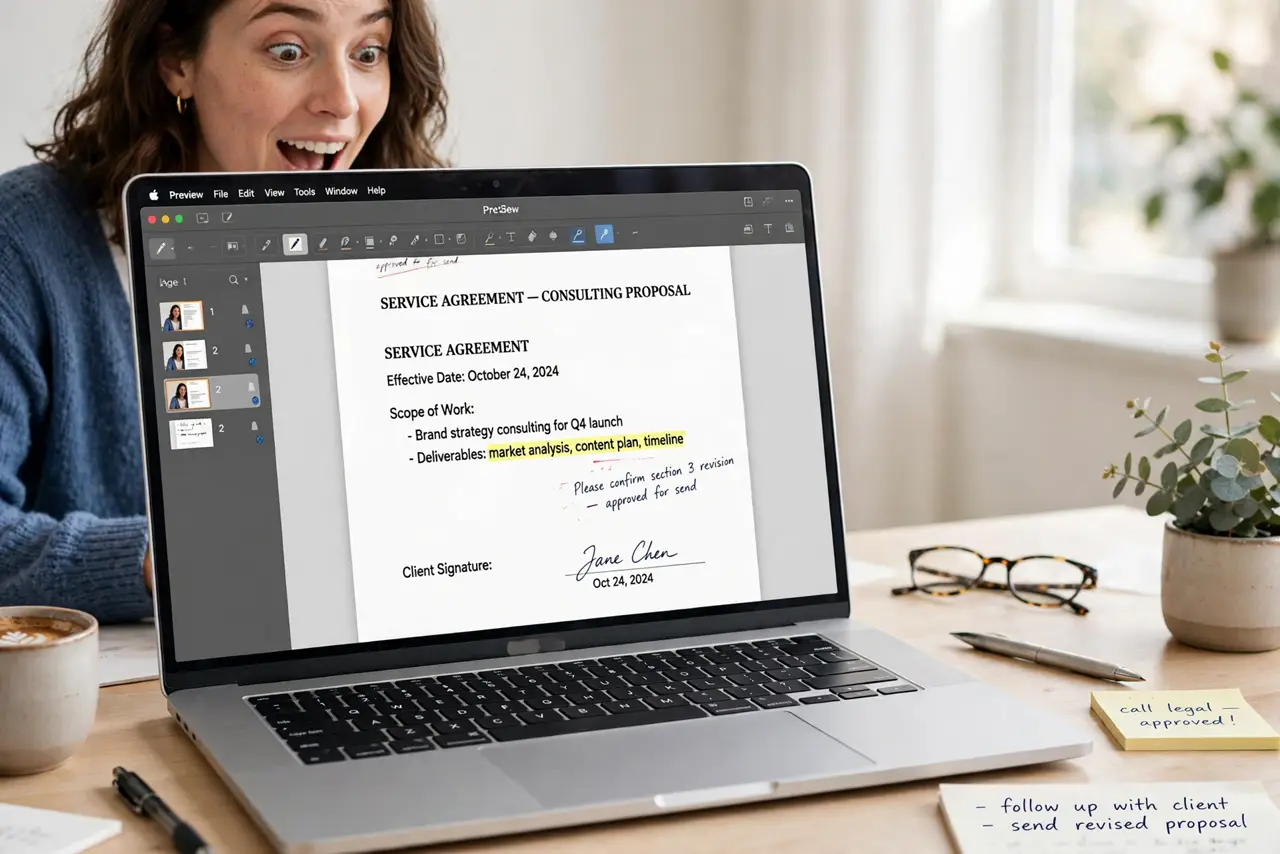
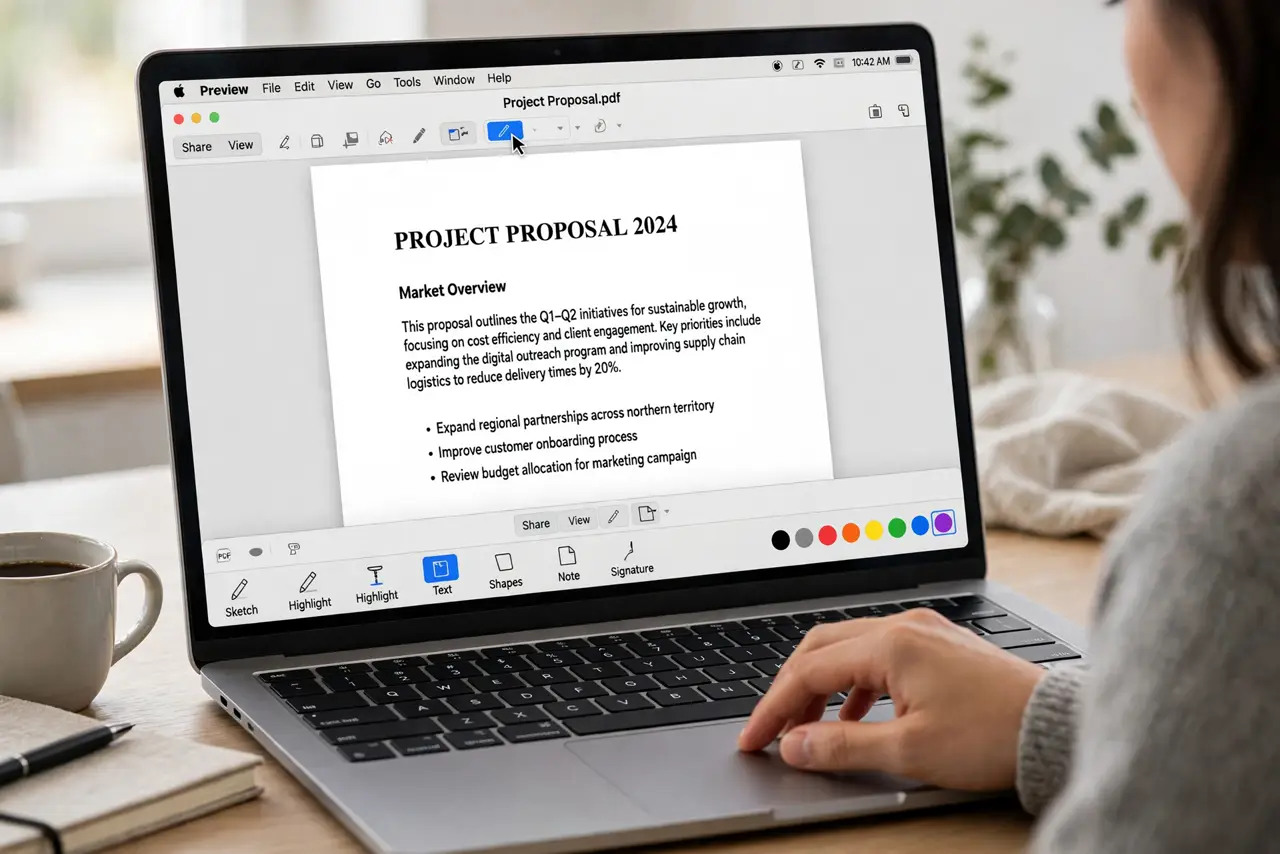
- Reveal the markup toolbar. Open any PDF in Preview and click the markup toolbar button (the pen tip icon). The annotation tools appear: text, shapes, signature, highlight colors, and notes — the whole toolkit in one strip.
- Sign documents in seconds. Click the signature button, create your signature with the trackpad or camera, then drag it onto the document. Save it once and it is there for every future form — genuinely faster than printing and scanning.
- Fill out PDF forms. Click into form fields and type directly — the form filling walkthrough shows the flow. For non-interactive forms, drop text boxes exactly where the blanks are.
- Annotate like a reviewer. Highlight text, add notes, draw shapes and arrows — the annotation guide covers the markup tools in depth. Export or share and the annotations travel with the PDF.
- Rearrange and merge pages. Show thumbnails in the sidebar, drag pages to reorder, and drag pages from another PDF's sidebar to merge documents. Deleting a page is just selecting its thumbnail and pressing Delete.
- Know its limits. Preview cannot do advanced editing like reflowing text or redacting properly (its 'redaction' is just a black box over text that can be removed). For real redaction or OCR, you need dedicated tools.
What NOT to do
- Do not trust Preview's black-box 'redaction.' Covering text with a black rectangle does not remove it — the text is still selectable underneath. Use real redaction software for sensitive documents.
- Do not forget to save a copy. Annotating the original lease and saving over it is a classic mistake — duplicate first, mark up the copy.
- Do not expect OCR. Preview cannot make a scanned PDF's text selectable — that needs OCR software, which Preview is not.
- Do not fight it for complex forms. Multi-page interactive forms with calculations belong in Acrobat or a forms tool — Preview handles the simple 90% beautifully.
Frequently asked questions
Can Preview merge two PDFs?
Yes — open both, show thumbnails, and drag pages from one sidebar into the other. Save the result as a new file.
Why can't I fill in this PDF's fields?
It is probably a flat scan, not a real form. Use text boxes from the markup toolbar to type over the blanks — or run it through OCR software first.
Does Preview work on images too?
Yes — crop, resize, rotate, adjust color, and convert formats. It is a surprisingly capable image editor for quick jobs.