Draw Shapes in Preview
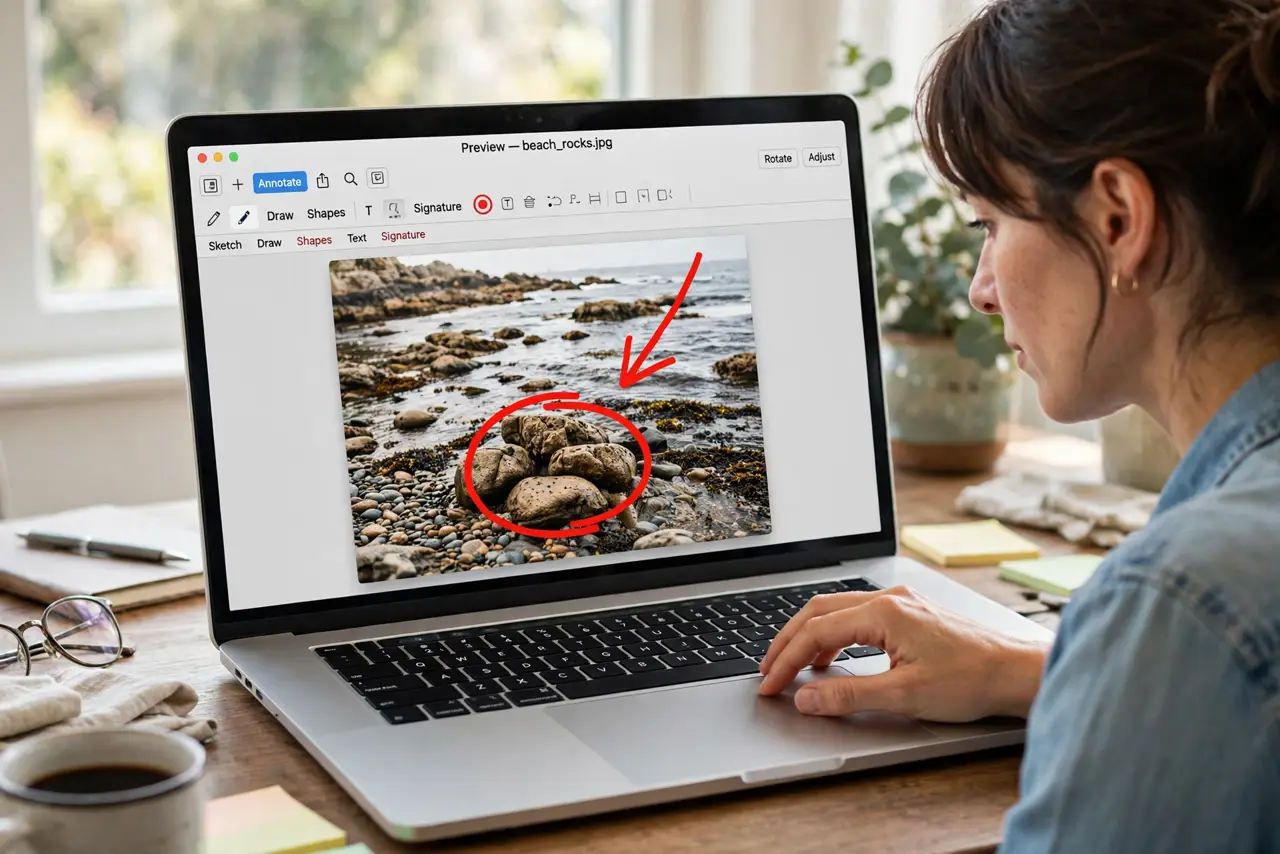
You need to circle something in a screenshot, draw an arrow on a photo, or box a detail in a PDF — and installing an image editor for that is overkill. Preview, the app that already opens your images and PDFs, has a full markup toolbar with shapes, arrows, and text hiding in plain sight. This guide finds the toolbar, draws clean shapes, and saves without wrecking the original. For getting photos onto the Mac first, use Image Capture.
TL;DR / Quick Fix
Quick fix: open the image in Preview, click the markup toolbar button (the pen tip icon), and choose shapes, arrows, or text. Draw on a copy if the original matters — Preview saves over the file by default. Export from the File menu when you need a new format.
Follow these steps
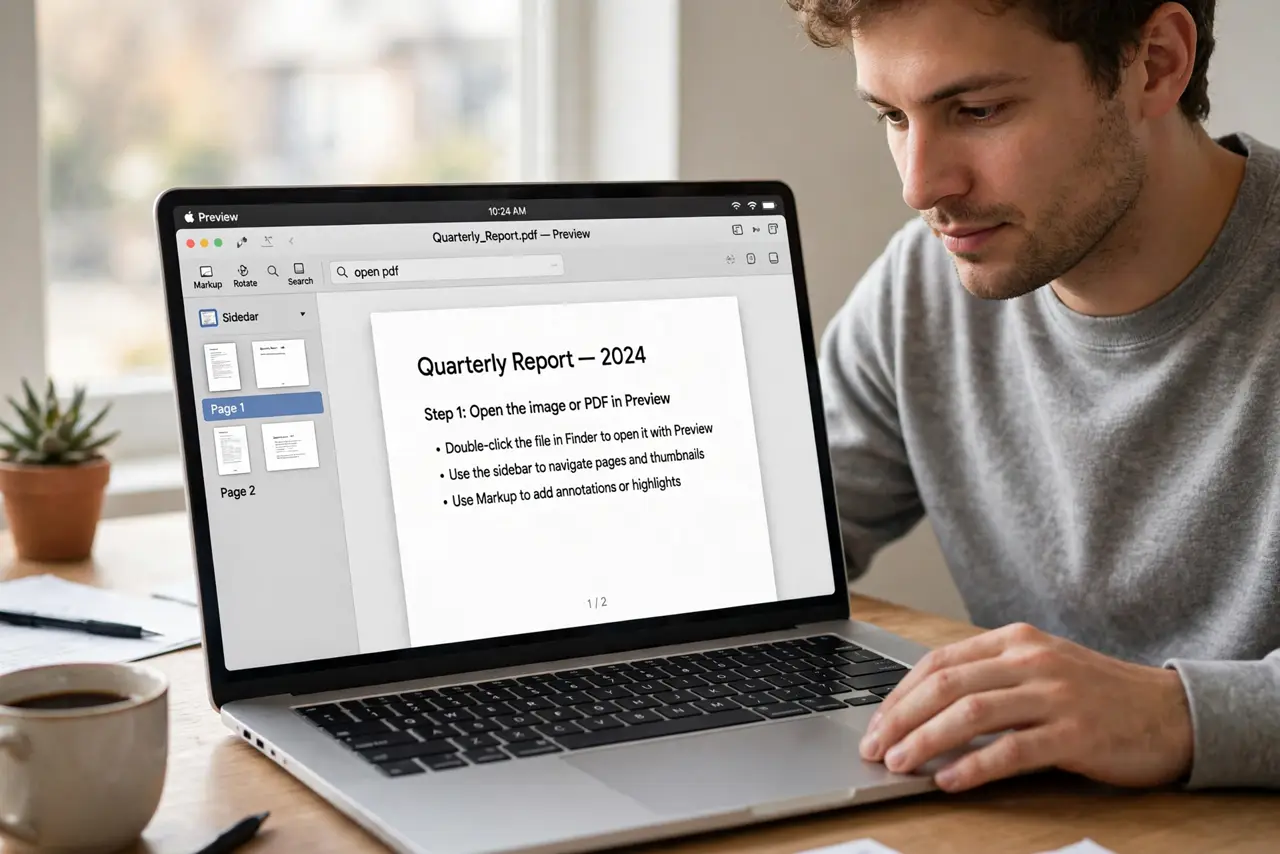
- Open the image or PDF in Preview. Double-click the file — Preview is the Mac default for images and PDFs. If something else opens, right-click, choose Open With, then Preview.
- Show the markup toolbar. Click the pen-tip icon in the toolbar, or choose Tools, then Show Markup Toolbar. The shape, text, signature, and adjust tools appear.
- Draw shapes and arrows. Click the shapes button and pick rectangle, oval, line, or arrow. Drag on the image to draw; handles let you resize and reposition after.
- Style the shapes. With a shape selected, use the style buttons for line thickness, color, and fill. A thick red arrow with no fill is the universal 'look here' — readable on any image.
- Add text callouts. Click the text button (T in a box) and type. Drag the box where you need it and style the font from the same toolbar — great for labeling screenshots.
- Save safely. Preview saves changes into the file automatically. For an untouched original, duplicate first with File, then Duplicate, or Export a copy in another format.
What NOT to do
- Do not mark up the only copy of an important photo. Preview overwrites on save — duplicate first, annotate second.
- Do not use redaction-style black boxes for real secrets. A drawn rectangle can sometimes be removed or seen through — use proper redaction tools for sensitive data.
- Do not forget the shape stays editable only in Preview. Export to PNG or JPEG to flatten markups before sharing with non-Mac users.
- Do not draw freehand when a shape will do. The shapes snap clean; freehand scribbles look messy and unprofessional.
Frequently asked questions
Where is the markup toolbar?
The pen-tip icon near the top-right of the Preview toolbar. If the window is narrow, it may hide under the >> overflow menu.
Can I sign documents in Preview?
Yes — the signature tool lets you sign with the trackpad or camera, then place the signature anywhere. It is genuinely useful.
Why did my shapes disappear after exporting?
They should not. If markups vanish, you likely exported before the save completed — wait a beat, then export again.