Sign With the Trackpad in Preview
No printer, no scanner, no photographing your scribble — Preview lets you draw your signature on the trackpad with a finger and stamp it onto any PDF. Create it once and it is saved for every future document. Five minutes now, seconds forever.
TL;DR / Quick Fix
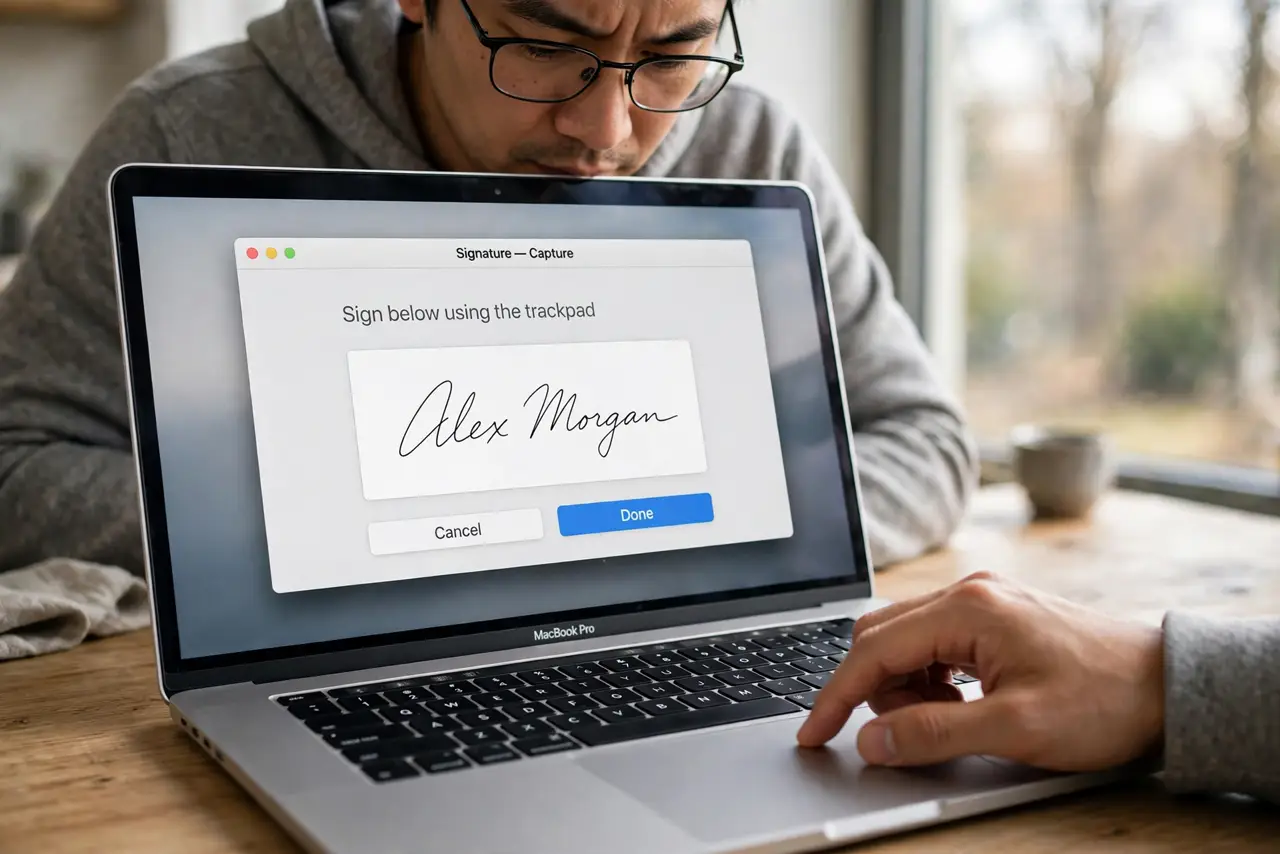
Quick fix: in Preview, choose View > Show Markup Toolbar, click the Signature button, then Create Signature > Trackpad. Draw with one finger on the trackpad, press any key when done, and click Done. Click the signature again to stamp it onto any PDF.
Follow these steps
- Open the markup toolbar. In Preview: View > Show Markup Toolbar. The Signature button sits in the toolbar row.
- Choose Create Signature > Trackpad. Click Signature > Create Signature, then pick the Trackpad tab. The trackpad becomes your signing pad.
- Draw with one finger. Sign naturally with a fingertip on the trackpad — press any key when finished. It does not need to be pretty; it needs to be yours.
- Save it with Done. Click Done. Preview stores the signature securely for reuse — you only ever draw it once.
- Stamp it onto the document. Click Signature > your saved signature, then click where it goes on the PDF. Drag the handles to size it.
- Resize and place carefully. Signatures land large by default. Shrink to fit the line, align it straight — a floating giant signature looks wrong on a form.

What NOT to do
- Do not draw it with the mouse. A mouse-drawn signature looks like a seismograph reading — the trackpad finger is far more natural.
- Do not sign on a shared Mac and walk away. Your saved signature persists for the next user — delete it from the signature list when done.
- Do not expect legal-grade forensics. It is a convenience signature for everyday forms — contracts with strict requirements may need a certified e-signature service.
- Do not stamp it at full size. Scale it to the signature line — proportion is what makes it look real.
Frequently asked questions
Can I have more than one signature?
Yes — initials, full signature, a spouse's with permission. Create each once and pick from the list.
Where is my signature stored?
Locally on your Mac, in Preview's secure storage. It does not upload anywhere.
How do I delete a saved signature?
Signature > hover the signature > the X appears. Remove it when it no longer represents you.