Preview Won't Save Your PDF Edits
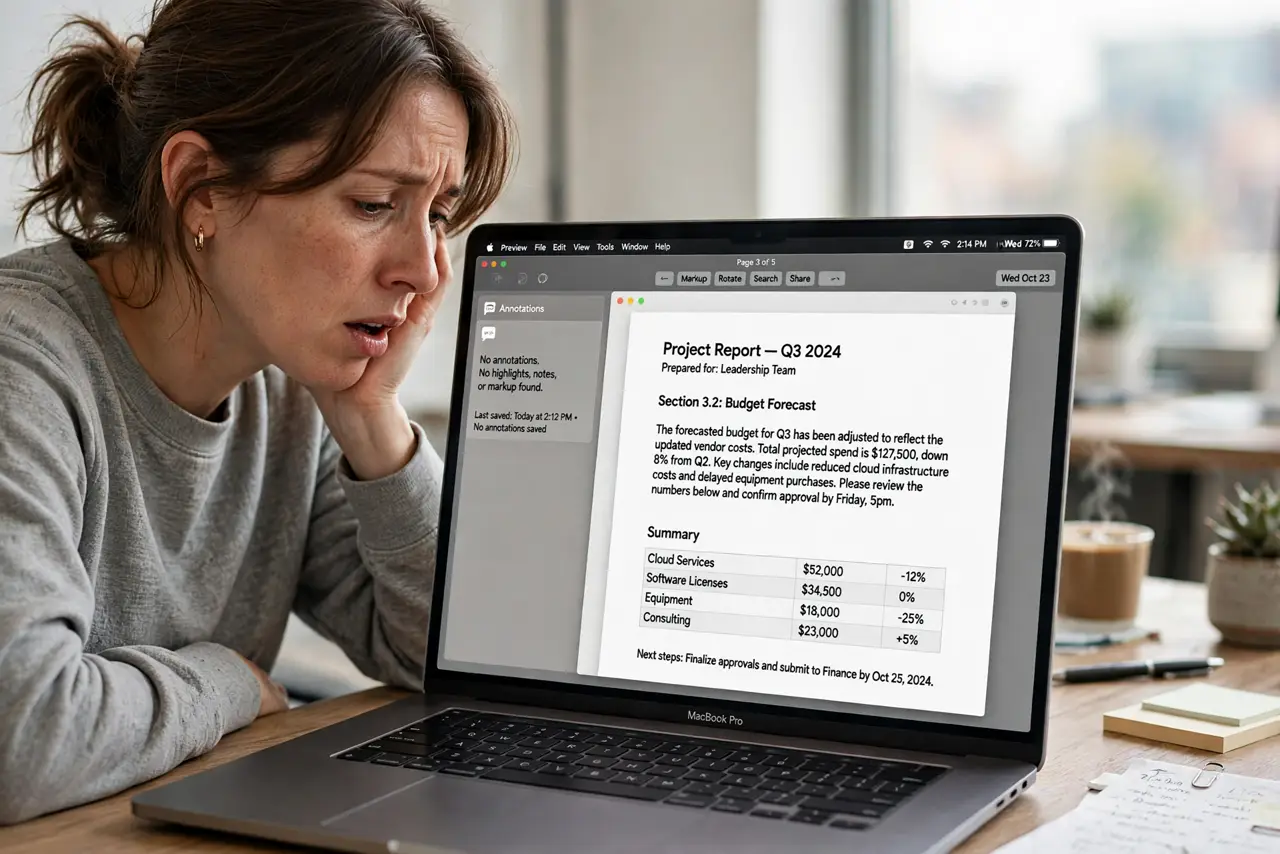
You mark up a PDF in Preview, hit save, and the annotations vanish or the file reverts. Losing edits feels like the app is broken, but it is usually file permissions, iCloud versioning, or a locked file. This guide makes your saves stick.
TL;DR / Quick Fix
Quick fix: duplicate the PDF first so you always have the original, then check the file is not locked in Get Info. Save with File and Export as PDF to a local folder, and avoid editing files directly inside cloud-synced folders while they sync.
Follow these steps
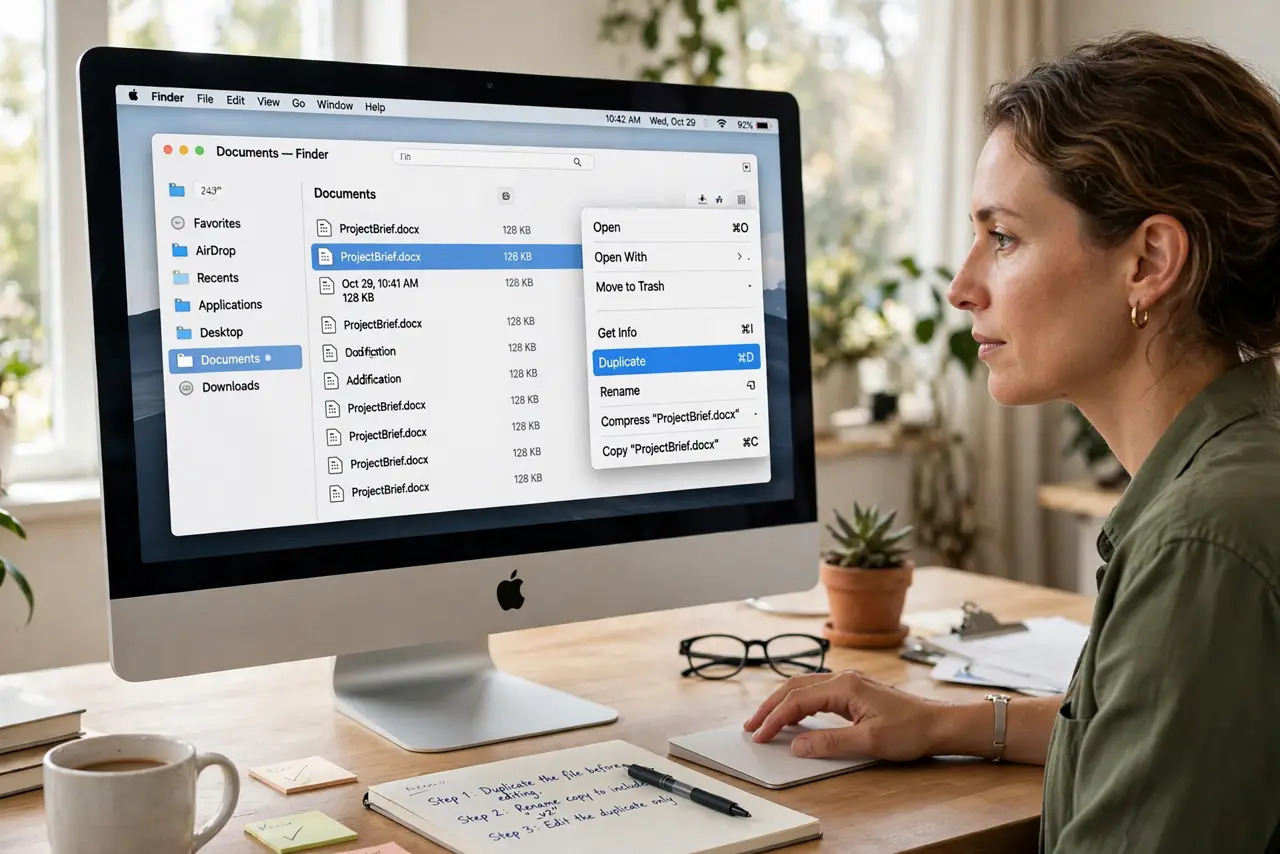
- Duplicate the file before editing. Choose File, then Duplicate, and work on the copy. If a save goes wrong, the original is untouched and you lose nothing.
- Check whether the file is locked. Select the PDF, press Command-I, and look at the Locked checkbox. A locked file silently discards edits, so unlock it before annotating.
- Check your write permission. In the same Get Info window, confirm your user has Read and Write privilege. Files copied from elsewhere sometimes arrive read-only.
- Export instead of saving. Use File, then Export as PDF, and save to the Desktop. Export writes a fresh file, bypassing whatever quirk blocks the normal save path.
- Avoid editing during cloud sync. Do not annotate a PDF while iCloud or Dropbox is actively syncing that folder. Save locally first, then move the finished file into the synced folder.
- Watch the exported file size. If the exported PDF balloons unexpectedly, tame it with the Print to PDF size fix so the file stays emailable.
What NOT to do
- Do not keep editing the same file hoping it sticks. Each failed save risks overwriting good data, so duplicate first and troubleshoot on the copy.
- Do not edit PDFs directly from an email attachment preview. Save the attachment to disk first; the preview copy is temporary.
- Do not flatten annotations before you are done. Flattening bakes them in permanently, so keep an editable copy until the end.
- Do not ignore the locked checkbox. It is the single most common cause of silently lost Preview edits.
Frequently asked questions
Why do my Preview annotations disappear?
Usually the file is locked, read-only, or caught in a cloud sync conflict. Duplicating and exporting sidesteps all three.
Does Preview autosave PDF edits?
It tries to, but a locked file or permission problem blocks the autosave silently, which is why edits seem to vanish.
Can I recover lost annotations?
Sometimes via File, then Revert To, then Browse All Versions, if versioning captured them. No version means no recovery.