Screen Recordings Too Large on Mac? Fix It
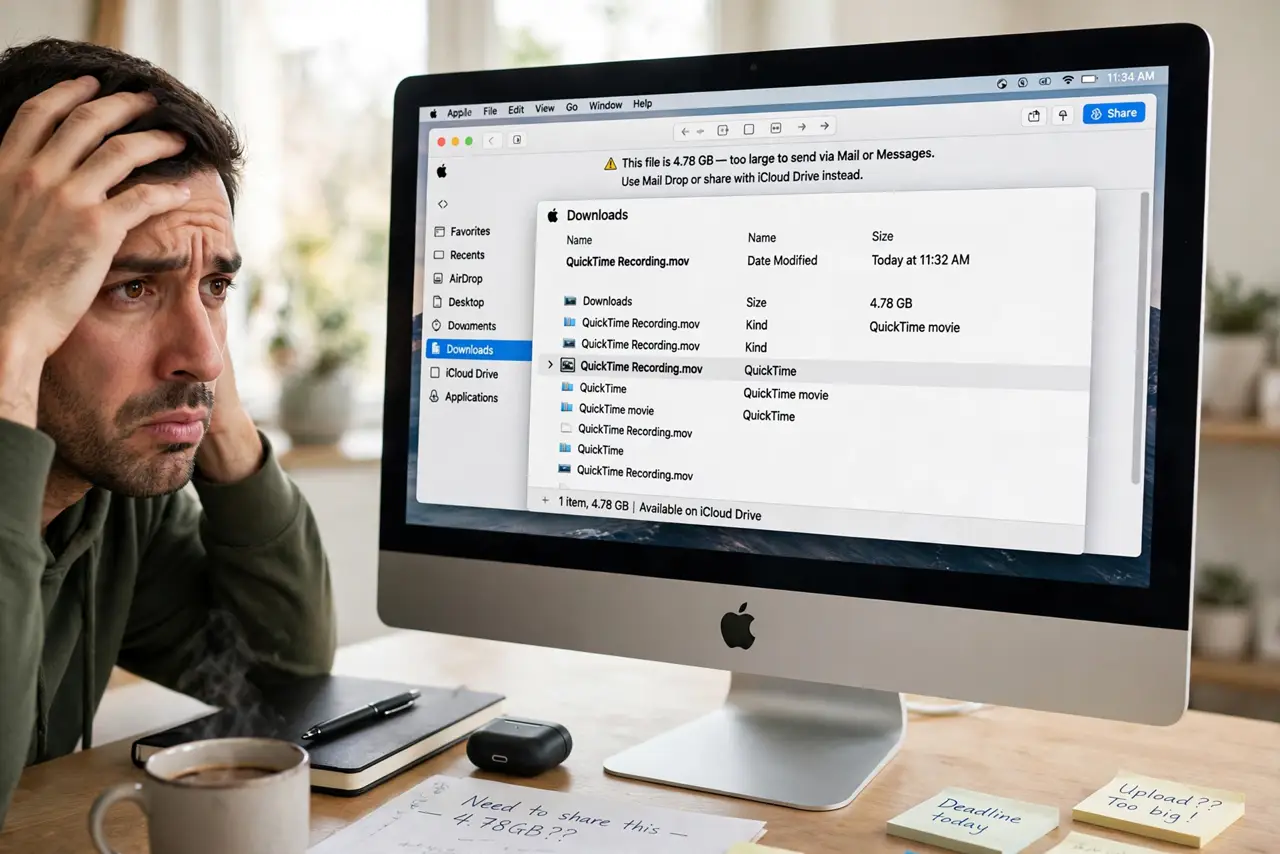
A five-minute screen recording balloons into a multi-gigabyte file that will not upload or share. QuickTime defaults to high quality with no compression warning. This guide trims the size at record time and shrinks existing files.
TL;DR / Quick Fix
Quick fix: record at a smaller window instead of fullscreen, and keep recordings nice and short. For existing files, open them in QuickTime and export at 720p, or convert with a compressor. Like Voice Memos, quality settings decide the file size.
Follow these steps
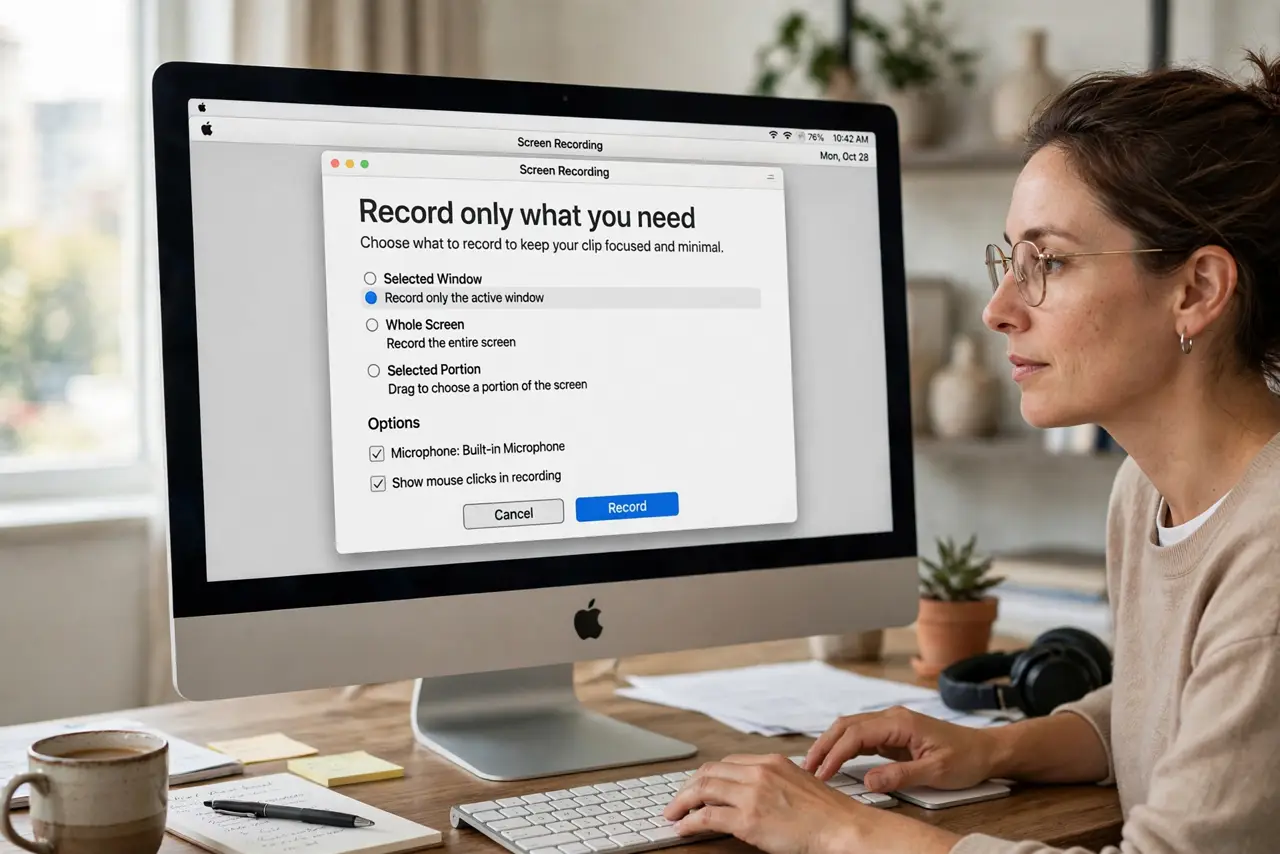
- Record only what you need. Capture the app window instead of the full screen, and keep the recording as short as possible. Fewer pixels and fewer minutes are the two biggest size levers.
- Lower the export resolution. Open the recording in QuickTime Player, choose File, then Export As, and pick 720p. For tutorials and bug reports, 720p is plenty and far smaller.
- Trim the dead air. Use QuickTime's Trim to cut the waiting at the start and end. Many recordings are half dead air, and trimming is lossless and instant.
- Compress with export, not zip. Zipping a video barely shrinks it. Re-exporting at a lower resolution or bitrate is the real fix; zip is for documents, not video.
- Record audio separately when possible. A voiceover recorded as audio and added later beats recording system audio at full quality. The Voice Memos quality lesson applies: match quality to the content.
- Archive finished recordings off the disk. Move keeper recordings to an external drive. Screen recordings are classic disk hogs behind startup disk full warnings.
What NOT to do
- Do not record fullscreen 4K for a simple tutorial. The extra pixels multiply file size while adding nothing for the viewer.
- Do not share the raw file directly. Export a smaller version for sharing and archive the original separately.
- Do not record for an hour hoping to edit later. Plan the recording; shorter captures need no rescue compression.
- Do not delete the original before checking the export. Verify the smaller file plays correctly first, then remove the giant.
Frequently asked questions
Why are QuickTime recordings so big?
QuickTime saves high-quality video with light compression. Minutes of fullscreen footage add up to gigabytes fast.
What resolution should I export?
720p for sharing and bug reports, 1080p when detail matters. Reserve full quality for final production work.
Can I compress without losing quality?
Re-exporting always loses a little. Trim first, since cutting footage loses nothing at all.