Quick Look Fullscreen Tips
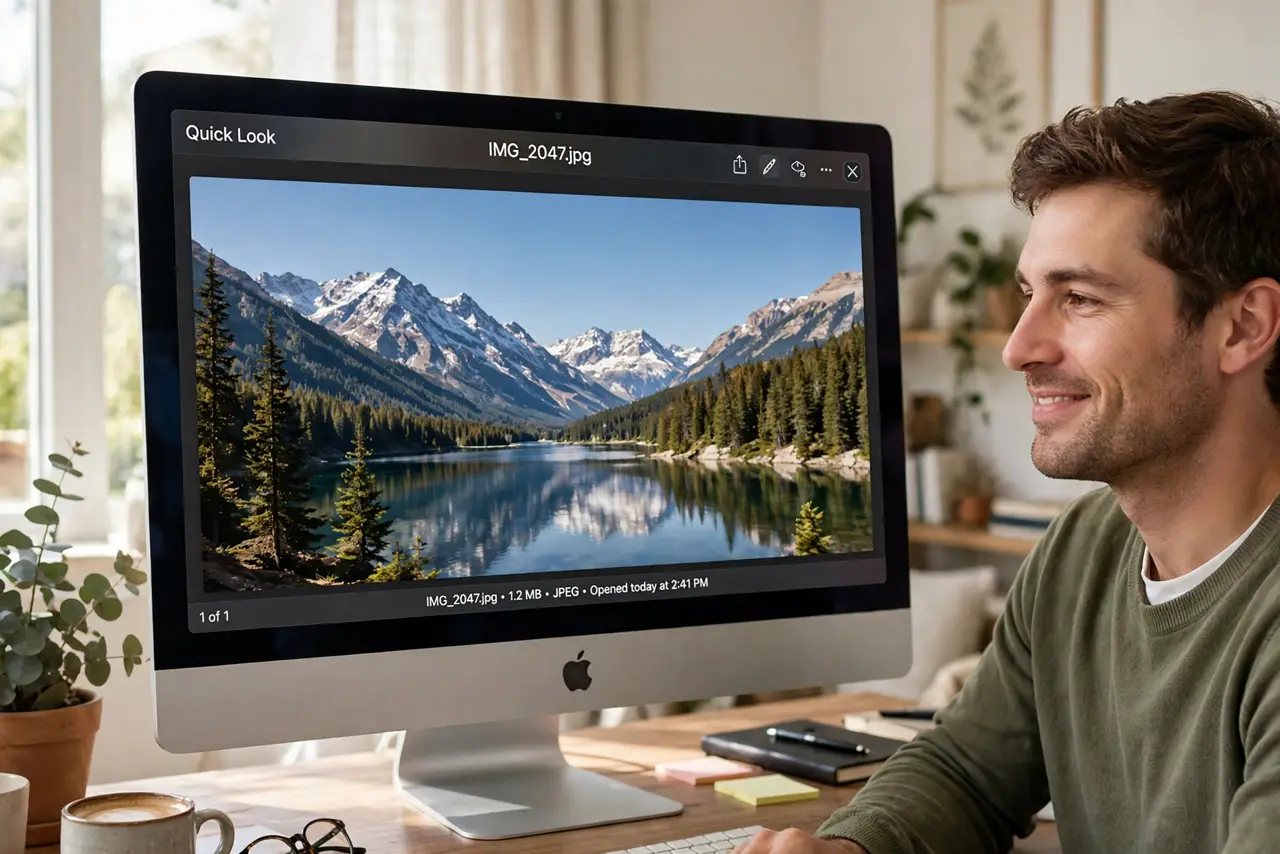
You tap Space to preview a photo and get a postage stamp. Quick Look can go properly fullscreen — big image, nothing else on screen — and browse whole folders without opening a single app. Two shortcuts unlock the whole thing.
TL;DR / Quick Fix
Quick fix: select a file and press Space for Quick Look, then click the full-screen arrows — or press Option+Space to jump straight to fullscreen. Arrow keys browse through files while it stays open. Press Esc to close. It works for images, PDFs, and most documents.
Follow these steps
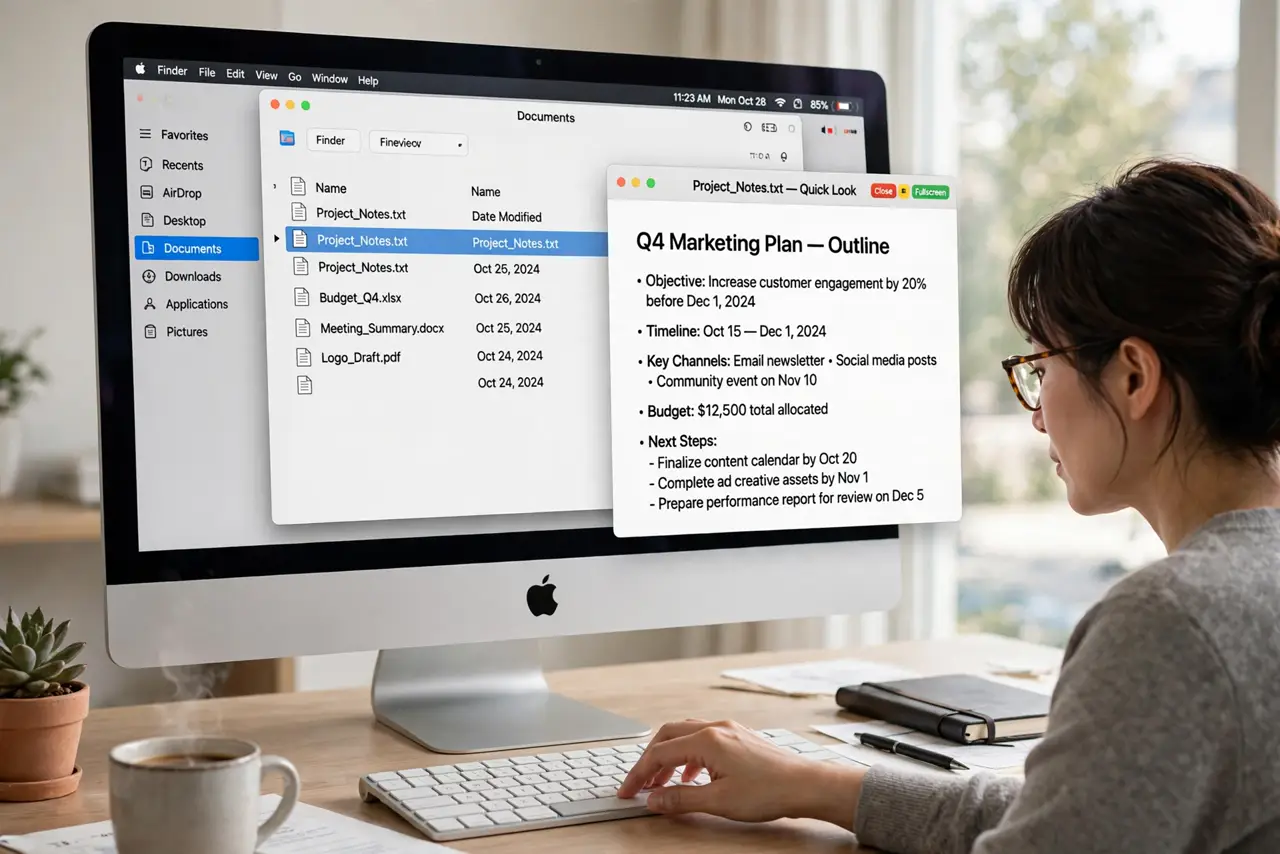
- Preview with Space. Select any file in Finder and press Space. The Quick Look window appears instantly — no app launches.
- Go fullscreen. Click the diagonal arrows in the Quick Look window's top corner, or skip straight there with Option+Space on the selected file.
- Browse with arrow keys. While Quick Look is open, up and down arrows move through the folder's files. Reviewing a photo shoot becomes Space, arrows, Esc.
- Zoom into details. In fullscreen image previews, pinch or hold Option and scroll to zoom. Inspect sharpness without opening an editor.
- Preview multiple files. Select several files, then Space — Quick Look shows them as a browsable set, and the fullscreen button covers the slideshow.
- Close cleanly. Press Space or Esc. Quick Look never modifies files, so there is nothing to save and nothing to undo.
What NOT to do
- Do not open Preview for a quick check. Quick Look exists precisely so you do not launch an app for a glance.
- Do not expect editing. Quick Look is view-only — markup and rotation need the actual app.
- Do not assume every format previews. Exotic formats show only an icon; that is a missing plugin, not a broken file.
- If previews show blank, the gallery view fix covers the related thumbnail problem.
Frequently asked questions
Why is my Quick Look window tiny?
It opens at a modest size by default. The fullscreen arrows or Option+Space are the intended way to go big.
Can I Quick Look files in search results?
Yes — Space works in Spotlight results and Finder searches too, not just open folders.
Does Quick Look work on videos?
Yes, with playback controls and even trimming for some formats, all without opening an app.