Templates in Reminders?
You rebuild the same reminder lists over and over — weekly review, trip packing, project kickoff — retyping the same tasks each time. Reminders templates save a whole list as a reusable blueprint: one tap creates a fresh copy with all the tasks, due dates, and tags intact. It is the fastest way to stop reinventing your checklists. Here is how to set them up.
TL;DR / Quick Fix
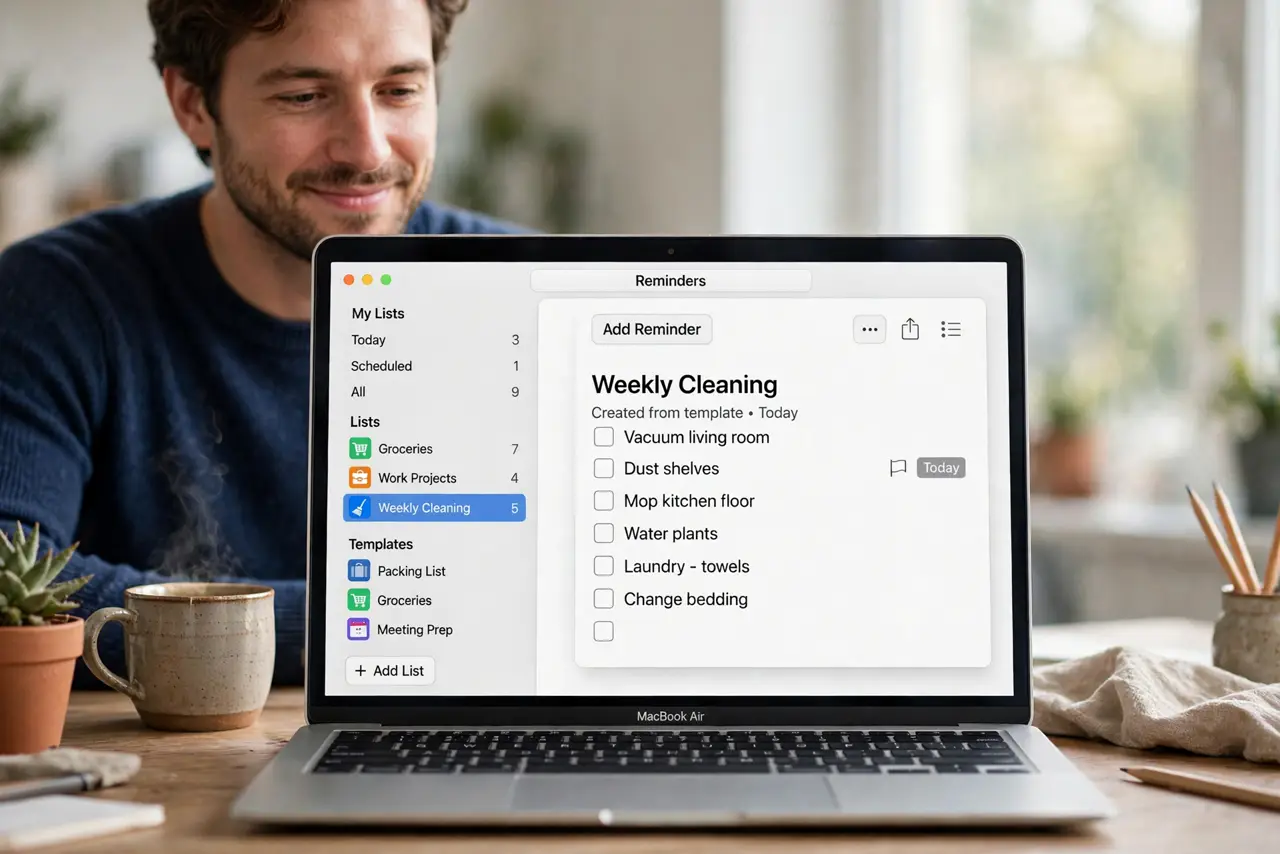
Quick fix: build your perfect list once in Reminders, then choose File, Save as Template. To reuse it, create a new list and pick the template — everything copies over. Edit the template anytime; existing lists made from it stay as they were.
Follow these steps
- Build the perfect list first. Create a regular list with all the tasks, subtags, due dates, and notes exactly as you want them. The template copies everything, so polish the original — typos get cloned too.
- Save it as a template. With the list selected, go to File > Save as Template and give it a clear name like 'Weekly Review' or 'Trip Packing.' The original list stays put; the template is a separate blueprint.
- Create new lists from the template. When you need a fresh copy, create a new list and choose your template. All tasks, dates, and tags appear instantly — just adjust the dates and go.
- Use relative thinking for dates. Templates copy absolute due dates, which go stale. After creating from a template, shift the dates to the new week — or keep dates off the template and add them per use.
- Edit templates as your process improves. Open the template, tweak the tasks, and save. Future lists use the improved version; lists you already created are untouched, so nothing breaks retroactively.
- Combine with Smart Lists for power. Template-generated lists feed your Smart Lists automatically if you tag consistently. Templates create the work; Smart Lists surface it.
What NOT to do
- Do not save a half-finished list as a template. Every flaw gets cloned forever — finalize the list first, then templatize it.
- Do not expect due dates to auto-shift. Templates copy exact dates; you adjust them each time you spawn a new list.
- Do not delete the original list thinking the template needs it. The template is independent — the original can go once the template is saved.
- Do not make a template for one-off lists. Templates pay off on repetition; a single-use list is faster built by hand.
Frequently asked questions
Where are my templates stored?
In the Reminders app under Templates in the sidebar. They sync via iCloud, so templates made on Mac appear on iPhone and iPad.
Can I share a template with someone?
Not directly — templates are personal. Share the underlying list instead, and the other person can save their own template from it.
What happens if I delete a template?
Only the blueprint goes away. Every list you ever created from it stays exactly as it was.