Enable Right-Click on Mac
New Mac, and right-click does nothing. Or it works in some apps but not others. macOS calls it 'Secondary click' and buries it in Trackpad or Mouse settings — sometimes disabled by default, sometimes set to a gesture you have never heard of. Sixty seconds in settings fixes it permanently.
TL;DR / Quick Fix
Quick fix: right-click on Mac is usually just disabled or set to an unfamiliar gesture. Open System Settings, Trackpad or Mouse, and set Secondary click to your preferred corner or two-finger tap. Test it on the desktop — if the menu appears, you're done in under a minute.
Follow these steps
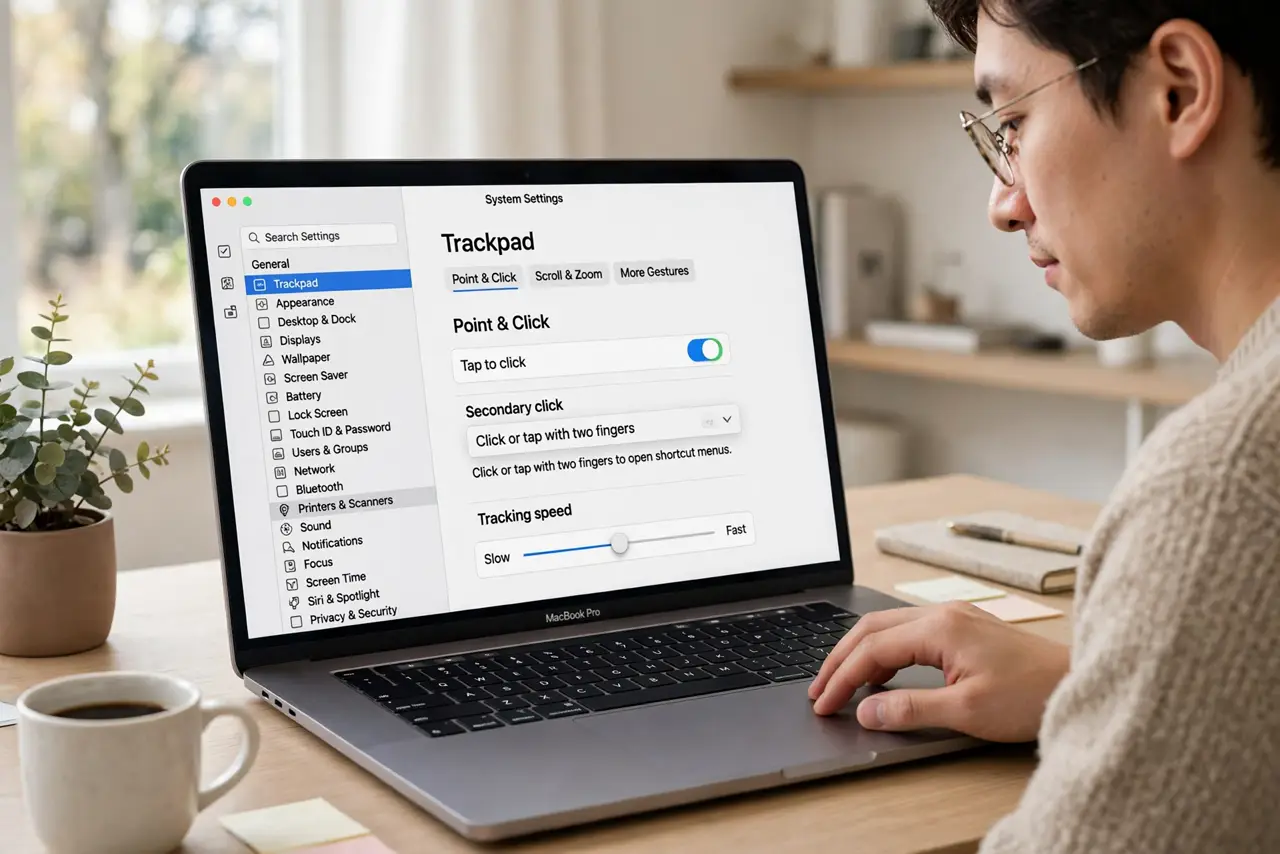
- Open the right settings pane. Go to System Settings > Trackpad (or Mouse, if you use one) > Secondary click. Apple renamed right-click years ago — searching settings for 'right click' finds nothing, but 'Secondary click' is right there.
- Choose your gesture. Trackpad options: click with two fingers, or click in a corner. Mouse options: click the right side. Pick whichever matches your muscle memory — the setup details with screenshots covers each choice.
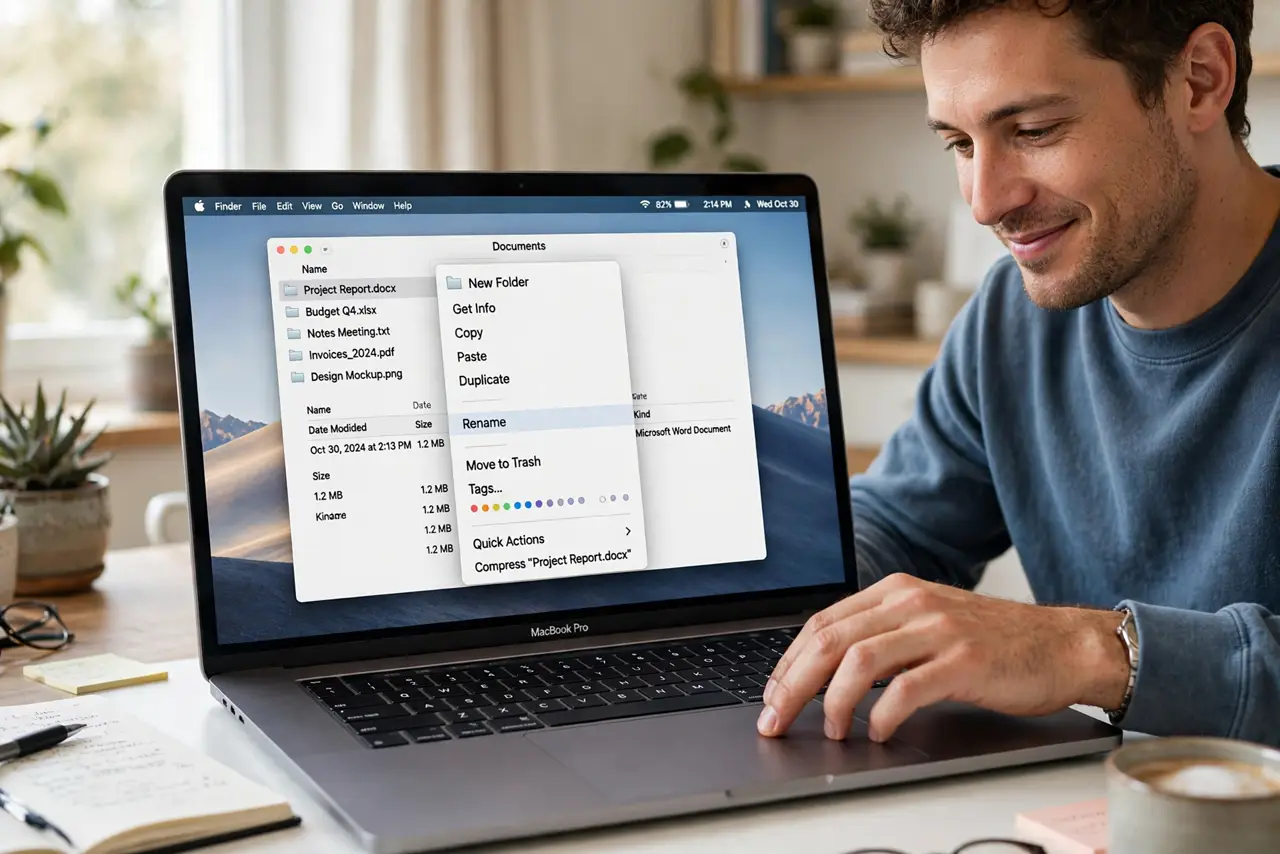
- Test on the desktop. Right-click (your new gesture) on an empty desktop spot. The context menu should appear instantly. If it does, you are done — this is a sixty-second fix.
- Check per-app behavior. Some apps override click behavior — browsers, design tools, games. If right-click works on the desktop but not in one app, check that app's own preferences before blaming the system.
- Enable for external mice too. A third-party mouse may need its own software or the macOS Mouse pane configured separately. The Mac's settings and the mouse maker's driver can fight — configure one, not both.
- Know the Control-click fallback. Holding Control while clicking always triggers a right-click, everywhere, no settings needed. It is the universal backup when gestures fail you mid-task.
What NOT to do
- Do not install mouse drivers you do not need. Apple's native settings cover standard mice — extra drivers add conflicts, not features.
- Do not assume the trackpad is broken. A 'dead' right-click is a setting 99% of the time — hardware failure is the rare exception.
- Do not set a corner click you will trigger accidentally. Bottom-right corner clicks fire during normal use for some people — two-finger tap is the safer default.
- Do not forget the setting is per-device. Trackpad and external mouse configure separately; fixing one does not fix the other.
Frequently asked questions
Why is it called Secondary click?
Apple terminology — 'right-click' assumes a two-button mouse, while Macs embrace trackpads and one-button mice. Secondary click covers all of them.
Can I right-click with one finger?
Yes — set Secondary click to a corner click. One finger in the corner acts as right-click; everywhere else is normal click.
Does Control-click work everywhere?
Nearly everywhere in macOS — it is the system-level fallback. A few full-screen games capture it, but for desktop work it is universal.