Set Up Right-Click
You're new to Mac and right-click does nothing — or it works on the mouse but not the trackpad. macOS calls it 'secondary click' and it's off by default in some setups. Enabling it takes ten seconds and makes the whole Mac feel familiar again.
TL;DR / Quick Fix
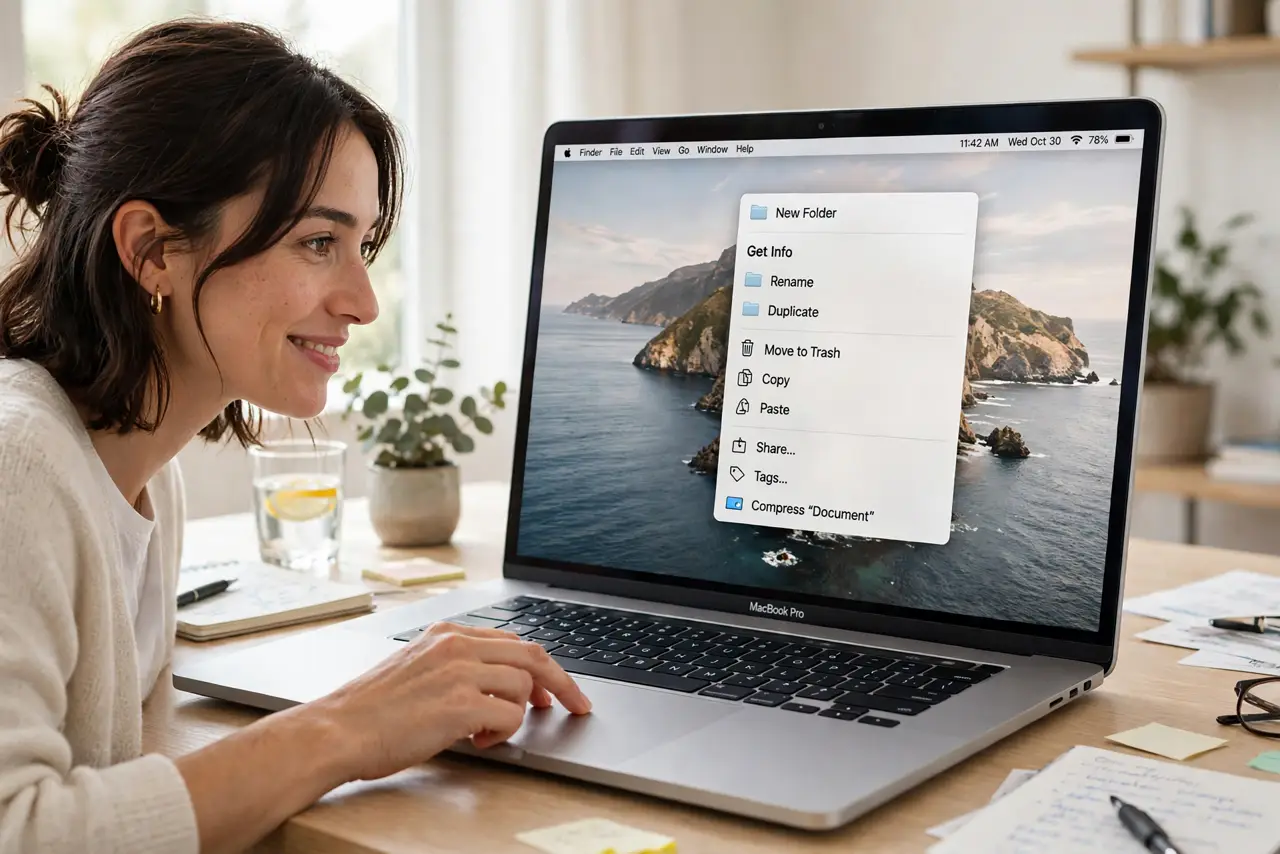
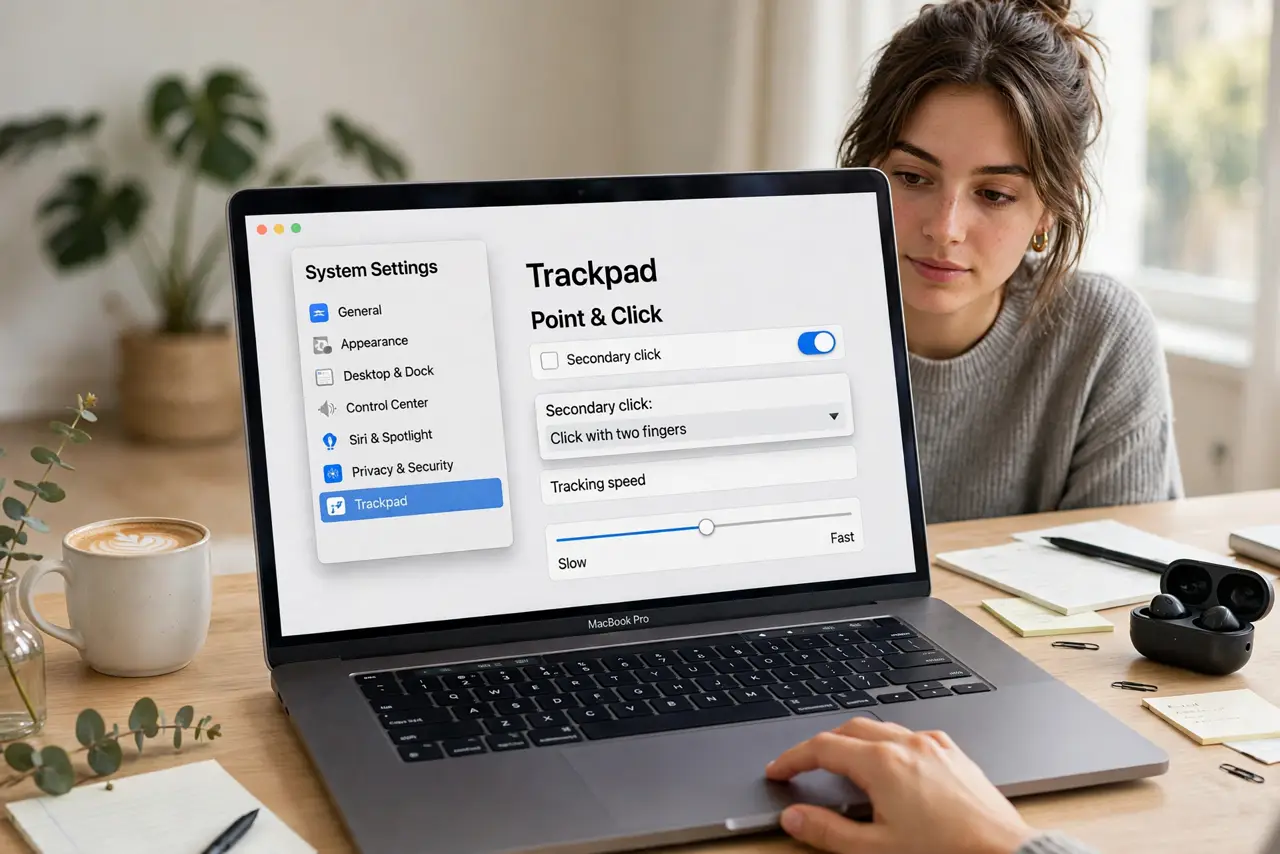
Quick fix: open System Settings, go to Trackpad (or Mouse), and enable Secondary click. Choose 'Click with two fingers' for the trackpad or 'Click on right side' for the mouse. Context menus now appear wherever you secondary-click. Test it on the Desktop to confirm.
Follow these steps
- Open Trackpad or Mouse settings. System Settings > Trackpad for the built-in trackpad, or > Mouse for an external mouse. Each device has its own secondary-click toggle.
- Enable Secondary click. Turn it on. For the trackpad, pick 'Click with two fingers' (or bottom-right corner); for Apple's mouse, pick 'Click on right side.'
- Test it immediately. Two-finger click (or right-side click) on the Desktop — the context menu should pop up. If not, you changed the wrong device's settings.
- Learn the Ctrl-click fallback. Ctrl+click always works as right-click, everywhere, no setup. Handy on borrowed Macs and when gestures misbehave.
- Tune the trackpad feel. If clicks feel off, adjust tracking speed and click pressure in the same pane — a click that doesn't register is a settings issue, not a broken trackpad.
- Set the scroll direction too. While you're here: 'natural' scroll direction divides humanity. Pick yours in the same settings — see the scroll direction debate if you're torn.
What NOT to do
- Do not assume the trackpad is broken when right-click fails. Secondary click is a setting, and it's off more often than trackpads die.
- Do not enable every trackpad gesture at once. Learn secondary click first; add the fancy swipes after the basics feel natural.
- Do not forget Ctrl-click exists. It's the universal fallback that works even when gestures are misconfigured.
- Do not change the mouse and trackpad settings in the wrong pane. Each device is configured separately — the number of 'it doesn't work' cases this explains is legendary.
Frequently asked questions
Why is it called 'secondary click'?
Apple terminology — it means the same as right-click. The name survives from the one-button mouse era, but the function is identical.
Two-finger click isn't working — now what?
Check you're in Trackpad settings (not Mouse), that Secondary click is on, and that you're actually clicking, not just tapping, if set to click mode.
Can I right-click with an external non-Apple mouse?
Yes — any standard two-button mouse right-clicks on macOS with zero setup. The toggle mainly matters for Apple's own hardware.