Trackpad Click Stopped Working on Mac
Tapping the trackpad works but the physical click does nothing, or clicks feel dead across the whole surface. It can be a setting, a stuck process, or a swollen battery pressing from below. This guide separates software from hardware.
TL;DR / Quick Fix
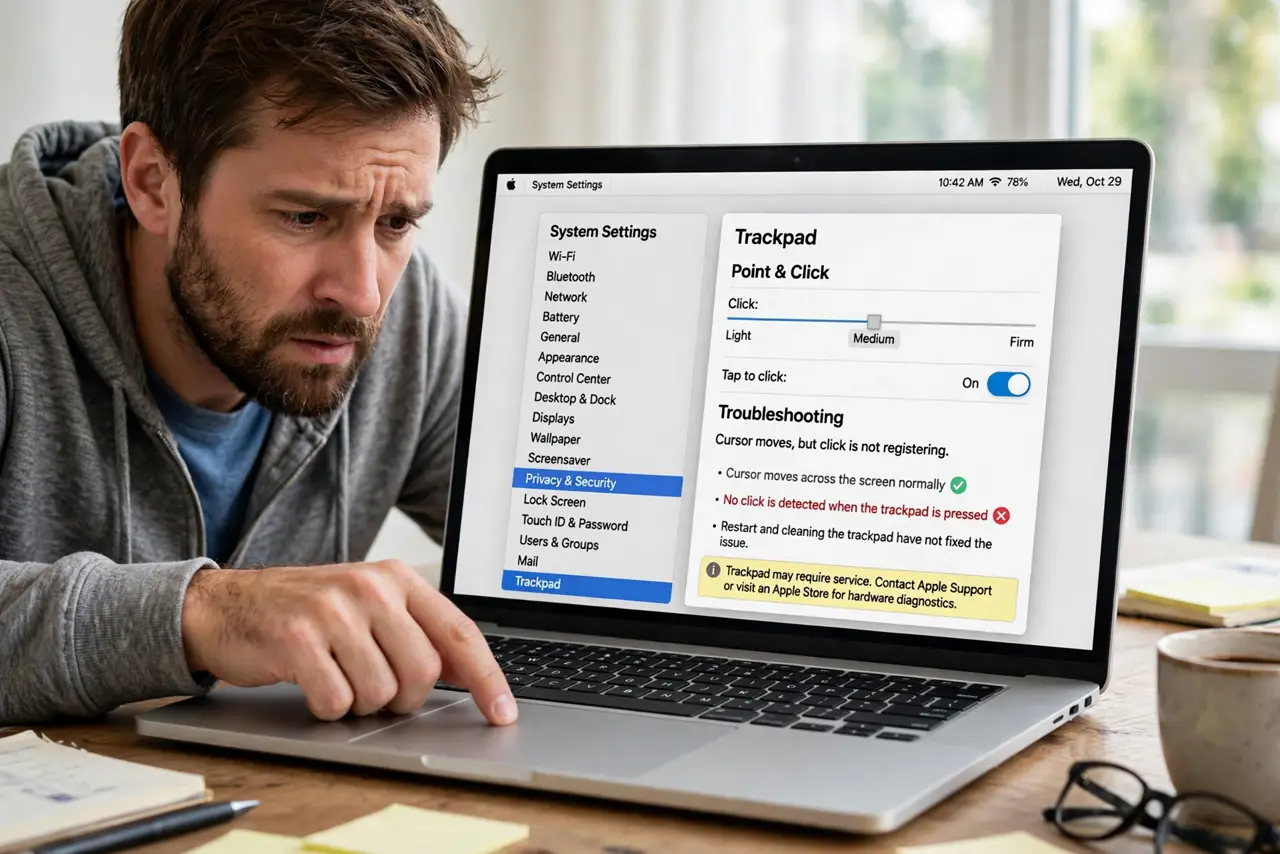
Quick fix: open System Settings, go to Trackpad, and confirm the click settings and haptic strength. Restart the Mac to clear a stuck driver, and if the click stays dead or the trackpad bulges upward, suspect a swollen battery and stop using it.
Follow these steps
- Check the click settings. Open System Settings, then Trackpad, and verify click behavior and haptic strength. An update can reset these, making a working trackpad seem broken.
- Distinguish tap from click. Tap-to-click is a software gesture; the physical click is haptic hardware. If taps work and clicks do not, the haptic engine or its setting is the suspect.
- Restart to reset the driver. A stuck trackpad driver survives sleep but not a restart. Reboot and test the click before anything more drastic.
- Look for a bulging trackpad. Sight along the MacBook edge: a trackpad rising above the palm rest signals a swollen battery underneath. Stop using the Mac and get service; this is a safety issue, not a settings issue.
- Test in another user account. Create a test user and try the click there. Working in a fresh account means your settings or login software is the cause.
- Tune the rest while you are there. A settings visit is a good moment to also fix scroll direction to your liking. One pane, two improvements.
What NOT to do
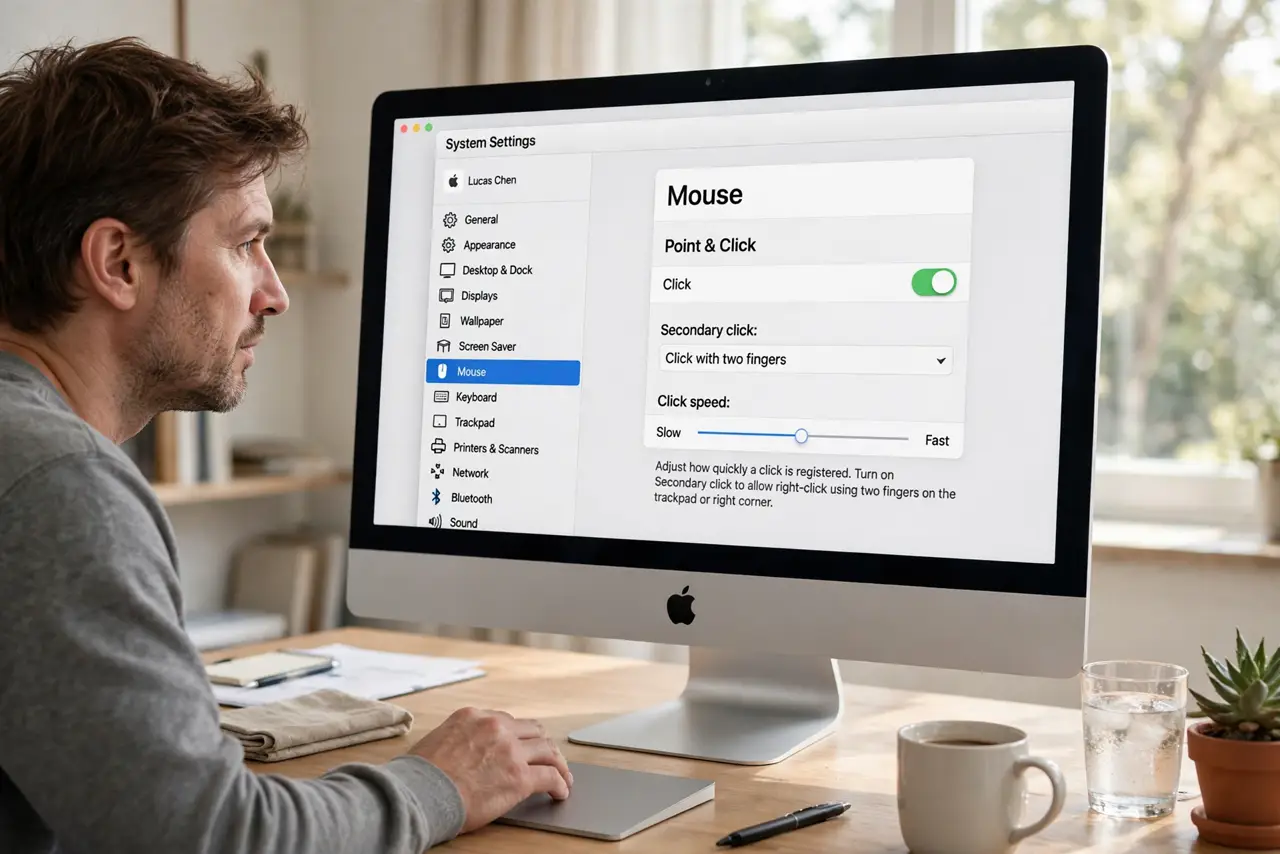
- Do not press harder and harder. Forcing a dead click risks breaking the trackpad glass, especially if a battery swells beneath it.
- Do not ignore a bulging trackpad. A swollen battery is a fire risk; settings cannot fix it and use must stop.
- Do not spray cleaner under the trackpad edge. Liquids near the battery and logic board invite far worse problems.
- Do not remap everything around the problem. Fix the click itself instead of building a tap-only workaround that hides a hardware fault.
Frequently asked questions
Why does tap work but click doesn't?
Tap is software; click is the haptic engine. Different paths mean one can fail while the other works.
Is a dead click always hardware?
No. Reset settings and a stuck driver cause it too, which is why the software checks come first.
What does a swollen battery feel like?
A trackpad that rises, clicks unevenly, or resists pressing. Treat it as urgent.