Hide Distracting Page Parts
You open a long article and the page fights you — cookie banners, autoplay videos, newsletter popups covering the text. Safari's Distraction Control lets you hide any annoying part of a page with a couple of clicks, and Safari remembers your choice on future visits. This guide shows the trick.

TL;DR / Quick Fix
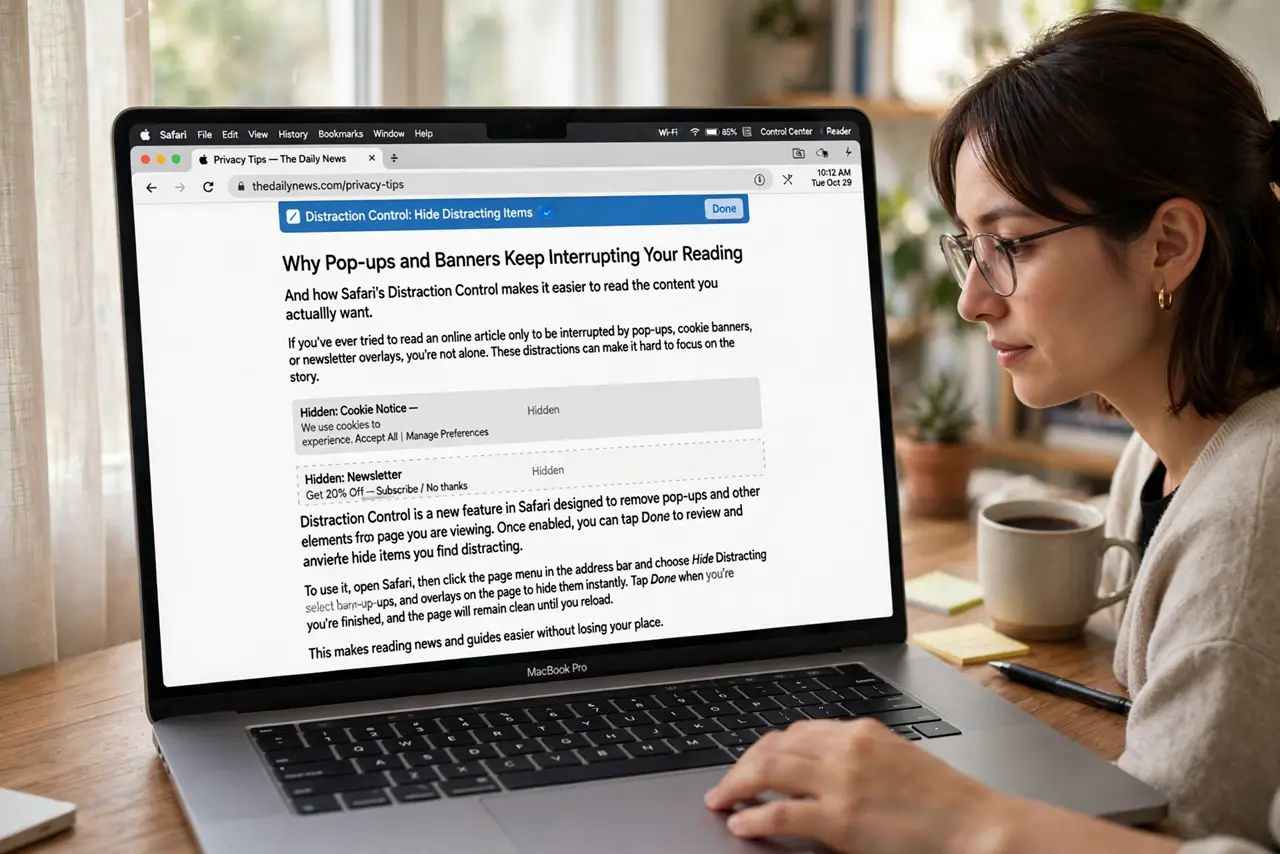
Quick fix: in Safari, click the Page menu icon in the address bar and choose Hide Distracting Items. Click each annoying element — popups, banners, autoplay videos — and it dissolves away. Click Done. Safari remembers what you hid, so the page stays clean on your next visit.
Follow these steps
- Open the annoying page in Safari. Navigate to the article or page with the popups and banners. Distraction Control works on the page you are viewing.
- Open the Page menu. Click the Page menu icon in the address bar (the small icon at the left of the address field) to reveal Safari's page options.
- Choose Hide Distracting Items. Select Hide Distracting Items from the menu. The page dims slightly and your cursor becomes a selector.
- Click each distracting element. Click the cookie banner, the popup, the autoplay video — each one dissolves with a little animation. Take your time and hide everything annoying.
- Click Done to lock it in. Click Done in the address bar. Safari saves your choices, so those elements stay hidden when you revisit the page.
- Undo from the same menu. If you hid something you actually wanted, reopen the Page menu and choose Show Distracting Items to bring everything back.
What NOT to do
- Do not use it to bypass paywalls. Hiding a paywall overlay is against the site's terms and usually breaks the article anyway.
- Do not hide the actual article text by accident. Click carefully — if the content vanishes, use Show Distracting Items to restore it.
- Do not expect it to block ads everywhere. It hides what you point at per site; it is not a replacement for a content blocker.
- Do not forget it is per-site. Hiding a popup on one site does not hide the same popup design on another — repeat as needed.
Frequently asked questions
Does it work on every website?
On nearly all standard pages, yes. Some heavily scripted sites may restore the hidden elements on reload.
Is this the same as Reader mode?
No — Reader reformats the whole article into clean text. Distraction Control surgically removes only the parts you point at, keeping the page's design.
Will the site know I hid things?
No — hiding happens entirely in your browser. The site sees a normal visit.