Safari Profiles Mix Up Your Bookmarks
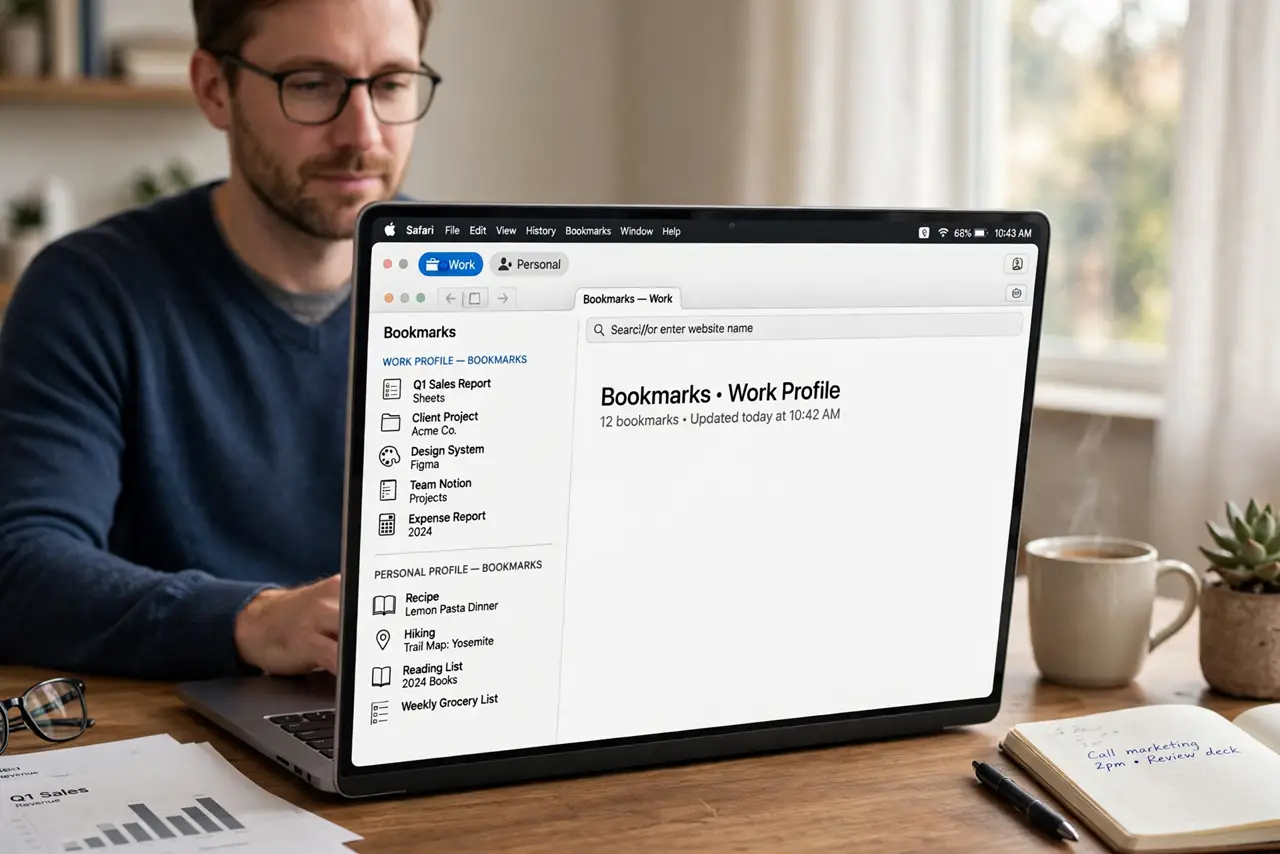
Safari Profiles keep work and personal browsing apart, but only if you are actually in the profile you think you are in. When bookmarks land in the wrong profile, the usual cause is simple: a new window opened in a different profile, and you saved without noticing.
TL;DR / Quick Fix
Quick fix: open Safari and check the profile shown for the current window. Switch to the profile that should own the bookmark, then re-save it there. Remove the stray copy from the wrong profile, and always glance at the profile name before saving a new bookmark.
Follow these steps
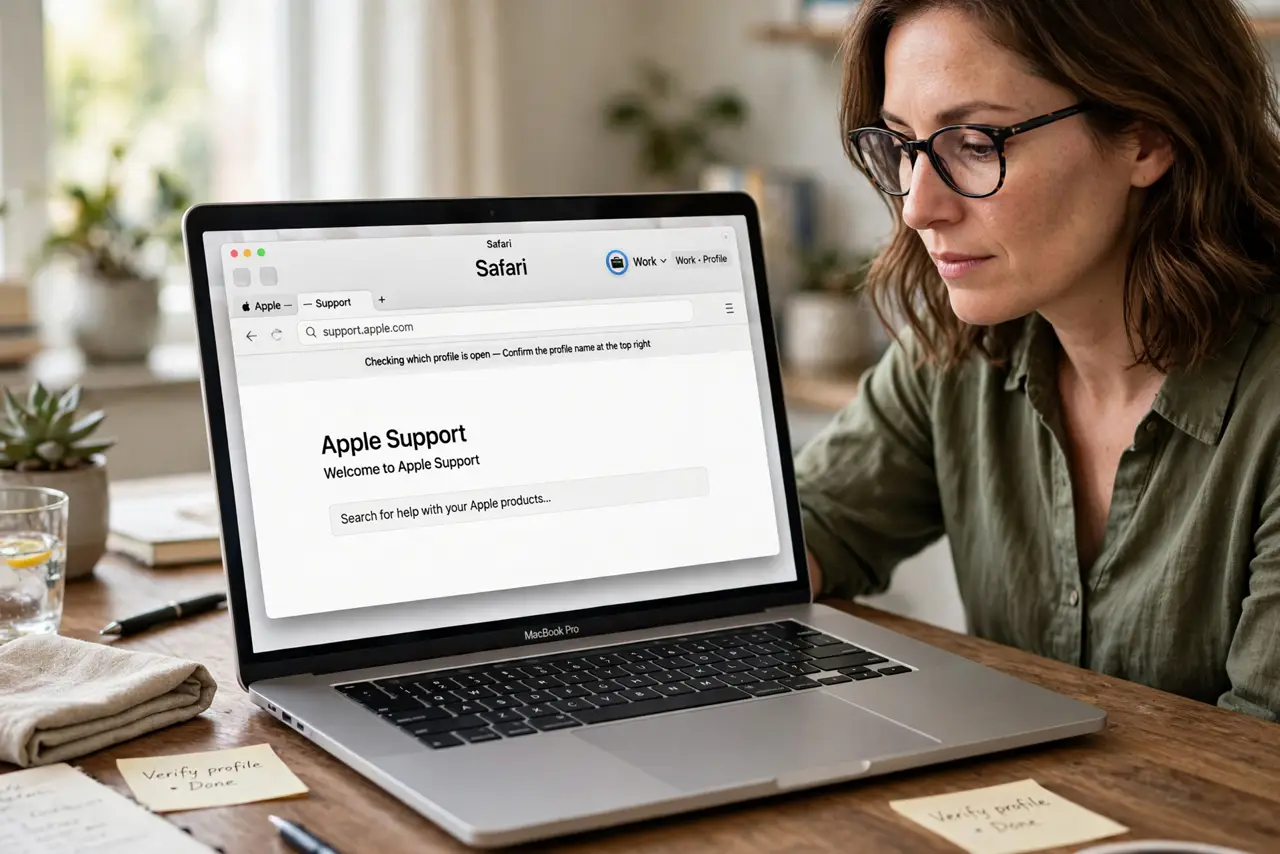
- Check which profile is open. Look at the Safari window you are using and confirm the profile name shown for it. If the name does not match the profile you meant to use, you have found the mix-up before changing anything else.
- Switch to the correct profile. Open a window in the profile that should own these bookmarks. Keep the two profiles in separate windows so you can compare them side by side instead of guessing.
- Move the stray bookmarks. In the wrong profile, find the bookmark that does not belong there, note its address, delete that copy, and save it again in the correct profile window.
- Check the start page too. Open a new tab in each profile and compare the favorites shown there. Favorites are per profile, so a missing favorite usually means you are looking at the other profile.
- Save one test bookmark. Save a test page in the profile you use most, then check that it appears only there. If it shows up in the other profile as well, you are still in the wrong window.
- Clean up duplicates. Once every bookmark sits in one profile only, delete any leftover duplicates. A quick final check in each profile stops the same confusion next week.
What NOT to do
- Do not delete a whole bookmarks folder to fix one stray bookmark. Move the single item first, since bulk deletion is hard to undo.
- Do not turn profiles off in frustration. Profiles are the tool that keeps the two sets apart, so removing them merges the mess instead of fixing it.
- Do not assume a synced device caused it. Check the profile on this Mac first, because a wrong-window save looks exactly like a sync problem.
- Do not save the same bookmark in both profiles as a workaround. Duplicates make the next cleanup harder and hide which profile is really in use.
Frequently asked questions
Why do my bookmarks appear in the wrong profile?
Because the window you saved from belonged to the other profile. Safari saves to the profile of the window you are using.
Can I move a bookmark between profiles?
There is no direct drag between profiles, so note the address, delete the stray copy, and save it again in the correct profile.
Will fixing this delete my other bookmarks?
No. Moving one bookmark at a time leaves every other bookmark untouched in its own profile.