Safe Boot on a Mac?
Your Mac is misbehaving — crashing, crawling, or refusing to start properly — and you suspect a rogue login item or extension. Safe Boot starts macOS with only the essentials: no login items, no third-party extensions, and a disk check on the way in. If the problem vanishes in Safe Boot, you have narrowed it to your software. Here is how to do it on any Mac.
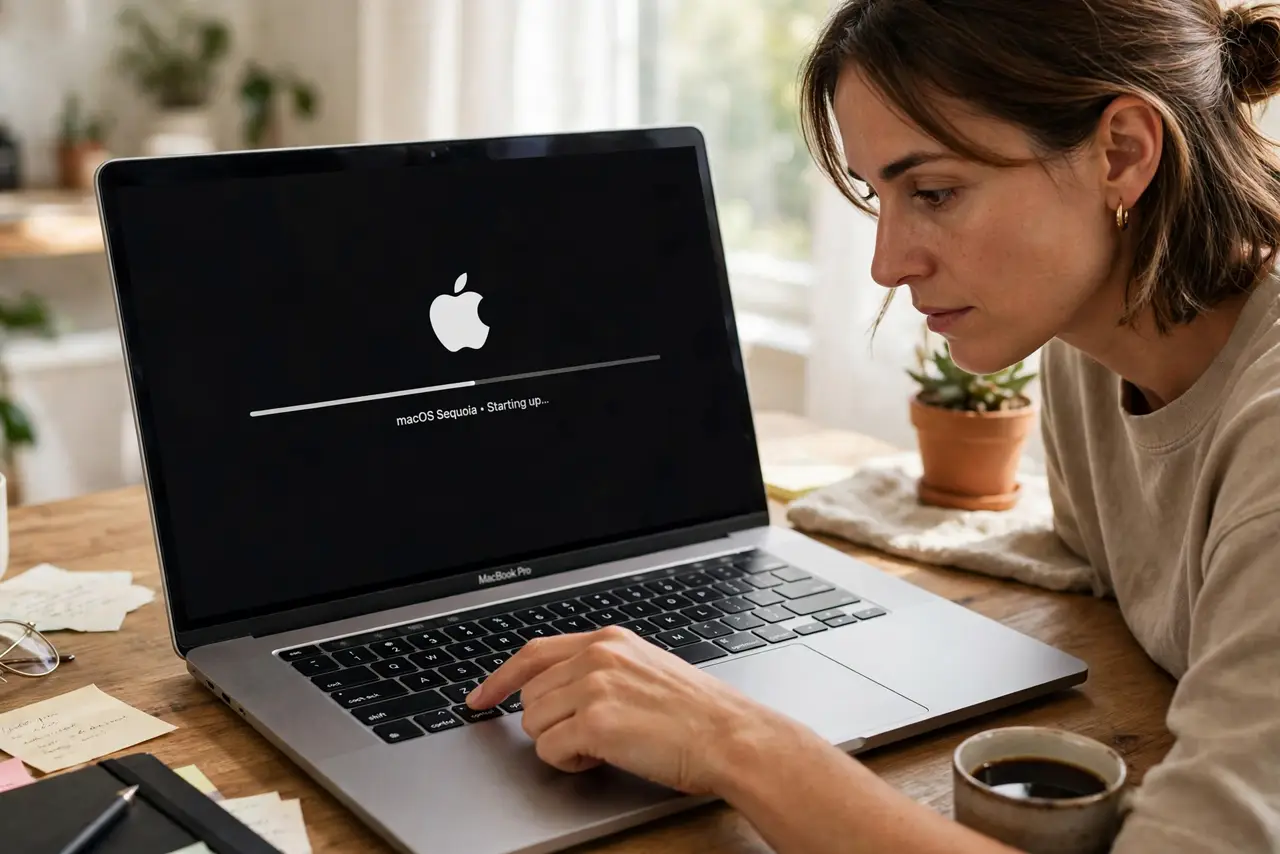
TL;DR / Quick Fix
Quick fix: Safe Boot loads macOS with only essentials — no login items or third-party extensions. Apple Silicon: shut down, hold power to options, hold Shift, click Continue in Safe Mode. Intel: restart holding Shift. If the problem disappears, a login item or extension is the culprit.
Follow these steps
- Know what Safe Boot does. It skips login items, disables third-party system extensions and fonts, and runs a disk check. It does not delete anything — it is purely diagnostic. Think of it as macOS with a minimal crew.
- Safe Boot on Apple Silicon. Shut down the Mac completely. Press and hold the power button until 'Loading startup options' appears. Select your disk, press and hold Shift, then click 'Continue in Safe Mode.' Log in — you may need to log in twice.
- Safe Boot on Intel Macs. Restart and immediately press and hold Shift until the login window appears. Release Shift and log in. If you are unsure which Mac you have, the Apple Silicon safe mode guide covers the newer method in detail.
- Test the problem. Use the Mac normally in Safe Mode — open the crashing app, reproduce the slowness. If the issue is gone, the cause is something Safe Boot disabled: a login item, extension, or third-party driver. If it persists, the issue is deeper — system or hardware.
- Hunt the culprit. Restart normally, then disable login items one group at a time (System Settings → General → Login Items). Re-enable in halves until the problem returns — the last group enabled holds the offender. Remove or update it.
- Exit Safe Mode. Just restart normally — no special steps. Safe Mode does not persist; a regular restart returns everything. Verify the problem stays gone after your fix.

What NOT to do
- Do not panic at the slow boot. Safe Boot runs a disk check and loads minimally — the first boot takes noticeably longer. That is normal.
- Do not work in Safe Mode all day. Some features (graphics acceleration, Wi-Fi on some models) are limited — it is for diagnosis, not daily use.
- Do not delete system files you find while hunting. Disable login items and extensions; leave /System and /Library alone.
- Do not assume Safe Boot fixes anything. It diagnoses — the fix is removing or updating whatever it revealed.
Frequently asked questions
How do I know I'm in Safe Mode?
The words 'Safe Boot' appear in red in the menu bar (the Apple Silicon login screen shows it too). Everything also feels slightly sluggish — reduced graphics acceleration is the tell.
Will Safe Boot delete my files?
No — nothing is deleted, moved, or modified except the disk check's repairs. Your files, apps, and settings are untouched.
Safe Mode didn't help — now what?
The problem is likely system-level or hardware. Next steps: run Apple Diagnostics (hold D at startup), check disk health in Disk Utility, or reinstall macOS over your data.