Migration Assistant? What It Moves
You bought a new Mac and the thought of reinstalling everything makes you tired. Migration Assistant copies your user account, apps, documents, and settings from an old Mac, a Time Machine backup, or even a Windows PC — over Wi-Fi or a cable. It is the closest thing to teleporting your digital life. Here is what it moves, what it skips, and how to run it cleanly.
TL;DR / Quick Fix
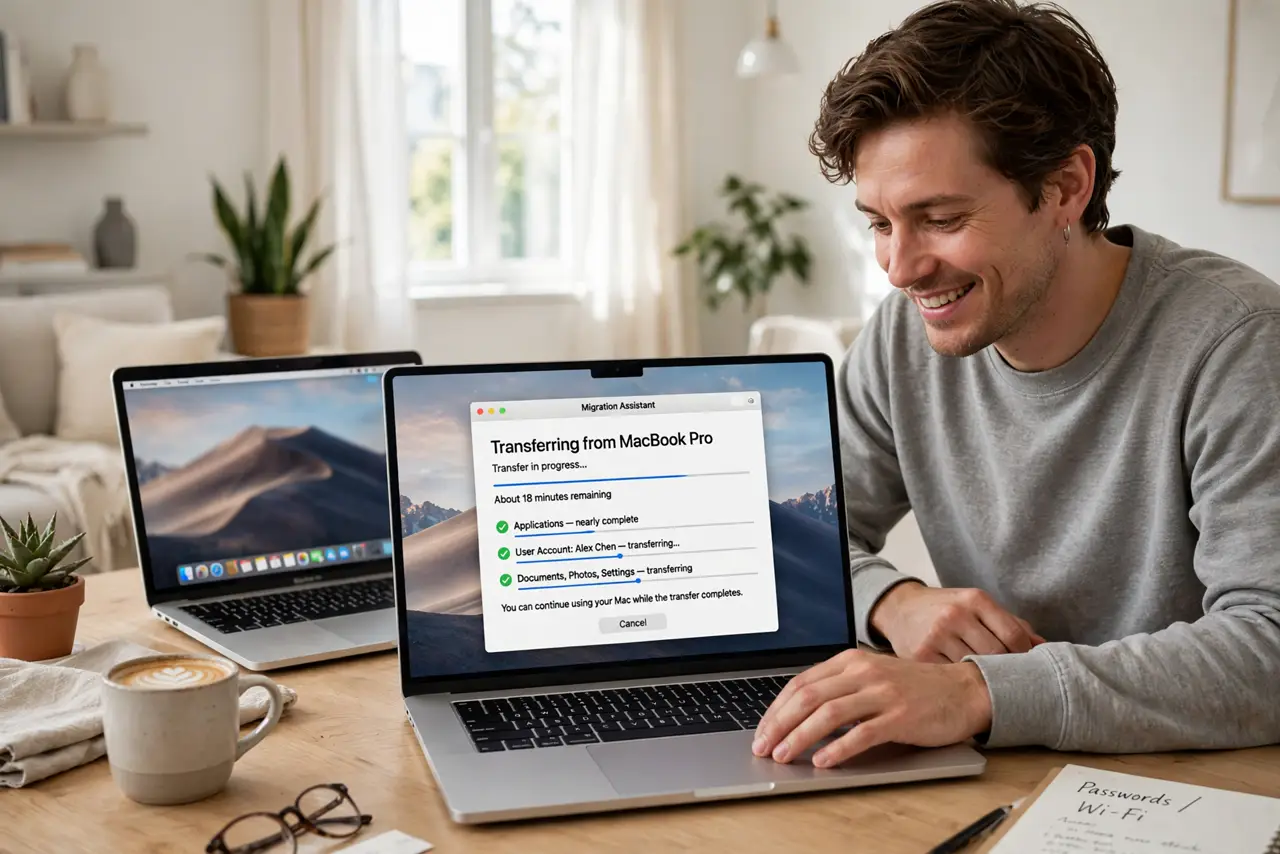
Quick fix: Migration Assistant moves your user account, apps, documents, and settings to a new Mac — from an old Mac, a Time Machine backup, or a Windows PC. Run it during the new Mac's first setup. Keep both plugged in on the same network; big transfers take hours.
Follow these steps
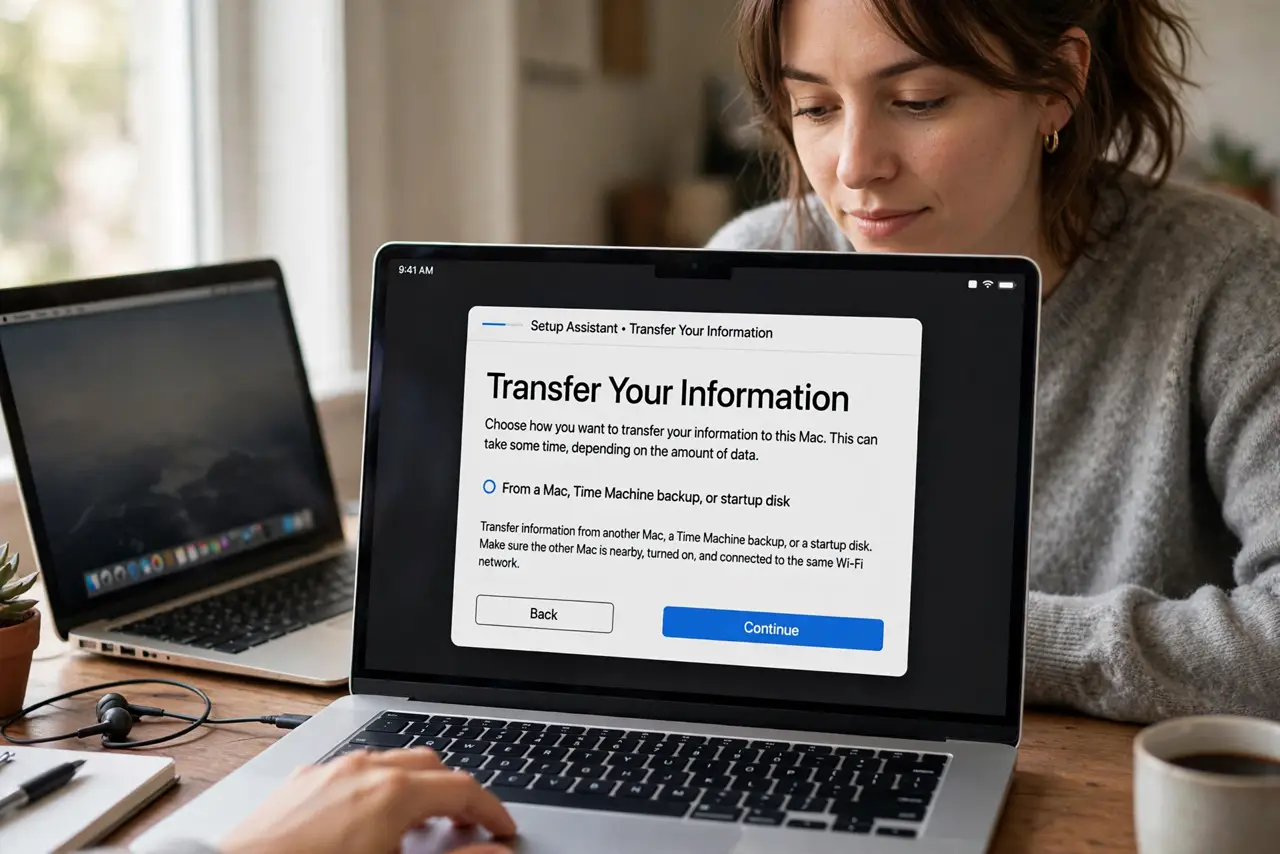
- Run it at first setup if you can. The new Mac offers Migration Assistant during its initial setup — accept it there for the cleanest transfer. Running it later works too (Applications → Utilities), but first-setup avoids duplicate accounts.
- Choose your source. Pick from another Mac, a Time Machine backup, or a Windows PC. A Time Machine backup is the most reliable source — no network flakiness, and you can start even if the old Mac is dead. Migrating from a Time Machine backup you already trust is straightforward.
- Connect everything properly. Plug both Macs into power — a sleeping laptop mid-transfer is a disaster. Use the same Wi-Fi network, or better, a direct cable or Thunderbolt connection for speed. Big libraries can take several hours; start it when you don't need either machine.
- Select what to transfer. You can move your user account, applications, and system settings selectively. Uncheck apps you no longer want — migration is a great excuse to declutter. When in doubt, move the user account; you can reinstall apps later.
- Let it finish uninterrupted. Do not use either Mac during the transfer, and definitely do not let them sleep. The progress bar lies about time remaining — trust the process. Interrupting mid-migration is the main cause of broken transfers.
- Verify before wiping the old Mac. Log into the new Mac, open your key apps and documents, and confirm everything arrived. Keep the old Mac untouched for a week as a safety net. Only erase it once you are certain.
What NOT to do
- Do not migrate onto a Mac with the same account name already created. Duplicate usernames cause conflicts — let Migration Assistant create the account.
- Do not start a transfer on battery power. Either machine sleeping mid-transfer corrupts the move.
- Do not expect Windows apps to come along from a PC. Documents and settings transfer; Windows programs do not run on Mac — find Mac equivalents.
- Do not wipe the old Mac the same day. Verify everything on the new machine first; the old one is your free backup.
Frequently asked questions
How long does migration take?
Anywhere from under an hour to most of a day, depending on data size and connection. A 500 GB library over Wi-Fi is an overnight job; over a Thunderbolt cable it is a few hours.
Can I migrate from a Windows PC?
Yes — install Apple's Windows Migration Assistant on the PC first. It moves documents, mail, and settings; Windows applications stay behind.
What if the transfer fails halfway?
Restart both machines and try again, preferably from a Time Machine backup instead of over Wi-Fi. The new Mac can be reset and the migration re-run cleanly.