Scan With Image Capture? How To
The printer maker's scanning app wants an account, a subscription prompt, and 800 megabytes of 'utilities.' Skip it. Image Capture has shipped with every Mac for decades, scans documents and photos cleanly, and asks for nothing. Most people never need anything else.
TL;DR / Quick Fix
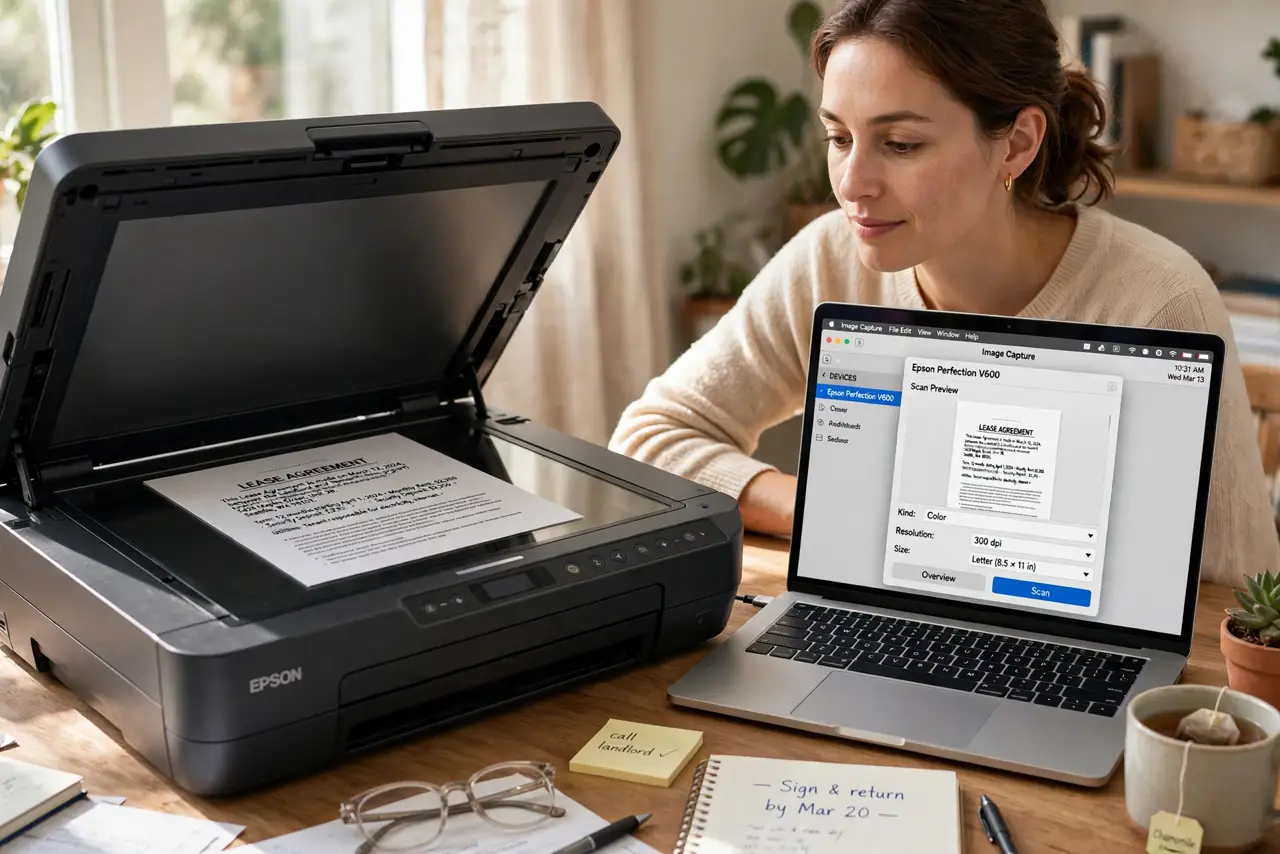
Quick fix: connect your scanner or multifunction printer, then open Image Capture from Applications. Select the device, choose where to save, and click Scan. It handles documents and photos without extra software — most people never need the manufacturer's bloated scanning app.
Follow these steps
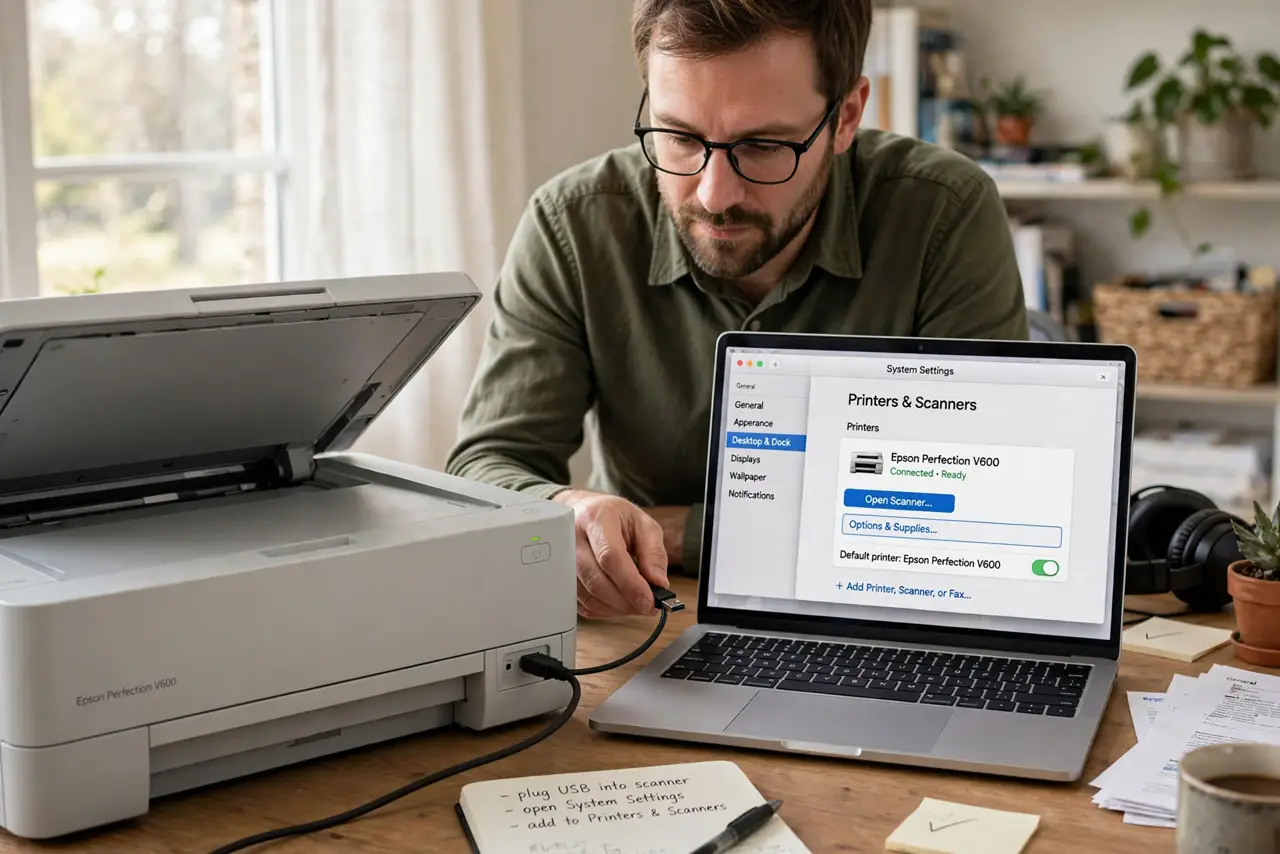
- Connect the scanner. USB or network — if the Mac prints to it, it can usually scan from it. Add it in Printers and Scanners first if needed — see adding a printer.
- Open Image Capture. Find it in Applications. No download, no account, no installer — it is already there.
- Select your device. Your scanner appears in the sidebar. Click it — a preview area and scan controls appear.
- Choose your settings. Pick document or photo, set resolution (300 dpi for documents, higher for photos), and choose the save location.
- Scan and check the result. Click Scan, then open the file immediately. Crooked? Rescan now — fixing it later never happens.
- Use the feeder for stacks. Multi-page documents go through the automatic feeder in one job. Flatbed is for photos and single delicate pages.
What NOT to do
- Do not install the manufacturer's scanning suite first. Try Image Capture — it handles the vast majority of scanning needs with zero bloat.
- Do not scan everything at maximum resolution. Huge files for text documents waste space — 300 dpi is the document sweet spot.
- Do not save scans to random locations. Pick a scans folder once and always use it — future you will thank present you.
- Do not forget the scanner needs power and connection too. 'Device not found' is usually a sleeping scanner, not a Mac problem.
Frequently asked questions
Where did my scan go?
Wherever Image Capture's 'Scan To' pointed — check that dropdown before scanning. The Pictures folder is the default.
Can I scan to PDF?
Yes — choose PDF as the format for documents. Multi-page feeder scans combine into a single PDF automatically.
Why is the scan button grayed out?
The Mac sees the printer but not its scanner — common with network printers. USB usually fixes it; otherwise check the maker's site for a scanner driver.