Add a Printer on Mac
New printer, and the Mac acts like it does not exist. Modern printers mostly set themselves up — macOS discovers them on the network and fetches the driver silently. When that magic fails, the manual path is still only a few clicks. Here is both.
TL;DR / Quick Fix
Quick fix: connect the printer to Wi-Fi or plug it in with USB, then open System Settings, go to Printers and Scanners, and click Add Printer. macOS finds most modern printers automatically and downloads the driver. Print a test page to confirm everything works.
Follow these steps
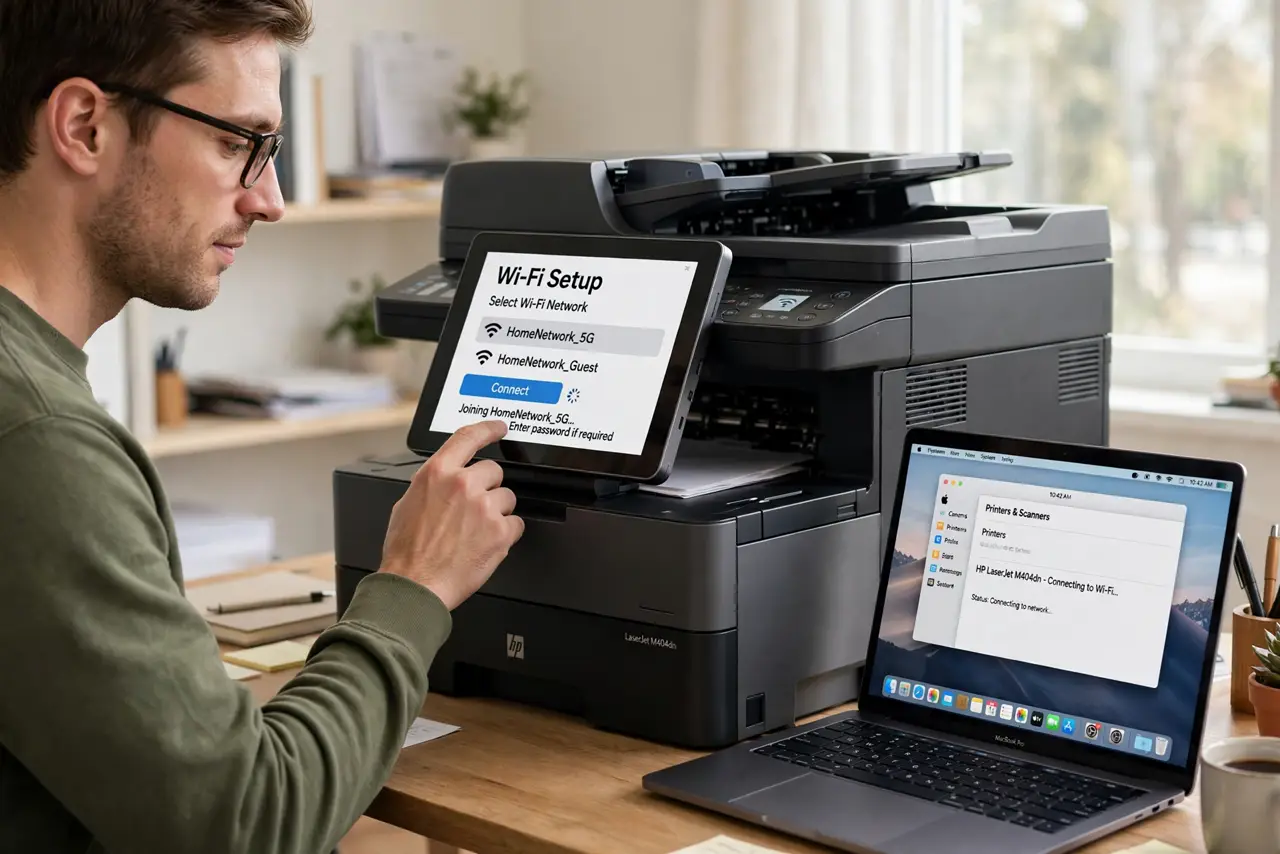
- Connect the printer to your network. Use the printer's own screen to join your Wi-Fi, or plug in USB for the simplest possible setup. Same network as the Mac is the key rule.
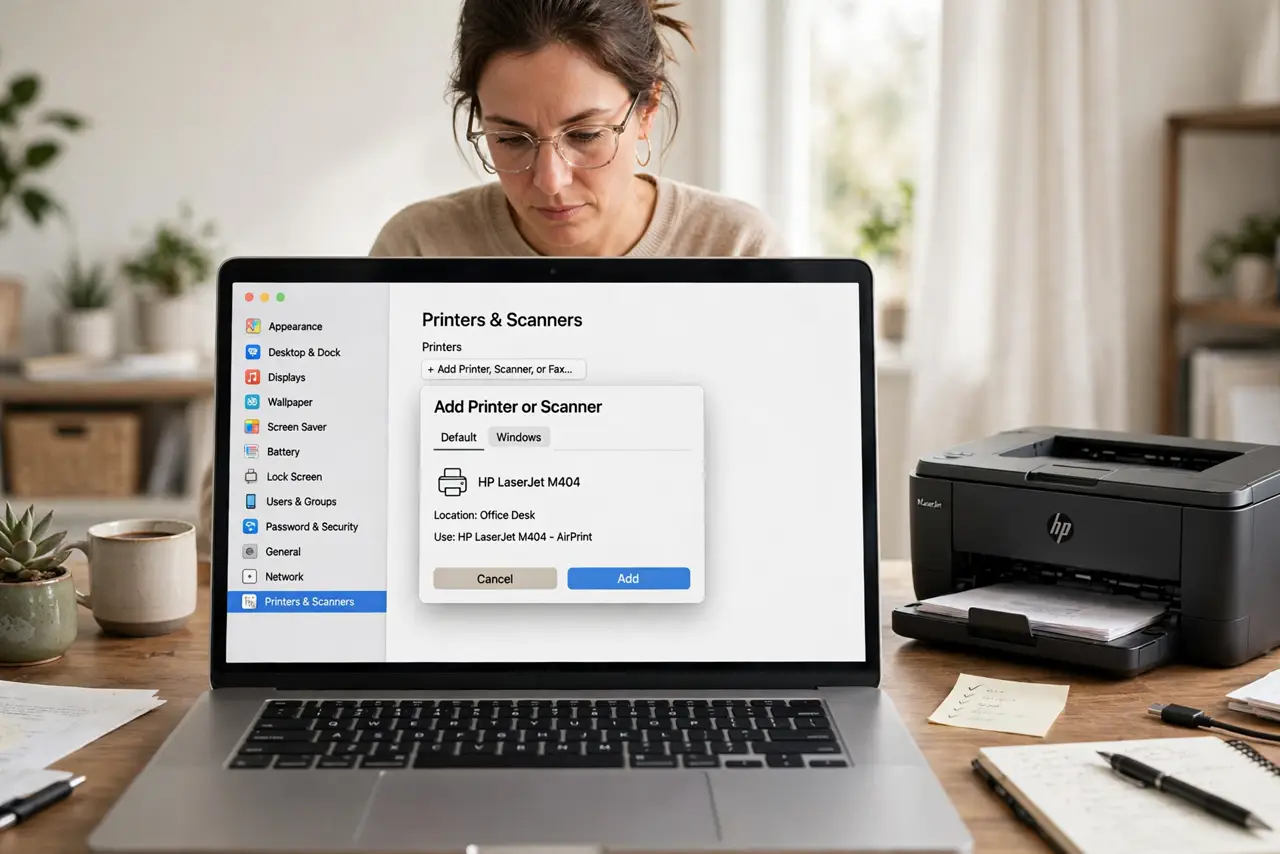
- Open Printers and Scanners. In System Settings, go to Printers and Scanners. Click Add Printer, Scanner, or Fax.
- Let macOS discover it. Most modern printers appear automatically — this is the standard printer setup flow. Select yours and click Add.
- Wait for the driver download. macOS fetches the right driver itself. This takes a minute on first setup — let it finish before testing.
- Print a test page. From the printer's settings, print a test page. Success here proves the whole chain — network, driver, and printer.
- Set it as default if it is your main printer. Right-click the printer and set it as default so every app prints to it without asking.
What NOT to do
- Do not install the manufacturer's 'full software suite.' The bloated bundle adds updaters and ads — macOS's built-in driver prints just fine.
- Do not put the printer on a guest network. Guest networks isolate devices — the Mac will never see a printer hiding there.
- Do not ignore a printer that appears then vanishes. That signals Wi-Fi flakiness at the printer — move it closer to the router or use USB.
- Do not add the same printer twice 'to be sure.' Duplicate queues cause confusion about which one actually prints — remove extras.
Frequently asked questions
Why can't my Mac find the printer?
Almost always a network mismatch — different Wi-Fi bands, guest networks, or VPNs. USB sidesteps all of it for diagnosis.
Do I need the manufacturer's driver?
Rarely on modern macOS — AirPrint and built-in drivers cover most printers. Download the maker's driver only if a feature is missing.
Can I print from my iPhone too?
Yes — AirPrint printers work from iPhone and iPad with zero setup once they are on the same Wi-Fi.