Fix a Scanner Not Found on Your Mac
A scanner that the Mac cannot find is usually asleep, on a different network, or missing from the printer and scanner list, rather than broken. Scanners share their connection with printers in macOS, so check that list first.
TL;DR / Quick Fix
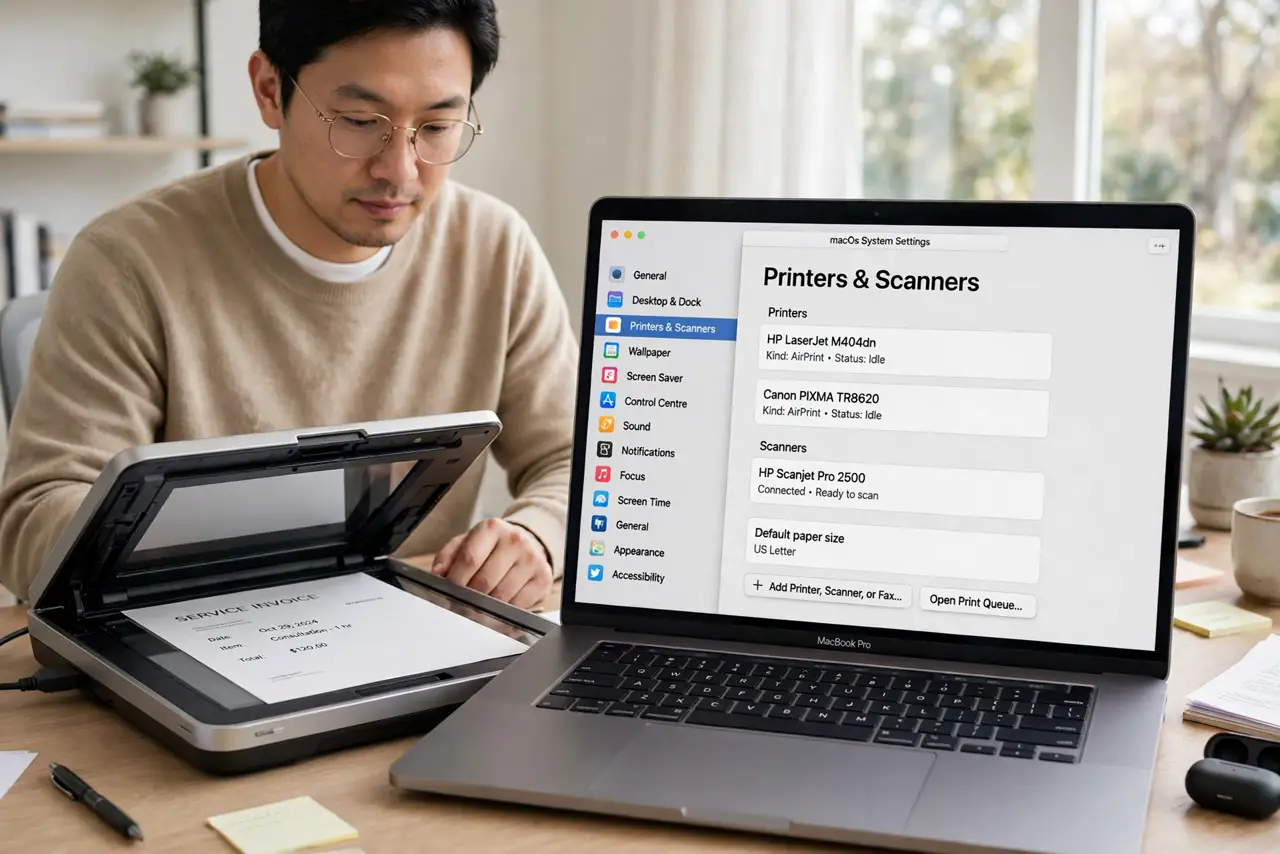
Quick fix: wake the scanner, confirm it is powered and on the same network as the Mac, and open System Settings, then Printers and Scanners. If the scanner is missing, remove and re-add the device while it is awake, then test one scan.
Follow these steps
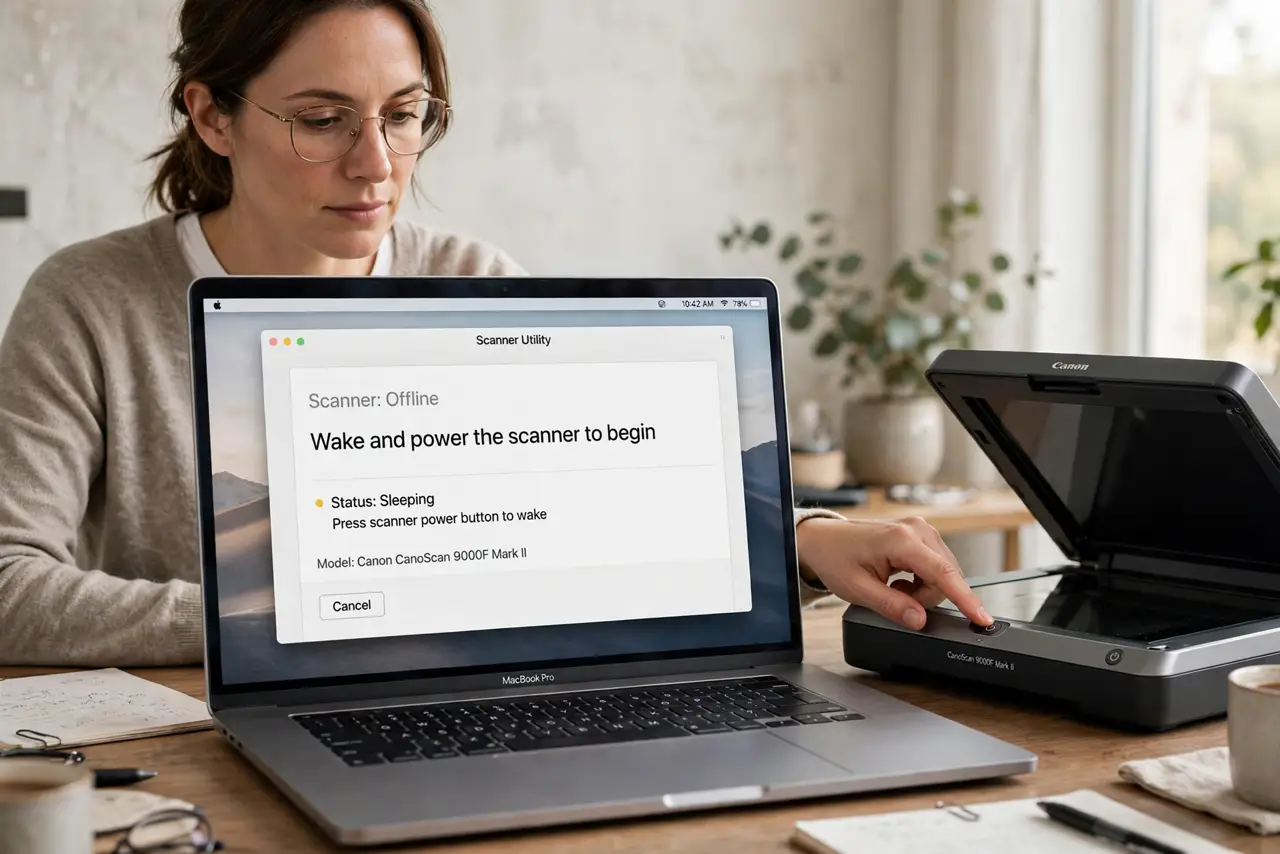
- Wake and power the scanner. Turn the scanner or multifunction printer fully on and wait until it shows Ready. A sleeping scanner will not appear in the Mac's scanner list.
- Confirm the connection type. For a USB scanner, reseat the cable firmly at both ends. For a network scanner, confirm it is on the same Wi-Fi network name as the Mac.
- Open Printers and Scanners. Open System Settings, then Printers and Scanners, and look for the device. Scanners appear here alongside printers in macOS.
- Remove and re-add the device. If the device is listed but scanning fails, remove it and re-add it while it is awake. A fresh entry often restores a scanner that the Mac stopped seeing.
- Test with a single simple scan. Scan one page at a low resolution as a test. A successful test scan proves the connection works before you scan a long document.
- Restart the Mac and scanner. If the scanner still does not appear, restart both the Mac and the scanner, then check Printers and Scanners again with the scanner awake.
What NOT to do
- Do not install scanner software from an ad first. Use the built-in Printers and Scanners entry, and the device maker's official support page if needed.
- Do not buy a new scanner for a not-found error. Power, network, and a fresh device entry fix most cases without new hardware.
- Do not keep rescanning a failed job repeatedly. Fix the connection first, then scan once, so you do not stack up failed attempts.
- Do not change network settings blindly. Confirm the network name and note any setting before you change it.
Frequently asked questions
Why does the printer work but the scanner not appear?
The device may be listed for printing but not for scanning, or the scanner function may need the device to be awake and re-added.
Does a scanner need its own app?
Not usually. macOS can scan from Printers and Scanners or Image Capture once the device is listed and awake.
What if the scanner appears but scans are blank?
Check the scanner lid, the original placement, and whether the scanner glass is clean, since blank scans are usually a placement problem.