Record Screen with Voice
You recorded a perfect tutorial and played it back to silence — your voice never made it in. macOS records the screen by default but leaves the microphone off, a trap that catches everyone once. The fix is one dropdown before you hit record, and a quick settings check so it stays on.
TL;DR / Quick Fix
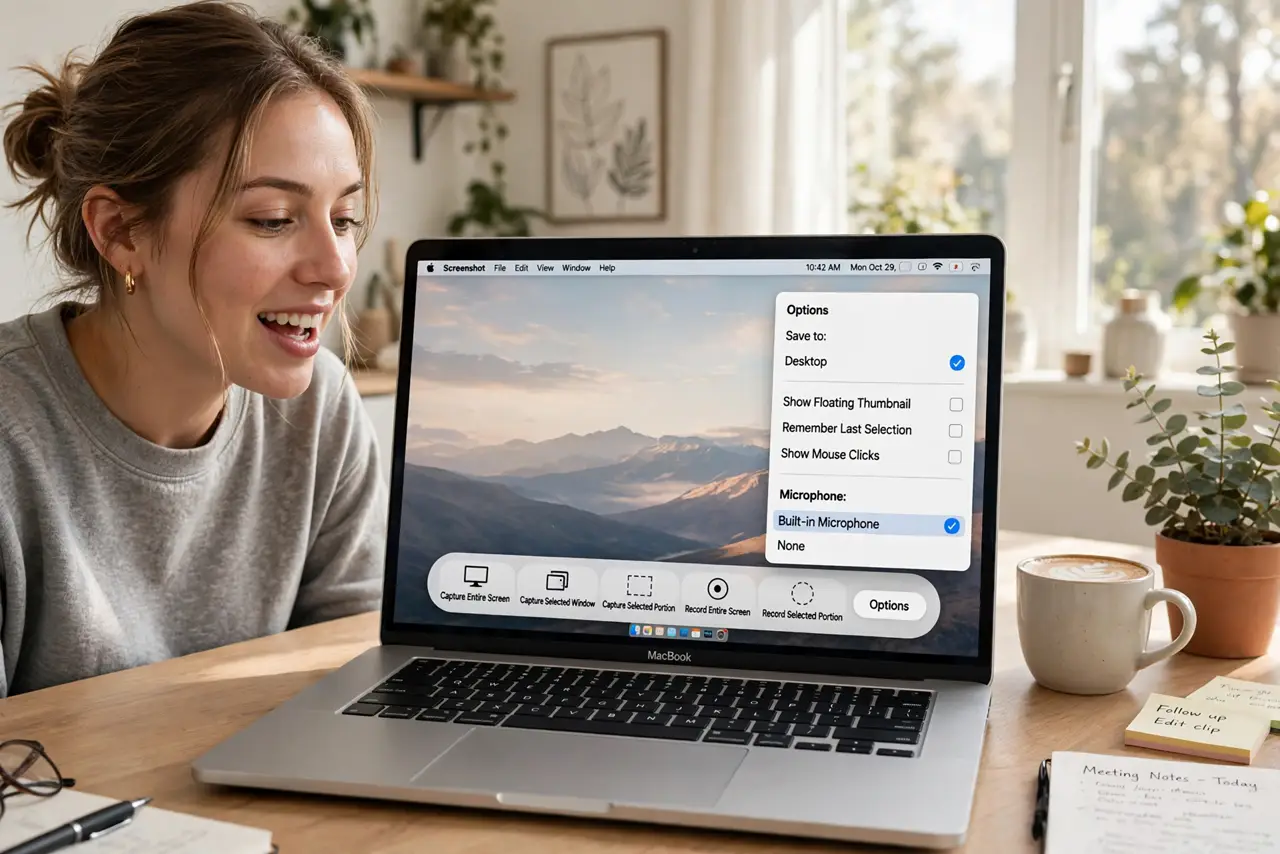
Quick fix: press Shift+Command+5, click Options, and choose your microphone under Microphone before recording. Do a five-second test recording and play it back to confirm your voice is there. The setting resets sometimes, so check it each time you record something important.
Follow these steps
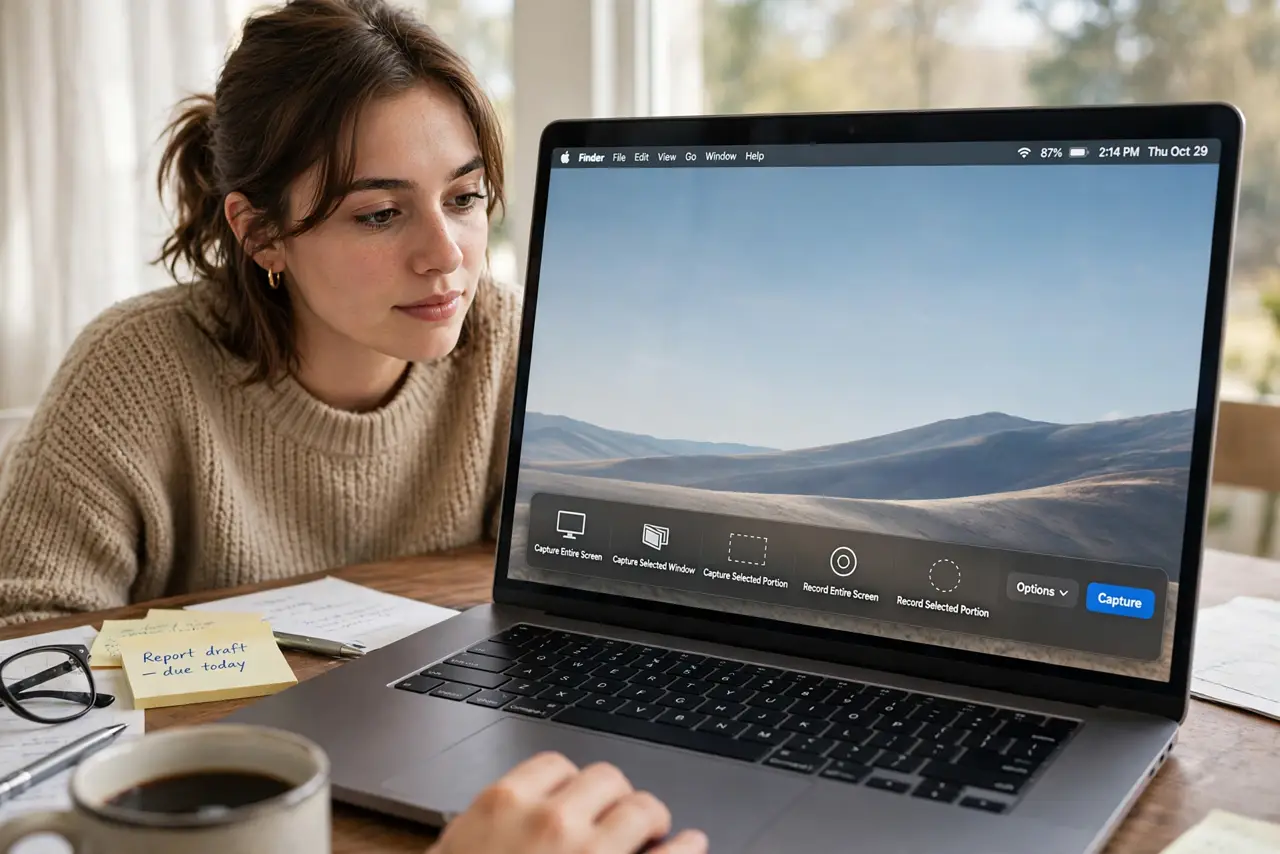
- Open the Screenshot toolbar. Press Shift+Command+5. The toolbar appears with screen recording options on the right side — Record Entire Screen and Record Selected Portion.
- Click Options. In the toolbar, click Options. This menu holds the save location, timer, and — the important one — the microphone selection.
- Choose your microphone. Under Microphone, select your mic — Built-in Microphone or your headset. 'None' is the default that produces all those silent recordings; changing it is the entire fix.
- Do a five-second test. Record five seconds of you talking, stop, and play it back. Confirm your voice is clear and the levels move. This ten-second ritual prevents the silent-tutorial disaster.
- Record for real. Start the recording, do your demo, and stop from the menu bar. The file saves to the location shown in Options — desktop by default.
- Trim the ends. Double-click the recording to open it, and use the trim handles to cut the awkward start and end. A thirty-second trim makes any recording feel professional.
What NOT to do
- Do not assume the mic stays selected. macOS resets it to None more often than you would like — check before every important recording.
- Do not record in a noisy room. The mic captures everything — keyboard clatter, street noise, the dishwasher. Quiet room, closed door.
- Do not forget the test recording. Skipping the five-second test is how silent tutorials happen; it is the cheapest insurance there is.
- Do not record sensitive screens. Notifications and passwords appear in recordings — enable Do Not Disturb first.
Frequently asked questions
Why is there no sound in my recording?
The microphone was set to None — the default. Re-record with the mic selected; the setting cannot be fixed after the fact.
Can I record system audio too?
Not natively — macOS records mic input, not the computer's own audio, without extra software. For app sounds you need a virtual audio driver.
Where do recordings save?
Desktop by default. Change it under Options in the Screenshot toolbar — picking a dedicated folder keeps them findable.