Master Screen Recording
You need to record your screen — a bug to show support, a demo for a colleague, a tutorial — and the options are confusing: screenshot toolbar, QuickTime, third-party apps, each with different audio catches. macOS has solid built-in recording; the trick is picking the right tool and capturing system audio, which Apple makes oddly difficult. This guide maps the options and gets clean recordings with voiceover. For still captures, use clipboard screenshots.
TL;DR / Quick Fix
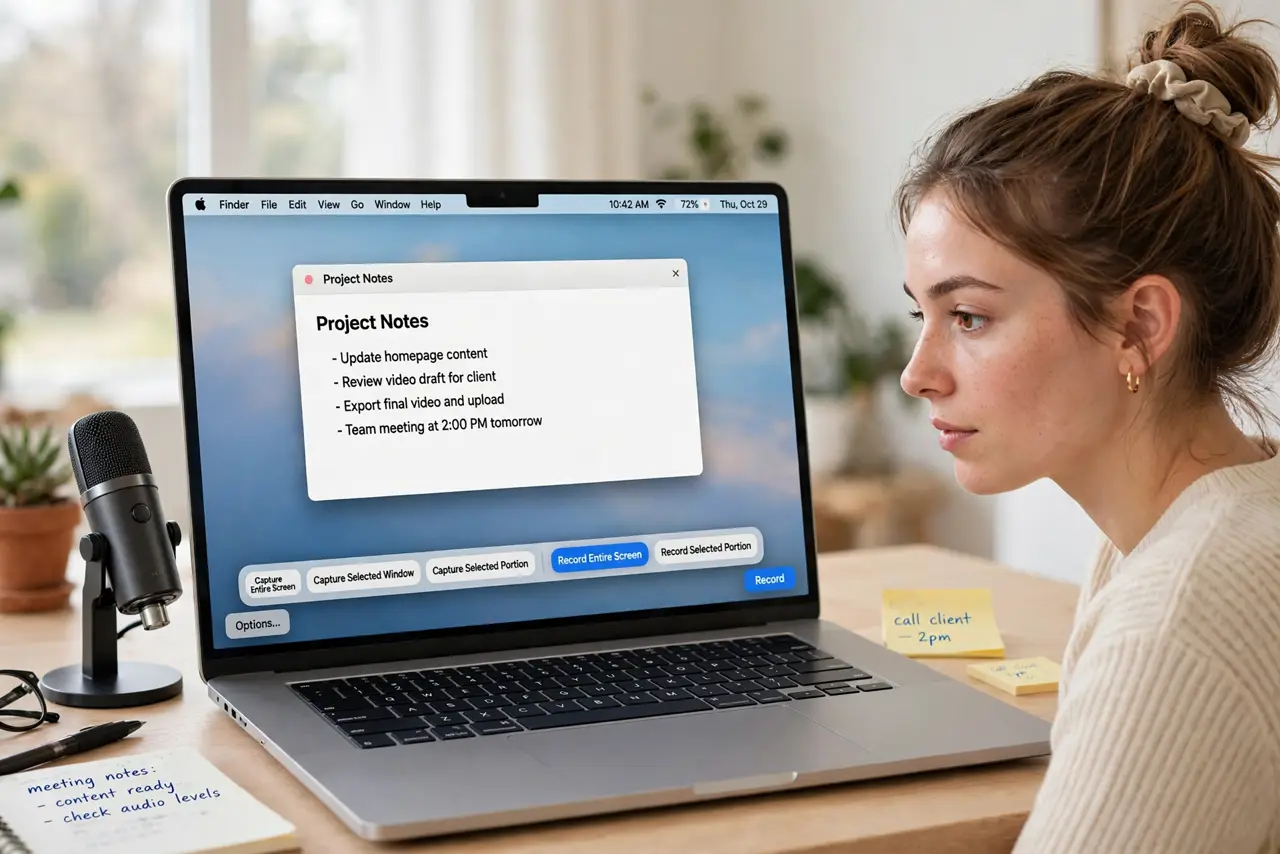
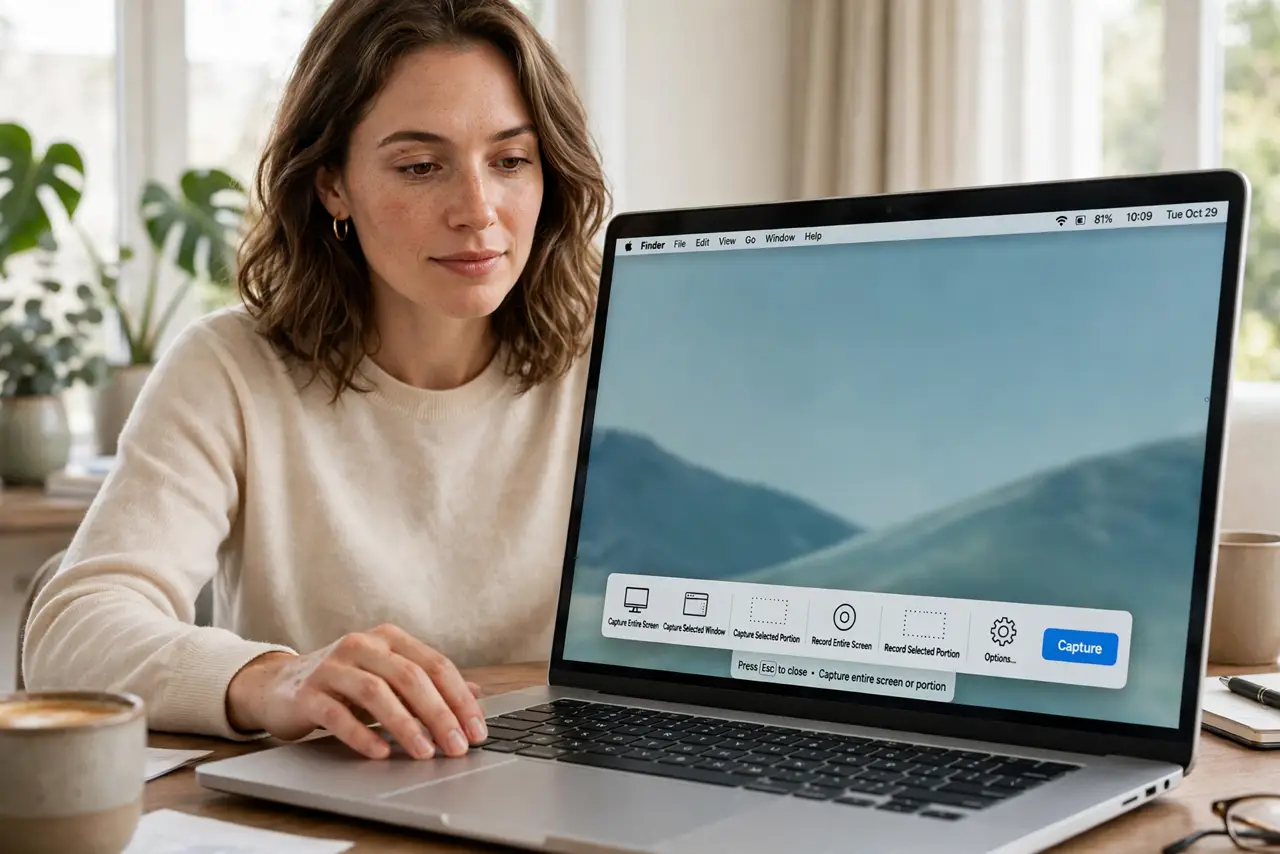
Quick fix: press Shift-Command-5 and choose Record Entire Screen or Record Selected Portion — the built-in tool handles most jobs. Click Options to pick the microphone for voiceover. For system audio, you need a free virtual audio driver, since macOS does not capture it natively.
Follow these steps
- Open the screenshot toolbar. Press Shift-Command-5. The toolbar offers screen recording alongside screenshots — Record Entire Screen or Record Selected Portion, your choice.
- Choose where it saves. Click Options and set the save location before recording. The default dumps to Desktop; a project folder keeps things tidy from the start.
- Pick the microphone. In Options, select your microphone for voiceover — Built-in, or a USB mic for better quality. A five-second test recording saves a ruined twenty-minute take.
- Set the timer if needed. Options include a 5 or 10 second countdown — useful when you need to click something the moment recording starts.
- Handle system audio honestly. macOS cannot record system audio natively. For app sounds and call audio, install a free virtual audio driver and select it as the sound source — the standard workaround everyone uses.
- Trim in the preview. Click the floating thumbnail after stopping to trim the ends. For real editing, the recording opens in QuickTime or your editor of choice.
What NOT to do
- Do not record a twenty-minute tutorial without a test clip. Audio levels and mic choice ruin more recordings than any other mistake.
- Do not forget notifications. Silence them first — nothing dates a tutorial like a message preview popping up mid-demo.
- Do not expect system audio without the extra driver. Complaining that 'the Mac did not record the sound' is the number one recording frustration — now you know why.
- Do not record sensitive info visible on screen. Log out of accounts and close private tabs before hitting Record.
Frequently asked questions
Where is the recording saved?
Wherever Options pointed — default Desktop — as a .mov file. Rename it immediately; 'Screen Recording 2026-10-29' tells future-you nothing.
Can I record my iPhone screen on the Mac?
Yes — connect the iPhone by cable, open QuickTime Player, choose New Movie Recording, and select the iPhone as the camera.
Why is there no system audio option?
Apple's privacy design blocks apps from capturing system audio directly. The virtual-driver workaround is the accepted solution.