App Can't Record the Screen?
You open a screen recorder, a video-call app, or a screenshot tool, and it shows a black screen or refuses to start: macOS blocked it. Since recent macOS versions, every app must get your explicit permission before capturing the screen. Granting it takes thirty seconds — once you know where the toggle hides.
TL;DR / Quick Fix
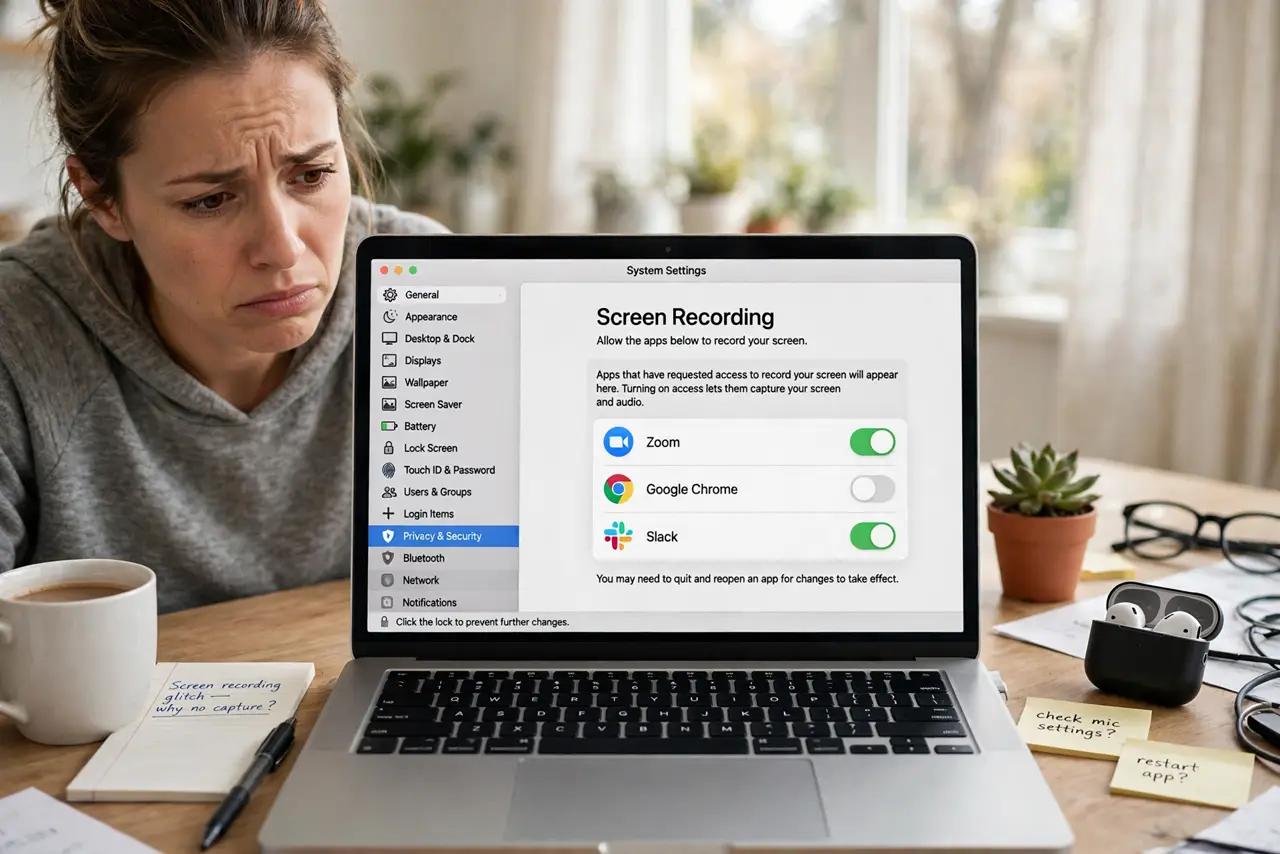
Quick fix: open System Settings, Privacy and Security, Screen Recording, and toggle on the app that needs it — then quit and reopen the app. If the app is missing from the list, open it once so the system registers it, then approve it.
Follow these steps
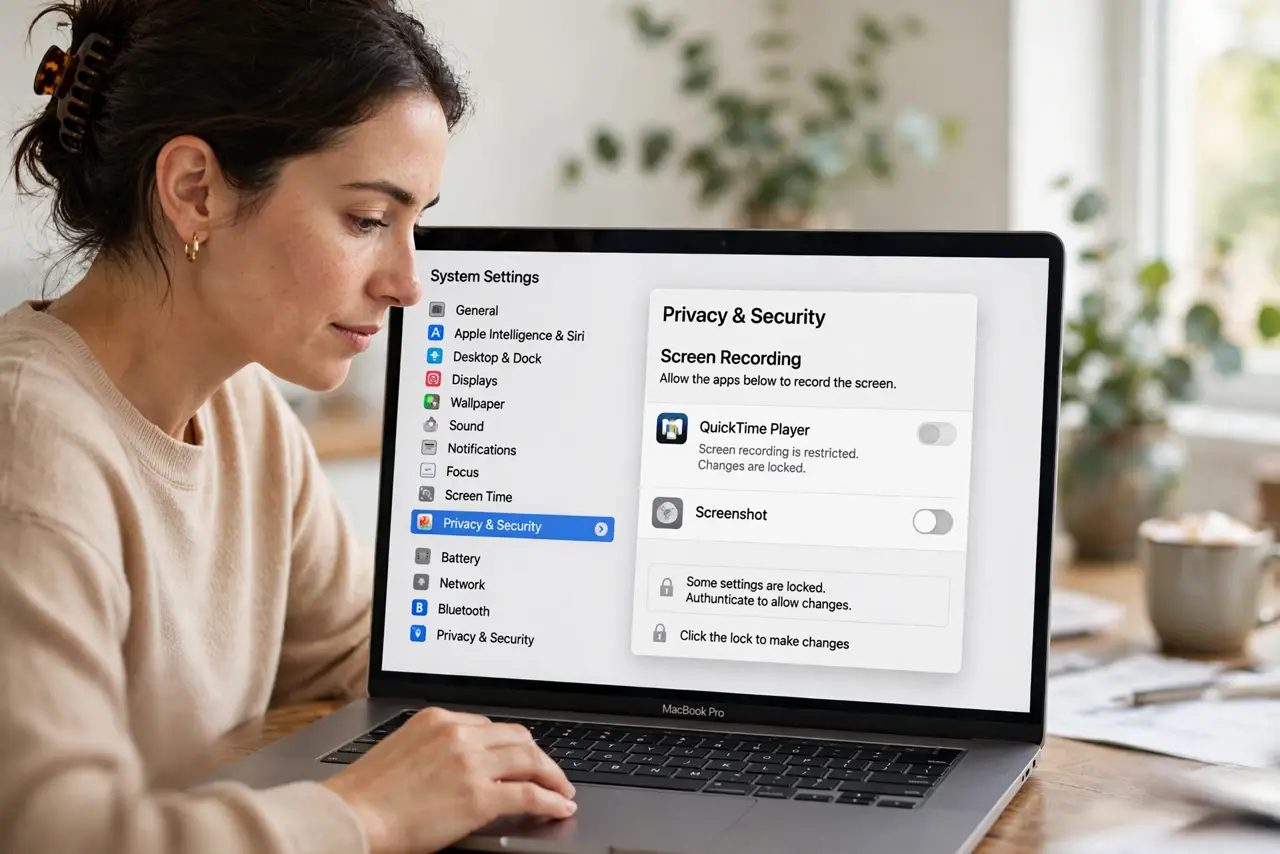
- Open the Screen Recording pane. Go to System Settings, then Privacy and Security, then Screen Recording. Authenticate if the toggles are grayed out.
- Toggle on your app. Find the app in the list and switch it on. The change only takes effect after the app restarts — macOS will prompt you to quit it.
- Quit and reopen the app. Do not just close the window — fully quit the app and launch it again. The permission activates on fresh launch.
- If the app is missing, launch it first. An app appears in the list only after it requests the permission once. Open the app, trigger the recording feature, then return to Settings — see permission denied cases if it still will not appear.
- Check camera and mic separately. Screen recording permission does not include camera or microphone. If your recording has no sound, those need their own approvals in the same Privacy settings.
- Revoke when done. If it was a one-time recording, toggle the permission back off afterward. Permissions you no longer need are just attack surface — the same logic as camera access.
What NOT to do
- Do not grant screen recording to apps you do not recognize. Screen capture sees everything — passwords, messages, banking — choose carefully.
- Do not skip the app restart. The toggle alone does nothing until the app relaunches — this causes most 'it still doesn't work' complaints.
- Do not confuse it with screen sharing in calls. Video-call apps need this permission too, granted the same way.
- Do not leave one-time tools permanently approved. Audit the list occasionally and remove apps you no longer use.
Frequently asked questions
Why is the recording just a black screen?
The app lacks the permission, or was not restarted after you granted it. Both are fixed in under a minute.
Can I allow it temporarily?
macOS has no temporary grant — toggle it on for the task, then toggle it off. It takes seconds.
Does this permission let apps see everything?
Yes — screen recording captures the entire display. Grant it only to software you genuinely trust.