Set Screen Time on Mac
Kids with a Mac can vanish into games and videos for hours unless someone sets the guardrails. macOS Screen Time lets you set daily app limits, schedule downtime, and block inappropriate content with a separate passcode. This guide sets it up the calm, correct way.
TL;DR / Quick Fix
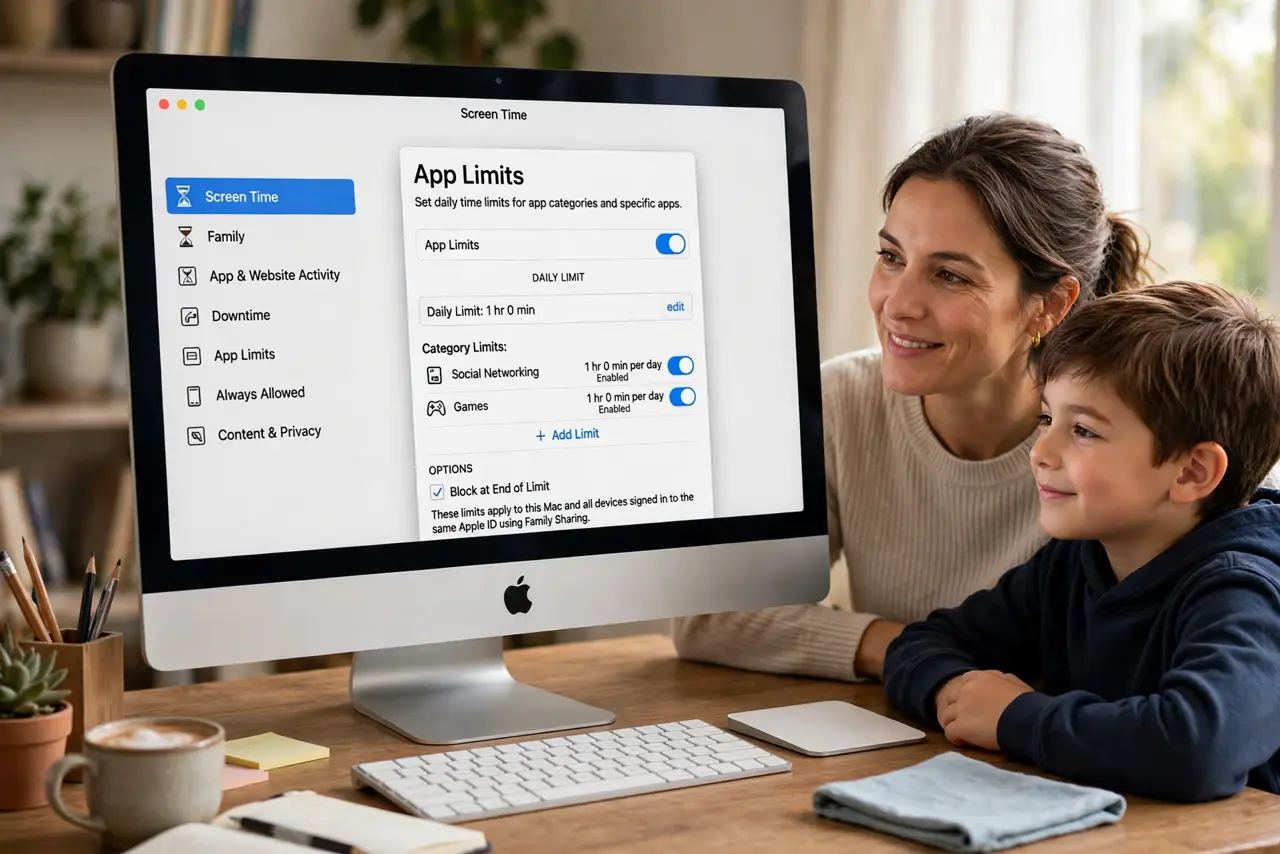
Quick fix: open System Settings, go to Screen Time, and turn it on for the child's account. Set a separate Screen Time passcode, add daily app limits, and schedule downtime for school hours and bedtime. Test the limits yourself so the rules actually work.
Follow these steps
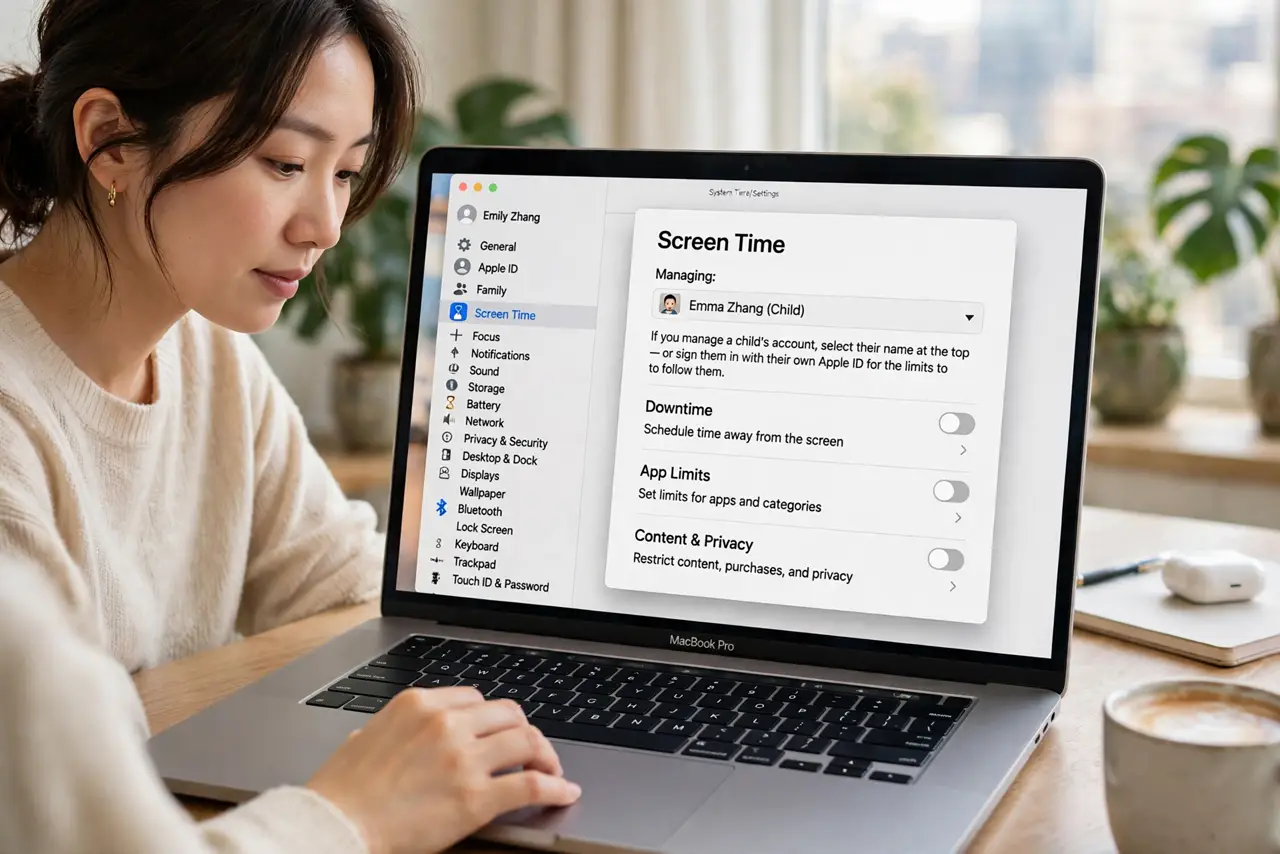
- Open Screen Time in System Settings. Go to System Settings and click Screen Time in the sidebar. If you manage a child's account, select their name at the top — or sign them in with their own Apple ID for the limits to follow them.
- Turn Screen Time on. Click the toggle to enable it. This starts usage tracking, which is the foundation every limit is built on.
- Set a separate Screen Time passcode. Choose Lock Screen Time Settings and create a passcode the child does not know. Without this, they can change the limits themselves. If you ever lose it, see the passcode recovery steps.
- Add app limits. Under App Limits, add daily caps for games, social apps, or browsers. Start generous and tighten gradually — sudden strict limits start wars.
- Schedule downtime. Set Downtime for homework hours and bedtime. Calls and apps you specifically allow still work during downtime.
- Review the weekly report. Check the usage report each week and adjust. Kids find workarounds fast — see the common limit workarounds families run into.
What NOT to do
- Do not use your login password as the Screen Time passcode. Kids who know it will simply change the limits.
- Do not set limits only on the Mac. If the child has an iPhone too, match the rules there or they just switch devices.
- Do not make the first limits extreme. Zero-to-strict overnight breeds resentment and creative bypasses.
- Do not skip the communication restrictions. App limits mean little if messaging stays open all night during downtime.
Frequently asked questions
Can my child bypass Screen Time?
Determined kids find ways — changing the clock, reinstalling apps, or using the browser. A separate passcode plus regular report reviews closes most holes.
Does Screen Time work across devices?
Yes, if the child signs in with the same Apple ID on each device and you enable Share Across Devices.
What happens when a limit is hit?
The app locks with an option to request more time. You approve or deny from your device — which is why your own Screen Time alerts should stay on.