iPhone Screen Time Limits Ignored? Fix It
Screen Time limits do nothing, and apps stay open past their limit. Limits fail when the passcode is known, the limit is set on the wrong category, or downtime has an exception. The parental side of this is parental controls blocking a school app, which is the same system working too well instead of too little.
TL;DR / Quick Fix
Quick fix: confirm limits are on, check the passcode is secret, verify the app is in the limited category, check downtime exceptions, and restart the phone. If it still fails after these steps, note exactly when it happens, since that pattern usually reveals the cause.
Follow these steps
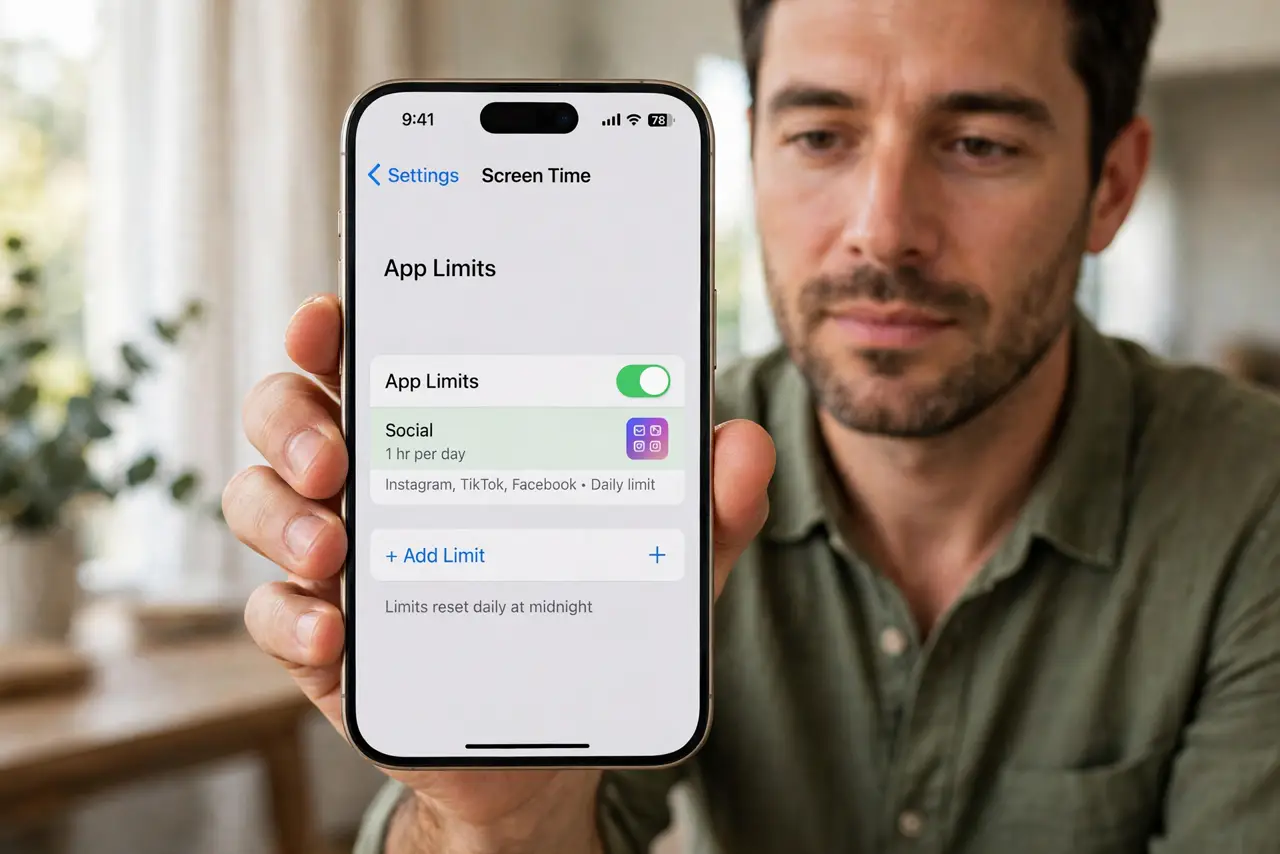
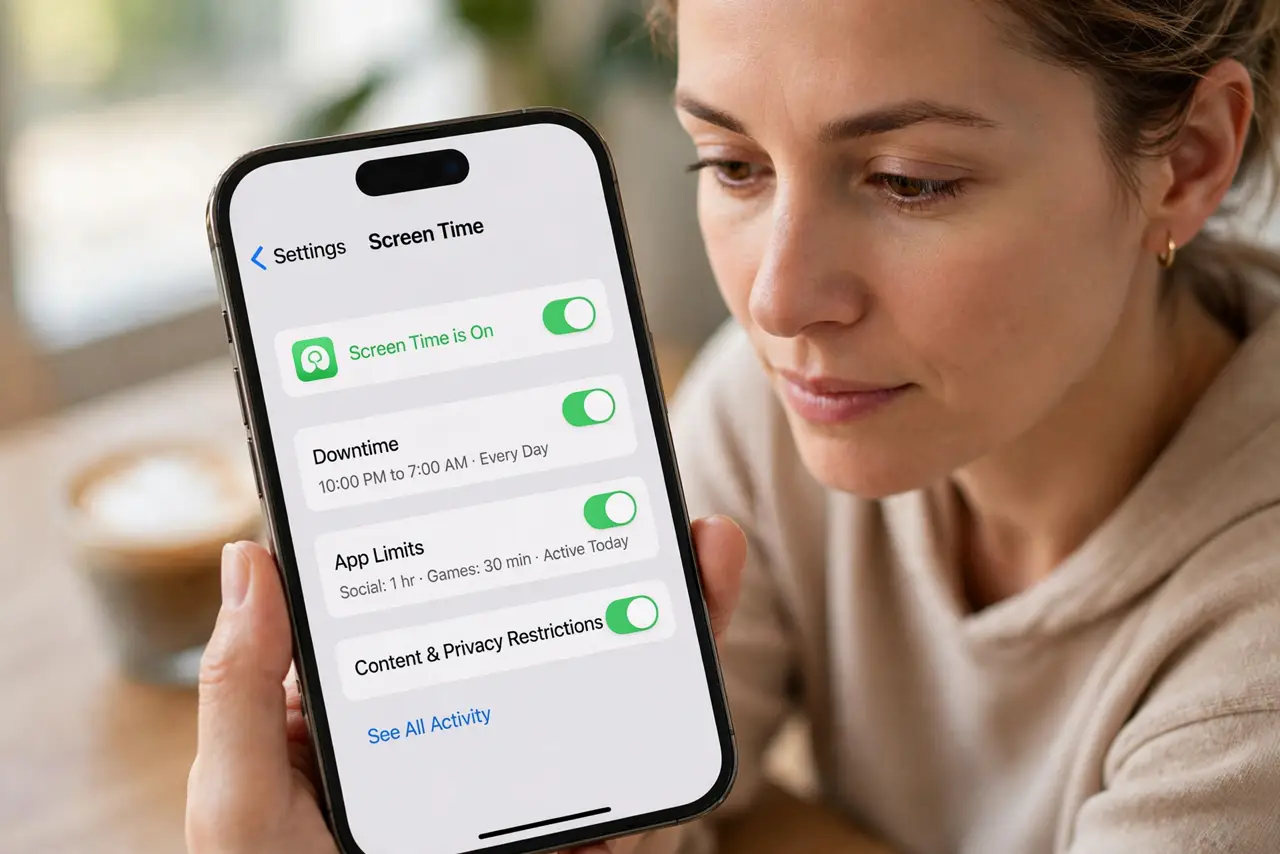
- Confirm Screen Time is on with limits set. Open Settings, then Screen Time, and confirm it is on. Then check App Limits and confirm the app or category actually has a limit, not just a schedule.
- Make sure the passcode is secret. If the child knows the Screen Time passcode, they can extend or ignore every limit. Change the passcode to one they do not know, and do not share it.
- Check the app is in the limited category. Open App Limits and check which apps the limit covers. A limit on Social Networking does not block a game, so set a limit on the exact app if needed.
- Check downtime and Always Allowed. Open Downtime and Always Allowed in Screen Time. An app in Always Allowed stays available during downtime, which can look like an ignored limit.
- Check for Ask for More Time approvals. If you approved extra time earlier, the app stays open until that extension ends. Wait for it to expire, or remove the approval pattern by not granting it.
- Restart the phone and test. Restart the iPhone and test the limit with a short one-minute limit. A quick test proves the limit works before you rely on it.
What NOT to do
- Do not set limits and share the passcode. A known passcode makes every limit optional, so secrecy is the whole system.
- Do not set a category limit and expect it to cover every app. Categories are specific, so check the exact app is included.
- Do not ignore Always Allowed. An app allowed there bypasses downtime by design, so review that list carefully.
- Do not rely on limits alone for safety. Limits help, but conversations and device habits matter more than any timer.
Frequently asked questions
Why does the limit not block the app?
Usually the app is not in the limited category, it is Always Allowed, or the passcode is known.
Can a child bypass Screen Time?
Yes, if they know the passcode. Keep it secret and different from the unlock passcode.
Why did the app work after its limit?
Because extra time was approved, or downtime had not started yet. Check both.