Screenshots Without the Shadow
Window screenshots on the Mac come with a soft drop shadow — elegant on a desktop, annoying in documentation where the shadow eats margins and looks grey on white pages. You can drop the shadow per-shot with one key, or kill it system-wide with a Terminal command. Both are reversible.
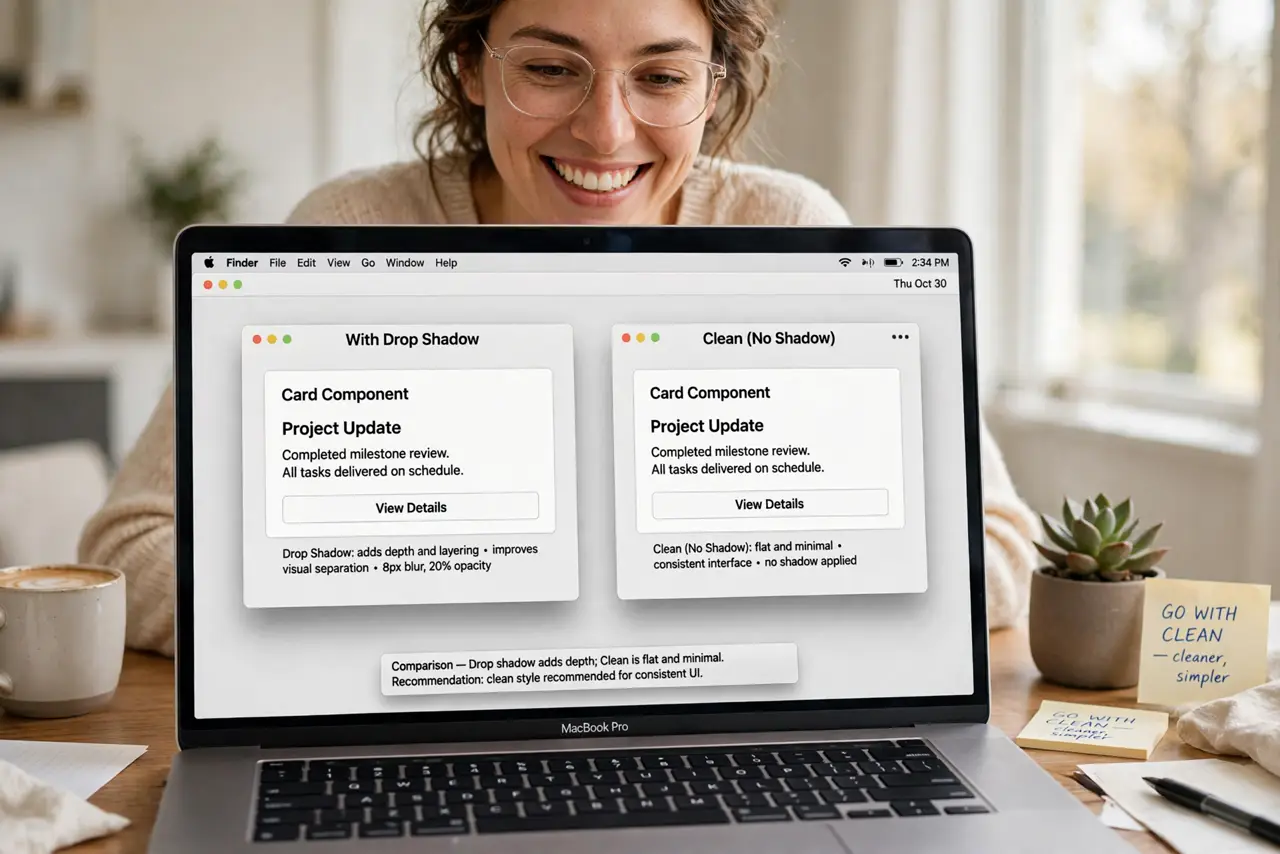
TL;DR / Quick Fix
Quick fix: for one clean shot, press Shift-Command-4, then Space, then hold Option while clicking the window — the shadow is skipped. To remove it permanently, run defaults write com.apple.screencapture disable-shadow -bool true in Terminal, then killall SystemUIServer to apply the change.
Follow these steps
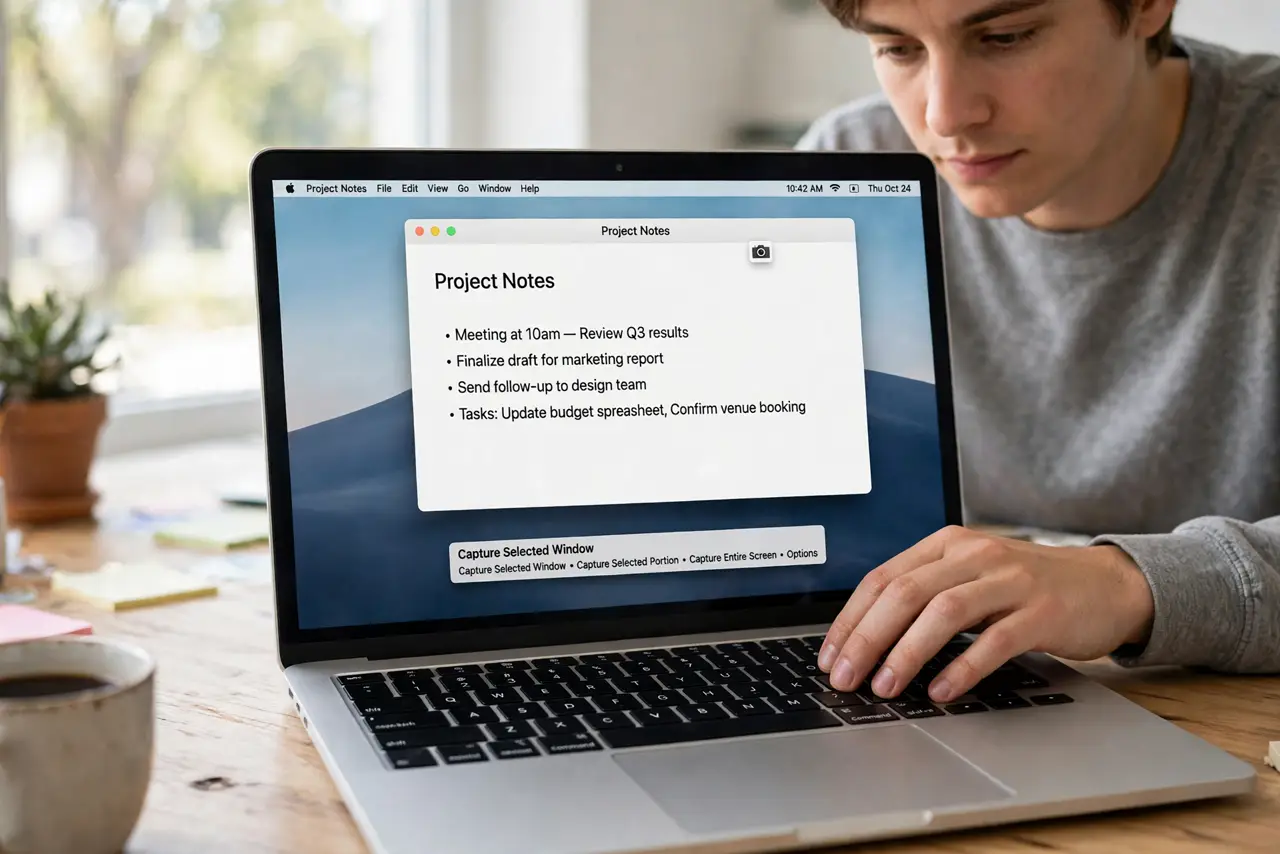
- Take a window shot the usual way. Press Shift-Command-4, then tap Space. The cursor becomes a camera — click any window to capture it with its shadow.
- Hold Option to skip the shadow once. With the camera cursor up, hold Option and click the window. The shadow vanishes from that shot only — settings untouched.
- Open Terminal for the permanent fix. For always-shadowless shots, open Terminal and type: defaults write com.apple.screencapture disable-shadow -bool true, then press Return.
- Restart the screenshot service. In the same Terminal window, type killall SystemUIServer and press Return. The menu bar blinks — that is the service reloading with your change.
- Test with a window screenshot. Capture any window. It should now have crisp edges and no shadow halo — ready for clean documentation.
- Reverse it any time. Run the same command with -bool false and killall SystemUIServer again. The shadow returns exactly as before.
What NOT to do
- Do not run random Terminal commands from forums. This one is safe and reversible — but copy it exactly, typos in defaults commands cause odd behavior.
- Do not expect it to affect old screenshots. The setting only changes new captures; existing shadowed shots keep their shadows.
- Do not confuse window shadow with the desktop wallpaper. A 'shadow' that is actually your wallpaper showing through is a different non-problem.
- Do not skip the killall step. The defaults change does nothing until SystemUIServer restarts and picks it up.
Frequently asked questions
Will this break anything else?
No — it only affects the shadow on window screenshots. Everything else about screenshots stays identical.
Can I keep the shadow but make it smaller?
Not with a setting — it is on or off. For a softer custom shadow, capture with shadow and trim it in an editor.
Does the Option trick work for selections too?
Selections never had shadows — only window captures do. The Option key matters solely for the Space-then-click window shot.