Send Screenshots to the Clipboard
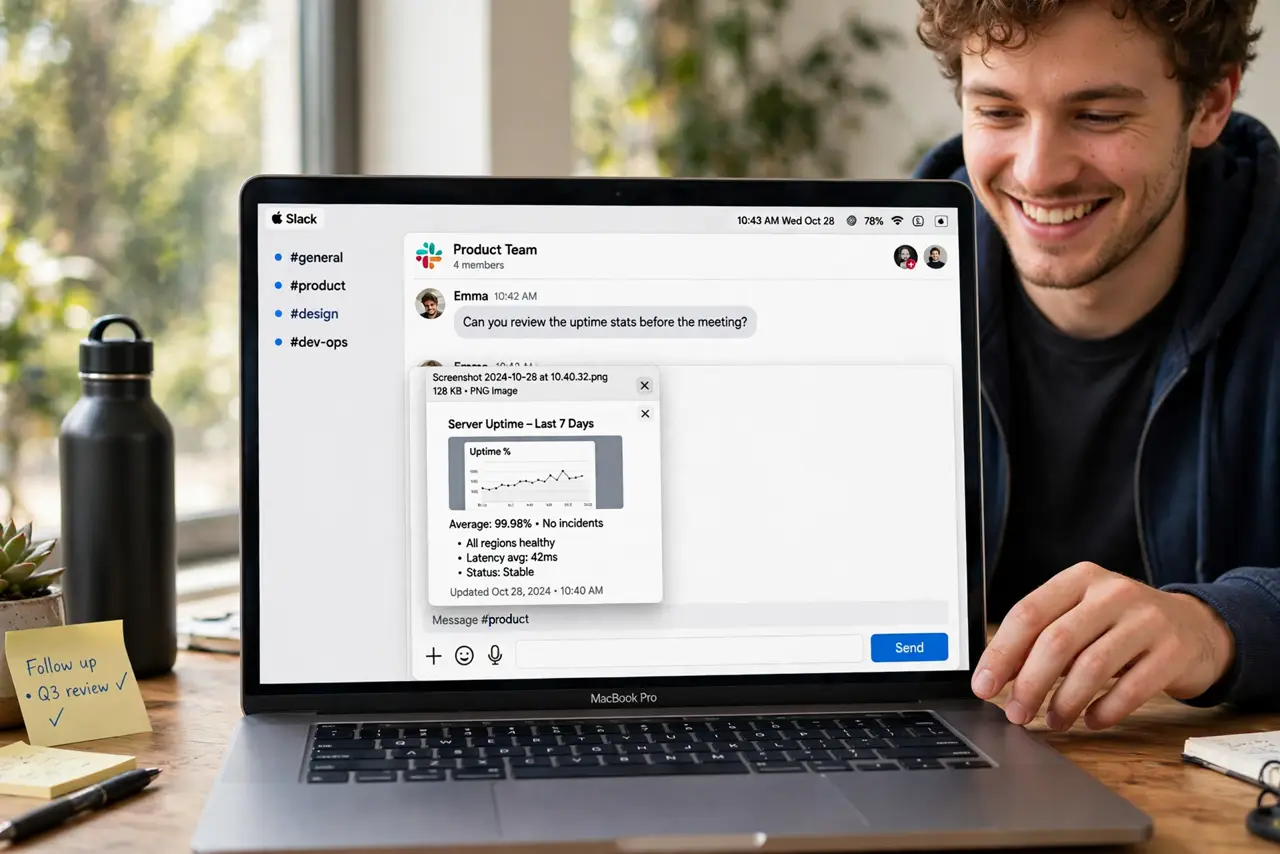
Sometimes you do not want a file — you want the screenshot straight into a chat, a doc, or an email. The Mac can send screenshots to the clipboard instead of the desktop two ways: a modifier-key shortcut for one-offs, or a Screenshot app setting for a whole session. Both take seconds to learn.
TL;DR / Quick Fix
Quick fix: hold Control with any screenshot shortcut — Control-Shift-Command-3 for the full screen, Control-Shift-Command-4 for a selection — and the image goes to the clipboard. Paste with Command-V. For a session of clipboard shots, open the Screenshot app and set Options > Save to > Clipboard.
Follow these steps
- Use Control for a one-off clipboard shot. Add Control to the usual shortcuts: Control-Shift-Command-3 captures the screen to the clipboard; Control-Shift-Command-4 captures a selection. Nothing lands on the desktop.
- Paste immediately with Command-V. The clipboard holds the image — paste it into Messages, Mail, Docs, or any app. One screenshot fills the clipboard, so paste before the next one.
- Set the Screenshot app to Clipboard mode. Press Shift-Command-5, click Options, and choose Save to > Clipboard. Every shot in that session goes to the clipboard until you change it back.
- Remember the floating thumbnail. With the thumbnail preview on, you can drag it straight into an app — another clipboard-free way to place a shot without saving.
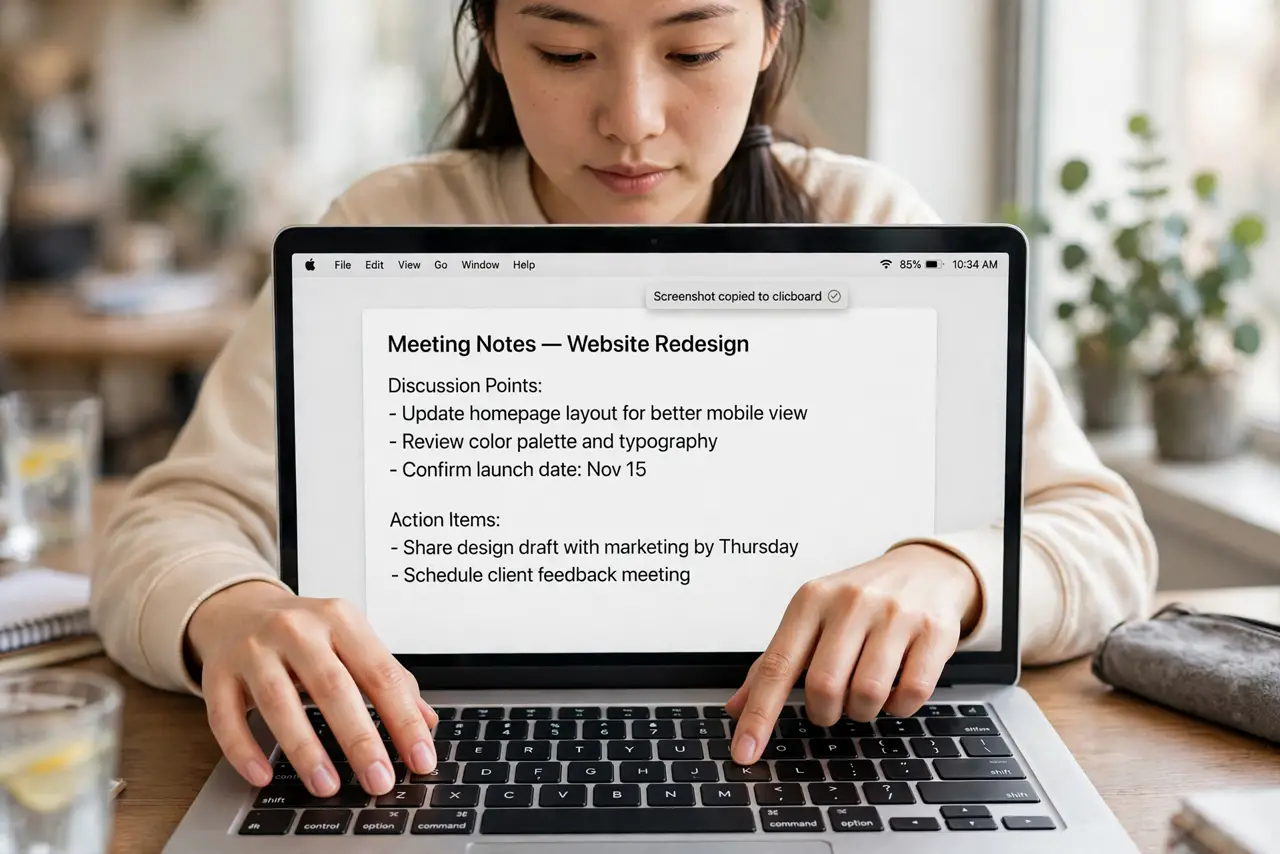
- Check the clipboard actually updated. Paste into TextEdit to verify. If an old image pastes, the Control key did not register — hold it deliberately.
- Switch back when you want files again. Reopen the Screenshot app Options and set Save to back to Desktop. Clipboard mode persists silently until you change it.
What NOT to do
- Do not take ten clipboard screenshots in a row. Each one overwrites the last — paste each before capturing the next.
- Do not expect the clipboard to survive a restart. It is temporary by nature; anything worth keeping should be pasted or saved.
- Do not hold Control halfway. A partial modifier gives you a desktop file instead — commit to the full key combo.
- Do not confuse this with universal clipboard. The screenshot clipboard is local to the Mac unless Handoff clipboard carries it to a nearby device.
Frequently asked questions
What's the fastest way to screenshot and paste into Slack?
Control-Shift-Command-4, drag the selection, then Command-V in Slack. Two shortcuts, no files, no cleanup.
Can I change the default save location instead?
Yes — the Screenshot app's Options > Save to menu sets Desktop, Documents, Clipboard, or a folder. It remembers your choice.
Why did my screenshot save to the desktop anyway?
The Control key did not register in the combo, or the Screenshot app reverted to its saved setting. Redo the shortcut deliberately.