Take a Timed Screenshot
Menus that vanish when you press keys, hover states that disappear, tooltips that flee the cursor — some things cannot be captured with a keyboard shortcut. The Screenshot app's timer gives you 5 or 10 seconds to set the scene, then captures. It is the patient photographer's screenshot.
TL;DR / Quick Fix
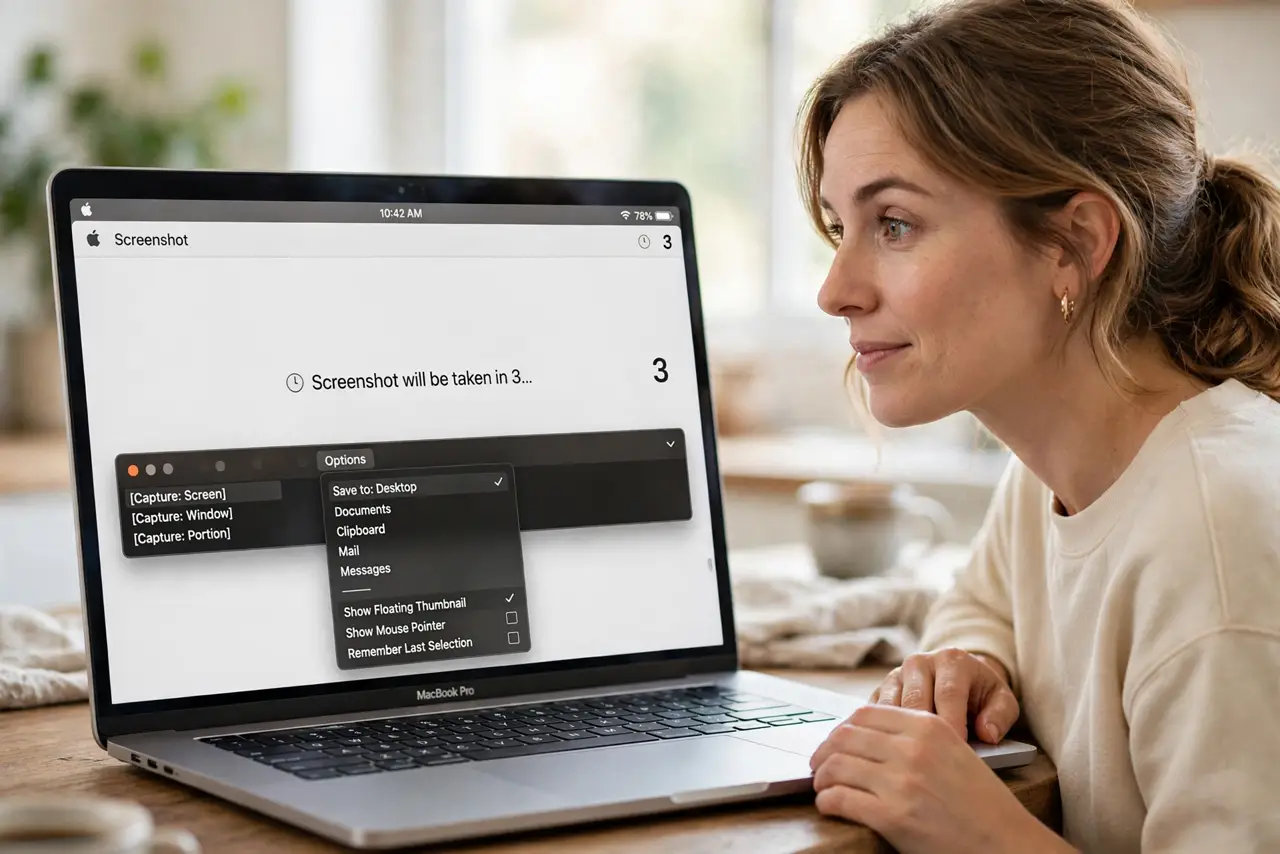
Quick fix: press Shift-Command-5 to open the Screenshot app, choose the capture type, click Options, and set the timer to 5 or 10 seconds. Click Capture, arrange your menu or hover state, and wait — the Mac shoots when the timer ends.
Follow these steps
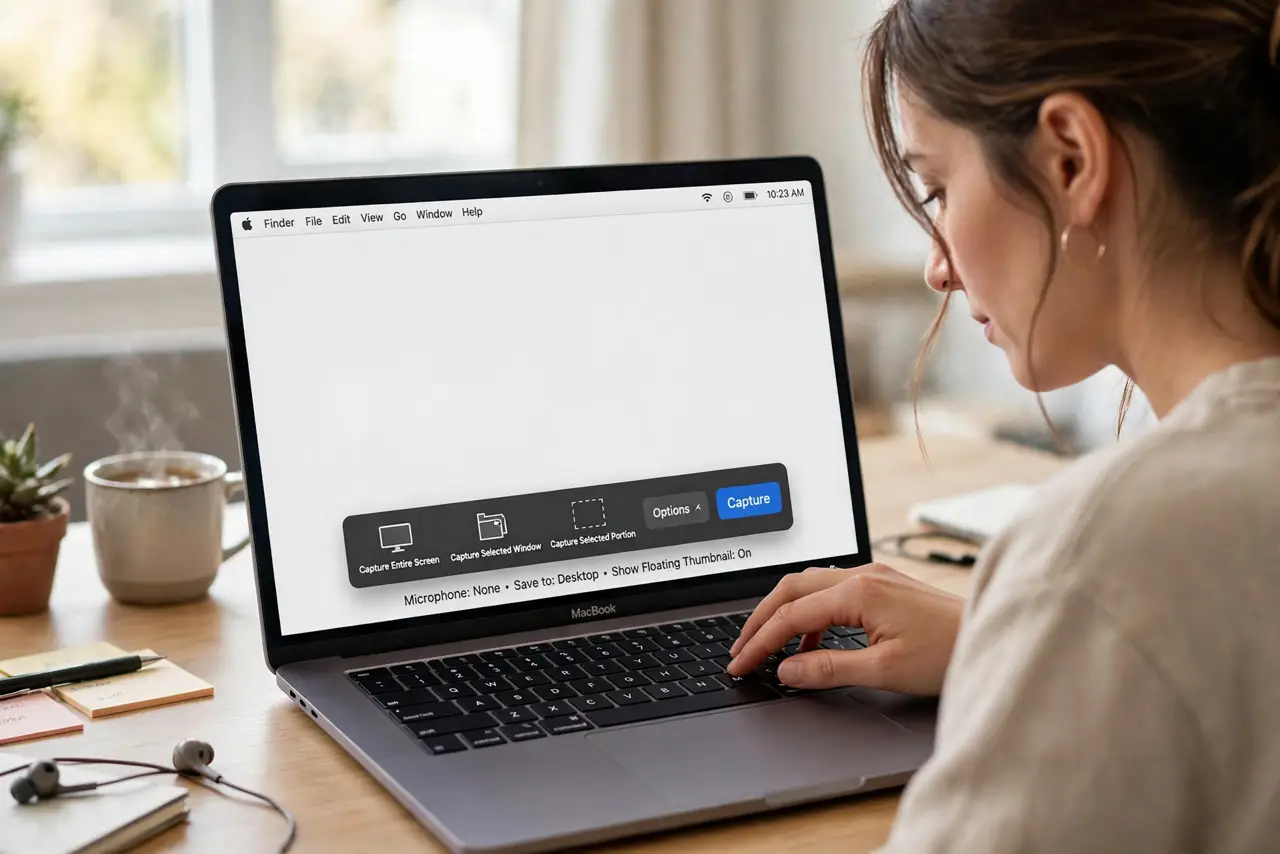
- Open the Screenshot app. Press Shift-Command-5. The capture toolbar appears with screen, window, and selection options.
- Pick what to capture. Choose entire screen, a window, or a selection. For menus and hover states, entire screen or a generous selection works best.
- Set the timer in Options. Click Options > Timer > 5 Seconds or 10 Seconds. Five suits menus; ten suits multi-step hover setups.
- Click Capture and set the scene. Hit Capture, then quickly open the menu, hover the tooltip, or arrange whatever needs capturing. Hands off the screenshot keys now.
- Wait for the shutter. The Mac captures when the timer ends — a thumbnail slides into the corner. Do not touch the keyboard during the countdown.
- Save or [[send it to the clipboard|mac-screenshot-to-clipboard]]. The shot lands wherever your Save to setting points. Drag the thumbnail into an app to place it directly.
What NOT to do
- Do not press screenshot keys during the countdown. You will capture the Screenshot app itself instead of your carefully arranged scene.
- Do not use the timer for static windows. A plain Shift-Command-4 is faster — reserve the timer for things that flee from key presses.
- Do not forget the timer stays set. The next quick screenshot inherits the delay — switch it back to None when you are done.
- Do not move the mouse at the last second. Hover states vanish if the pointer drifts — park it and keep your hand still.
Frequently asked questions
Can I capture a right-click menu with the timer?
Yes — that is its best use. Set 5 seconds, click Capture, then right-click to open the menu before time runs out.
Why is my timer screenshot just the desktop?
The menu closed before the shutter — you were too slow, or a click dismissed it. Retry with the 10-second timer.
Does the timer work for screen recordings?
Yes — the Screenshot app offers the same timer for its video capture modes, handy for recording hover interactions.