Fix Scroll Direction
You scroll down and the page goes up — or you switched from Windows and your muscle memory is screaming. macOS 'natural' scrolling mimics a touchscreen (push content up to see more), which feels backwards to decades of scroll-wheel habits. The fix is one toggle, but it affects trackpads and mice separately. This guide sets your direction and stops the confusion. For the rest of trackpad tuning, see click corners to right-click.
TL;DR / Quick Fix
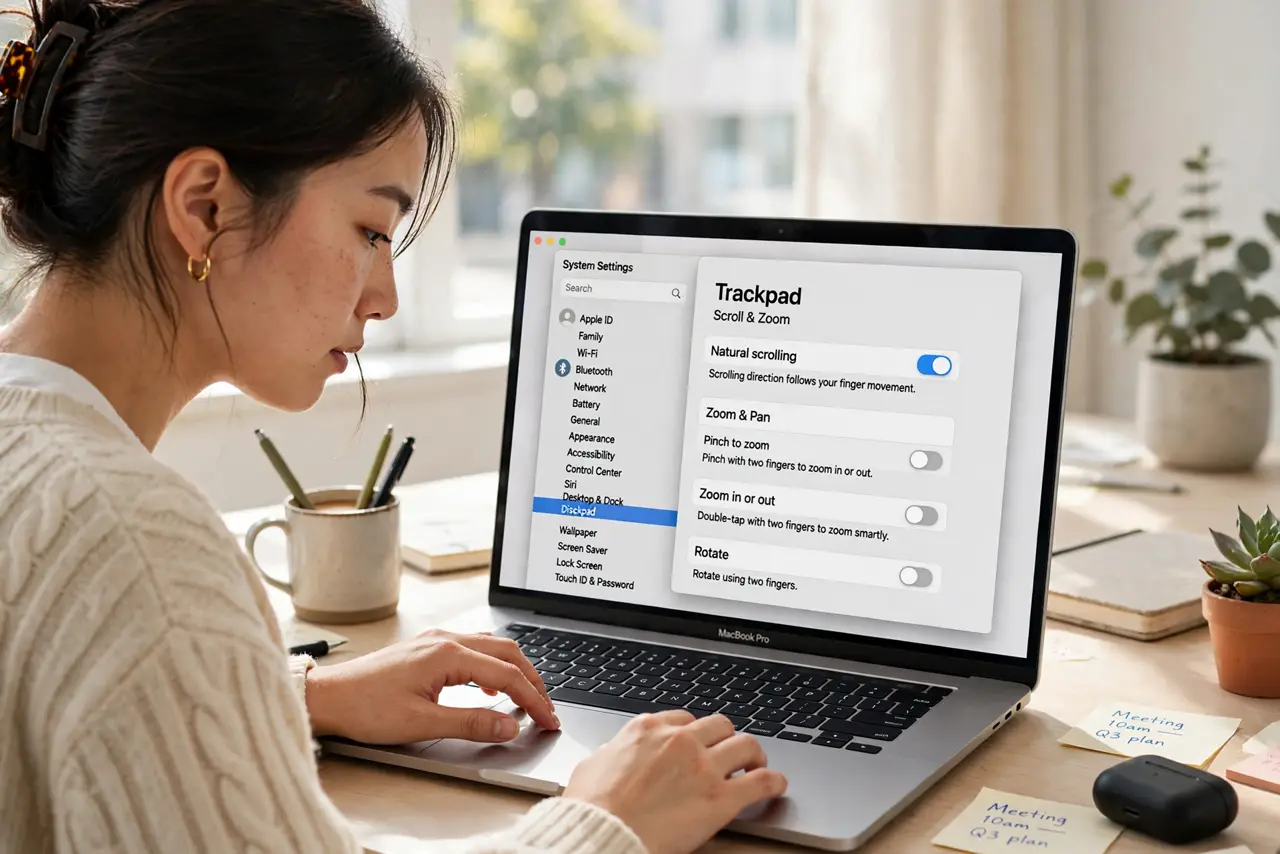
Quick fix: open System Settings, go to Trackpad, then Scroll and Zoom, and toggle Natural scrolling off if you prefer the traditional direction — on for touchscreen-style. Mice have a separate setting under Mouse. Pick one direction and commit; switching back and forth prevents adaptation.
Follow these steps
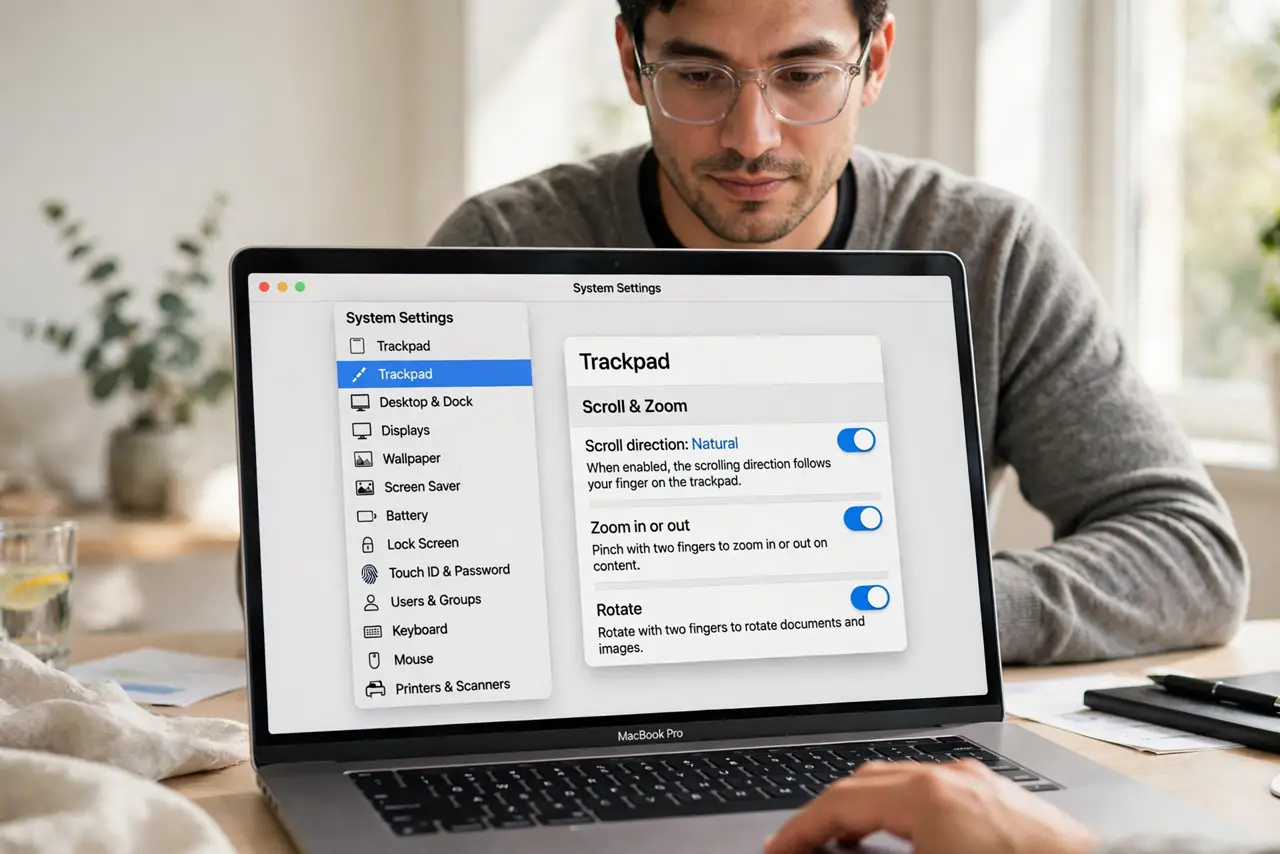
- Open the scroll settings. Go to System Settings, then Trackpad, then Scroll and Zoom. The Natural scrolling toggle is the master switch for the trackpad.
- Understand the two directions. Natural ON: swipe up moves content up, like pushing paper on a touchscreen. Natural OFF: swipe up moves the page down, like a traditional scroll wheel.
- Pick your direction. Touchscreen natives usually prefer Natural on; long-time Windows and scroll-wheel users usually prefer it off. There is no correct answer — only your muscle memory.
- Set the mouse separately. The Mouse settings pane has its own Natural scrolling toggle. Trackpad and mouse can differ — many people run natural on the trackpad and traditional on the mouse.
- Commit for a week. Whichever you choose, give it a full week before judging. Direction confusion fades with consistent use and returns instantly if you keep toggling.
- Check per-app weirdness. A few apps with custom scroll handling can feel odd regardless of setting. If one app scrolls 'wrong' while others are fine, the app is the outlier.
What NOT to do
- Do not toggle it daily hoping to adapt to both. The brain learns one direction — pick it and let the learning happen.
- Do not forget the mouse has its own toggle. Fixing the trackpad while the mouse stays 'wrong' is the classic half-fix.
- Do not blame the Mac for Windows habits. Neither direction is objectively right — it is pure muscle memory, and memory can be retrained.
- Do not overlook scroll speed either. Direction fixed but still uncomfortable? The tracking speed slider is the next adjustment.
Frequently asked questions
Which direction do most people prefer?
It splits by background: touchscreen natives like Natural on, long-time Windows users like it off. Follow your own muscle memory.
Why does scrolling feel wrong in only one app?
Some apps implement custom scrolling that ignores the system setting. Check the app's own preferences for a direction option.
Does this affect my mouse wheel too?
Only if you change the Mouse pane's separate toggle. Trackpad and mouse directions are independent — set each once.