Shortcut Conflicts? Find Them
You press a keyboard shortcut and the wrong thing happens — or nothing at all. Two apps claimed the same keys, or macOS stole a combo an app wanted. Shortcut conflicts are detective work, but the suspects list is short and the fixes are simple.
TL;DR / Quick Fix
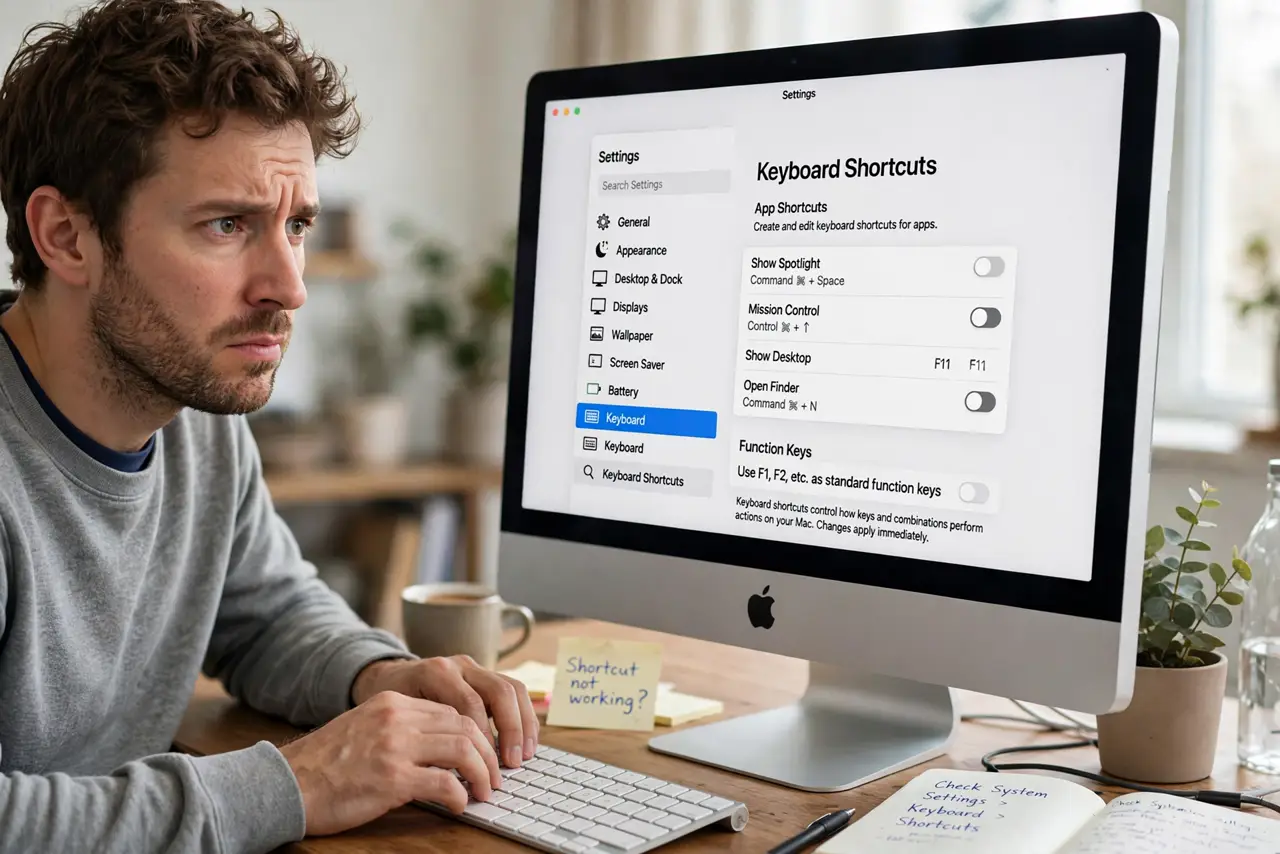
Quick fix: open System Settings, go to Keyboard, then Keyboard Shortcuts, and scan for the conflicting combo. Change or disable one side's shortcut so each combo does exactly one thing. Test the shortcut immediately after changing it to confirm the winner.
Follow these steps
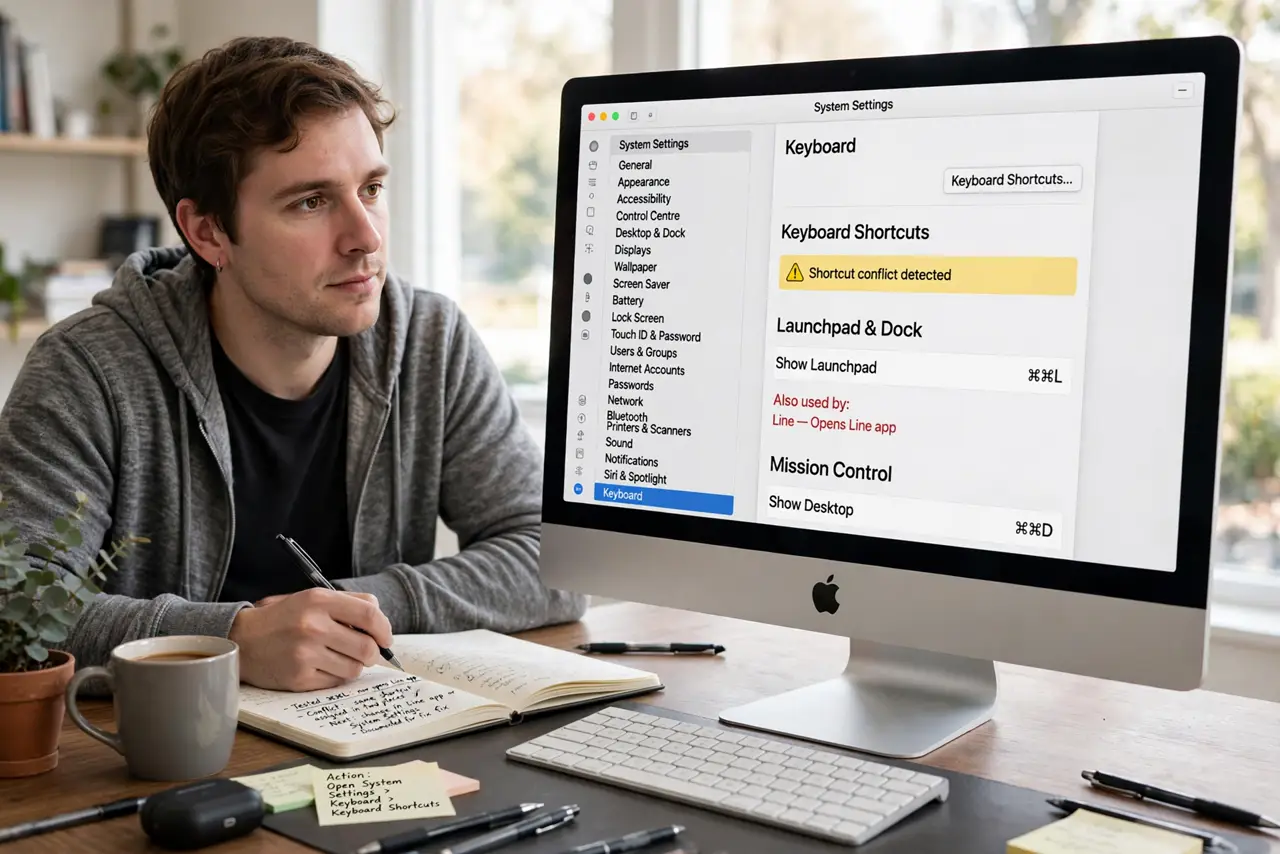
- Identify the conflict. Press the shortcut and note what actually happens. Then check System Settings > Keyboard > Keyboard Shortcuts for a system shortcut using the same keys.
- Check the app's own shortcuts. Apps define shortcuts in their menus (shown beside each command) and sometimes in their preferences. The conflict is usually system-vs-app, not app-vs-app.
- Change the system shortcut. In Keyboard Shortcuts, select the conflicting entry and assign new keys or uncheck it. System shortcuts yield gracefully when edited.
- Or change the app's shortcut. System Settings > Keyboard > Keyboard Shortcuts > App Shortcuts lets you override any app's menu shortcut — add the app, type the exact menu title, and assign fresh keys.
- Beware the usual suspects. Cmd+Space (Spotlight vs. input switching), Ctrl+arrows (Spaces vs. app shortcuts), and function keys (media vs. app use) cause most conflicts. The emoji picker combo is another frequent collision point.
- Learn the shortcuts worth keeping. Once the fights are settled, invest in the combos that pay rent — the shortcuts worth learning list is the high-value set.
What NOT to do
- Do not assign the same combo to two things 'to see what happens.' What happens is neither works reliably — one winner per combo, always.
- Do not use single-letter shortcuts system-wide. They fire while typing and cause the most maddening conflicts.
- Do not forget the Fn key state. Function-key shortcuts behave differently with 'Use F1, F2 as standard function keys' on vs. off.
- Do not blame the app for a system steal. If Spotlight eats Cmd+Space, that's macOS — change the system side, not the app.
Frequently asked questions
How do I find which app grabbed my shortcut?
Check system shortcuts first (they're listed centrally), then the frontmost app's menus. Global hotkey apps (launchers, clipboard managers) are the usual hidden claimants — check their preferences.
Why did my shortcut stop working after an update?
Updates sometimes add new system shortcuts that collide with yours, or reset custom ones. Revisit Keyboard Shortcuts after major updates.
Can two apps share one shortcut?
Only if one isn't running. Whichever claimed it first (or the system, which always wins) gets it — sharing is not a thing.