Get Started with Mac Shortcuts
The Shortcuts app sits in your Applications folder looking innocent, but it is macOS's automation engine — chain actions together and trigger them from the menu bar, a keystroke, or your iPhone. The fastest way to learn is to run a starter shortcut, then modify it. Here is the gentle on-ramp.
TL;DR / Quick Fix
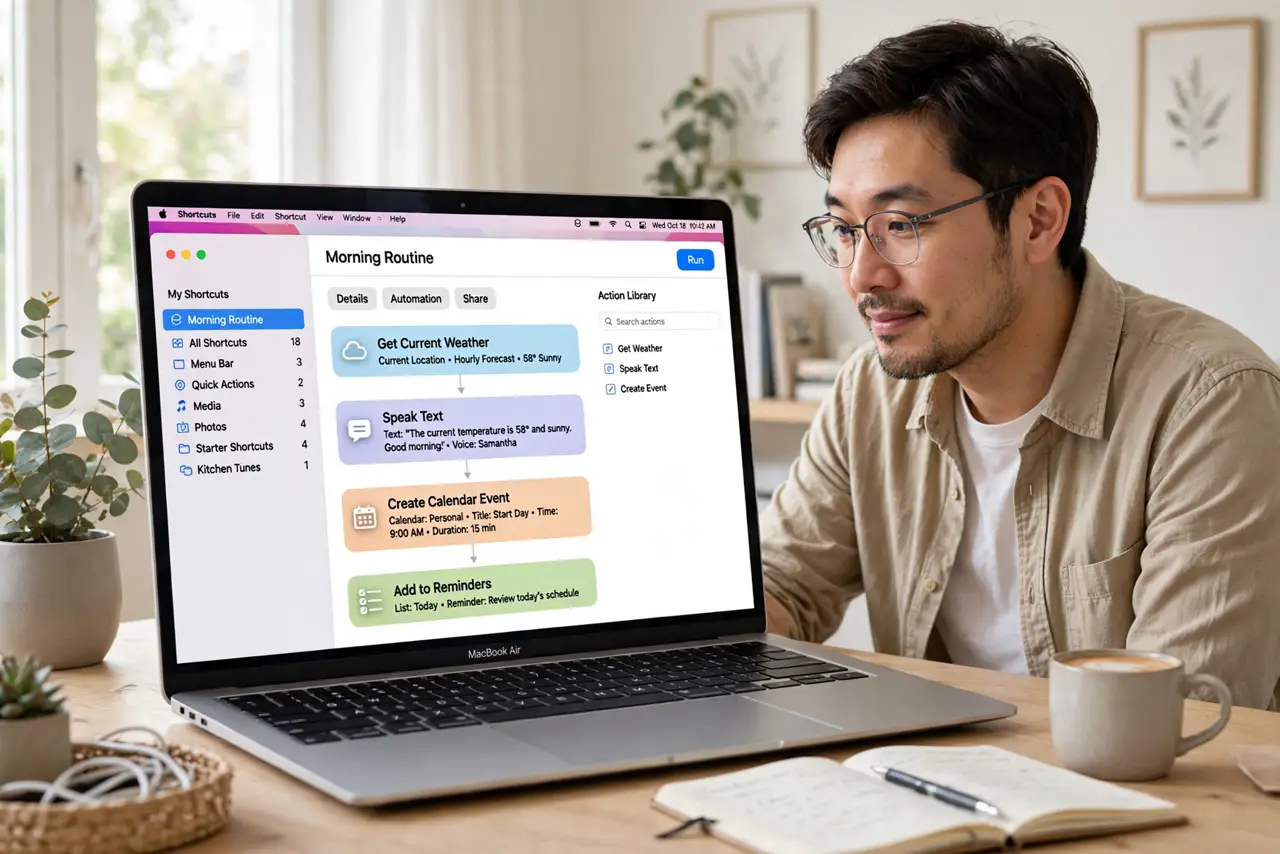
Open the Shortcuts app from Applications and start with the starter collection — run one to see automations in action. Then duplicate it and tweak the actions to learn how workflows chain. Pin one to the menu bar. The Shortcuts app guide goes deeper; Automator Quick Actions cover Finder chores.
Follow these steps
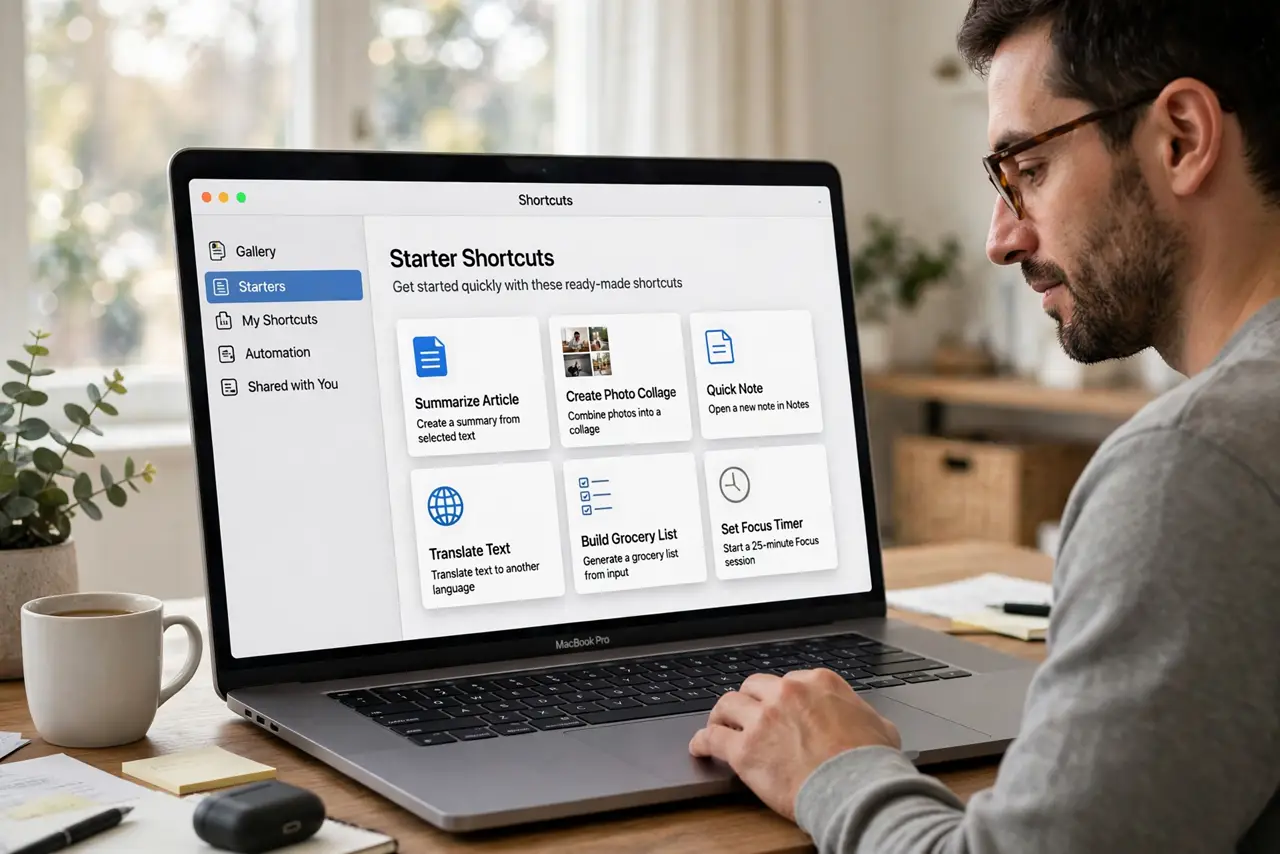
- Open Shortcuts and browse starters. Launch Shortcuts from Applications and look at the Starter Shortcuts collection. These are working examples — run a few to understand what shortcuts do.
- Run one shortcut end to end. Pick something simple like a text-manipulation starter and run it. Watching inputs become outputs demystifies the whole concept instantly.
- Duplicate and modify it. Right-click a starter, duplicate it, then change one action — a different folder, different text. Small edits teach faster than building from zero.
- Build one tiny shortcut of your own. Create a new shortcut with two or three actions: get today's date, format it, copy to clipboard. Tiny and useful beats ambitious and broken.
- Add it to the menu bar. In the shortcut's details, enable Pin in Menu Bar. One-click access is what turns a neat trick into a daily habit.
- Explore triggers and sharing. Shortcuts can run from Spotlight, Finder Quick Actions, or scheduled times. Share useful ones with family — exported shortcuts install with a double-click.
What NOT to do
- Do not build a 40-action monster first. Start tiny — complex shortcuts built by beginners break in ways that teach nothing.
- Do not grant every permission blindly. Shortcuts ask for contacts, files, and more — grant only what the shortcut actually needs.
- Do not delete the starter collection. Those working examples are your reference library while learning — keep them until you are fluent.
- Do not expect iPhone and Mac shortcuts to be identical. Many actions are platform-specific; a shortcut built for one may need tweaks on the other.
Frequently asked questions
Shortcuts vs Automator — which should I learn?
Shortcuts is Apple's current direction and syncs across devices. Automator still excels at Finder file workflows. Learn Shortcuts first unless your need is purely file-based.
Can shortcuts run automatically?
Yes — personal automations trigger on time, location, or events like connecting to CarPlay. macOS supports scheduled and event-based runs too.
Are downloaded shortcuts safe?
Mostly, but review every action before running a stranger's shortcut — a malicious one could exfiltrate files or messages. Stick to reputable galleries.