Mac Wakes by Itself From Sleep? Find the Cause
Your Mac wakes from sleep on its own, lights up at night, and drains battery while it should rest. A device, network request, or wake setting is waking it. Check those triggers one by one, starting with Bluetooth and network wake.

TL;DR / Quick Fix
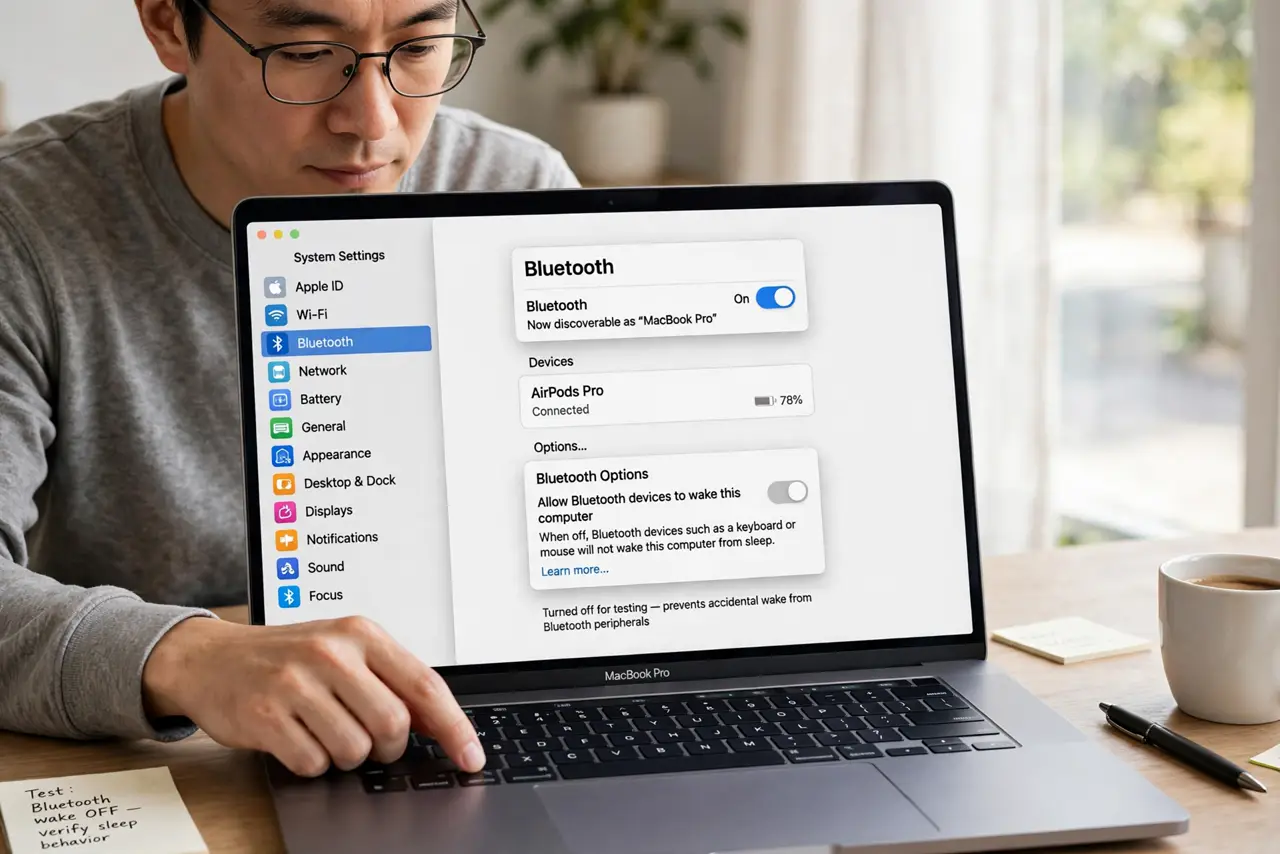
Quick fix: open System Settings, then Bluetooth, and turn off Allow Bluetooth devices to wake this computer for testing. Check network wake settings, then test one full night of sleep. Then test the fix for a full day before changing anything else.
Follow these steps
- Turn off Bluetooth wake for testing. Open System Settings, then Bluetooth, then Advanced if shown, and turn off waking by Bluetooth devices. A mouse or keyboard bump can wake the Mac.
- Check network wake settings. Open System Settings, then Energy Saver or Battery, and look for Wake for network access. Turn it off for testing if you do not need remote wake.
- Move the mouse and keyboard away. Place the mouse where it cannot be bumped and keep pets away from the keyboard overnight. Physical bumps are a common silent wake cause.
- Quit apps before sleep. Quit video calls, downloads, and sync apps before sleep for one test night. An app with scheduled activity can wake the Mac.
- Test sleep with lid closed or display off. Put the Mac to sleep, then leave it untouched for an hour. If it stays asleep in the test, re-enable one trigger at a time to find the culprit.
- Restart after changing wake settings. Restart the Mac so wake settings apply cleanly, then test sleep again. A restart clears stuck wake requests from before.
What NOT to do
- Do not shut the Mac down every night as a workaround. Sleep should work, and finding the wake trigger fixes the real problem.
- Do not disable sleep entirely to stop waking. That wastes energy and leaves the Mac running hot for no reason.
- Do not ignore a mouse on an unstable surface. Vibration alone can wake a Mac set to wake on Bluetooth input.
- Do not change many wake settings at once. Change one trigger at a time, or you will not know which one caused the waking.
Frequently asked questions
Why does my Mac wake at night?
Usually a Bluetooth device, network wake, or scheduled app activity wakes it. Testing each trigger finds the cause.
Will turning off Bluetooth wake break my mouse?
No. It only stops Bluetooth devices from waking a sleeping Mac; the mouse still works once the Mac is awake.
What if it wakes only on some nights?
A device or app active on those nights is the likely trigger. Note what was connected or running each time.