Avoid Accidental Key Presses
Your fingers brush keys lightly and suddenly there are doubled letters everywhere — or a tremor turns every keystroke into a gamble. macOS Slow Keys fixes this elegantly: keys only register after being held for a moment, so accidental brushes never count. Its keyboard siblings Full Keyboard Access and Mouse Keys solve adjacent problems.
TL;DR / Quick Fix
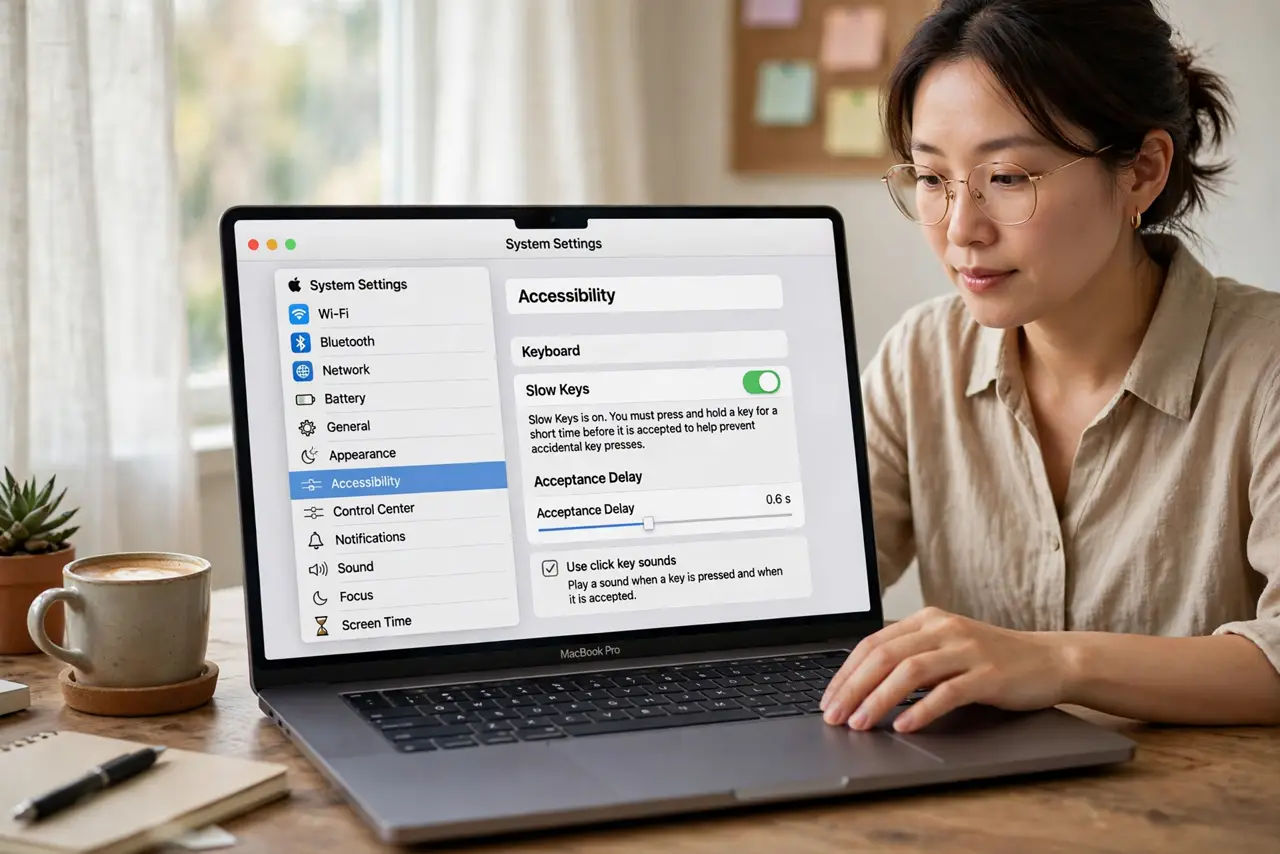
Quick fix: turn on Slow Keys in System Settings > Accessibility > Keyboard and set the acceptance delay — keys only register after a deliberate hold, killing accidental double-presses. Enable the click sound so you get feedback. Tune the delay until typing feels intentional but not sluggish.
Follow these steps
- Enable Slow Keys. Go to System Settings > Accessibility > Keyboard and turn on Slow Keys. Immediately, fleeting key brushes stop registering.
- Set the acceptance delay. Drag the delay slider: longer means fewer accidents but slower typing. Start in the middle and adjust over a day of real use.
- Turn on the click sound. Enable “Use click key sounds” so each accepted keystroke clicks. The audio feedback tells your fingers the press counted — essential while adjusting.
- Combine with Sticky Keys if needed. If holding modifier keys (Shift, Command) is also hard, Sticky Keys lets you press them sequentially. The two features stack well.
- Test with real typing. Type an email, not just the test field. Real sentences reveal whether the delay fights your rhythm or finally matches it.
- Know the quick toggle. Triple-press or the Accessibility shortcut can toggle it — handy on a shared Mac where others should not inherit your delay.
What NOT to do
- Do not set the delay to maximum immediately. Start moderate; extreme delays make typing feel broken, not careful.
- Do not forget to tell others using the Mac. A housemate will think the keyboard died — show them the toggle.
- Do not use Slow Keys to fix a physically broken keyboard. Repeating keys from hardware faults need repair, not settings.
- Do not ignore the click sounds. Without feedback, you will hammer keys wondering if they registered.
Frequently asked questions
Slow Keys vs Sticky Keys — which do I need?
Slow Keys ignores brief presses (tremor, light touches); Sticky Keys makes modifiers latch (hard to hold Shift). Different problems, often combined.
Will this slow down my normal typing?
Slightly, by design — the delay is the feature. Tune it to the shortest delay that still blocks accidents.
Can I use it just for gaming?
You can toggle it per session, but most games want instant input — Slow Keys and gaming rarely mix.