Pick a Startup Disk
You restarted your Mac and it booted into the wrong system — an old macOS on an external drive, a Windows partition you forgot about, or an installer USB you left plugged in. It feels alarming, but nothing is broken: your Mac simply picked a different startup disk. macOS lets you choose which volume to boot from, once or permanently, in under a minute.
TL;DR / Quick Fix
Quick fix: if your Mac boots from the wrong drive, restart and hold the Option key to pick the right startup disk, then set it as the default in System Settings so the choice sticks. Check that no installer USB or external drive is confusing the boot process first.
Follow these steps
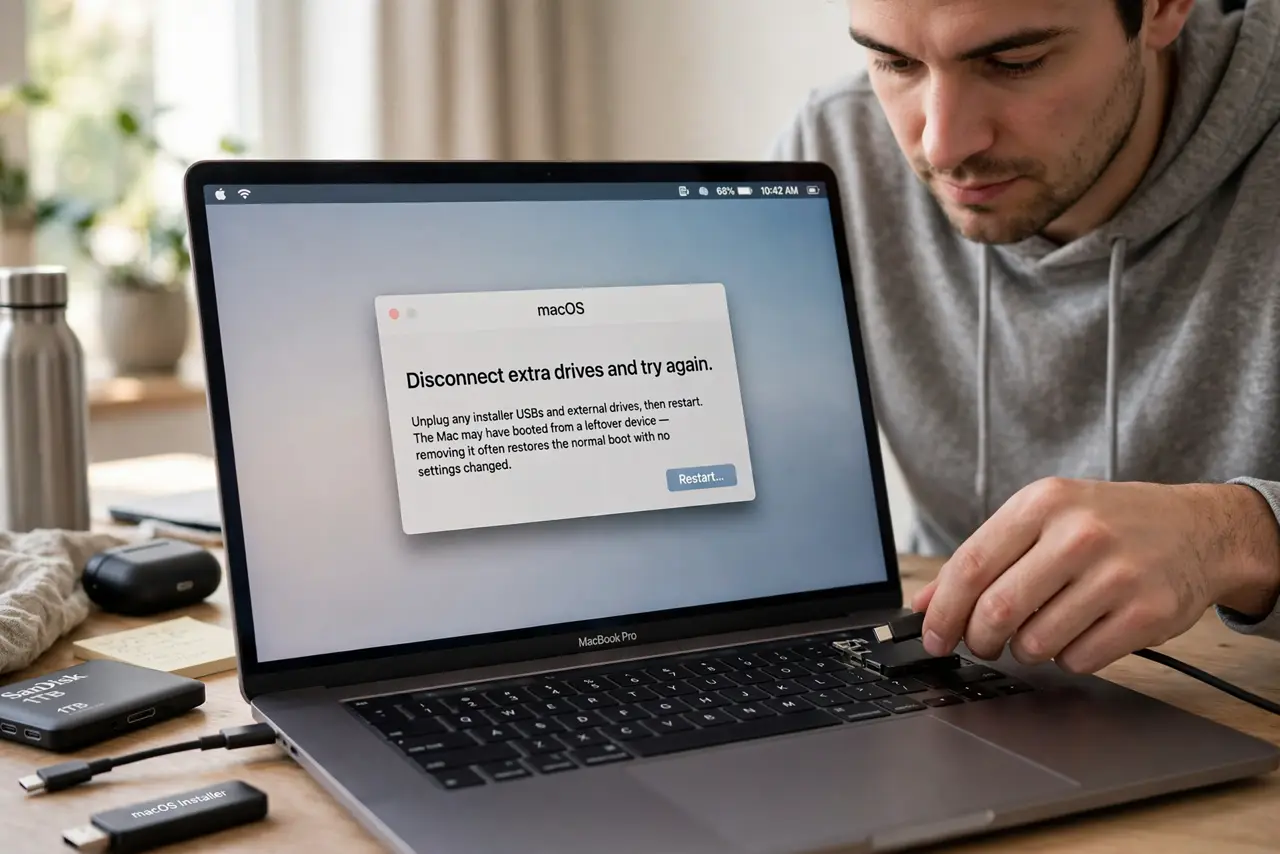
- Disconnect extra drives and try again. Unplug any installer USBs and external drives, then restart. The Mac may have booted from a leftover device — removing it often restores the normal boot with no settings changed.
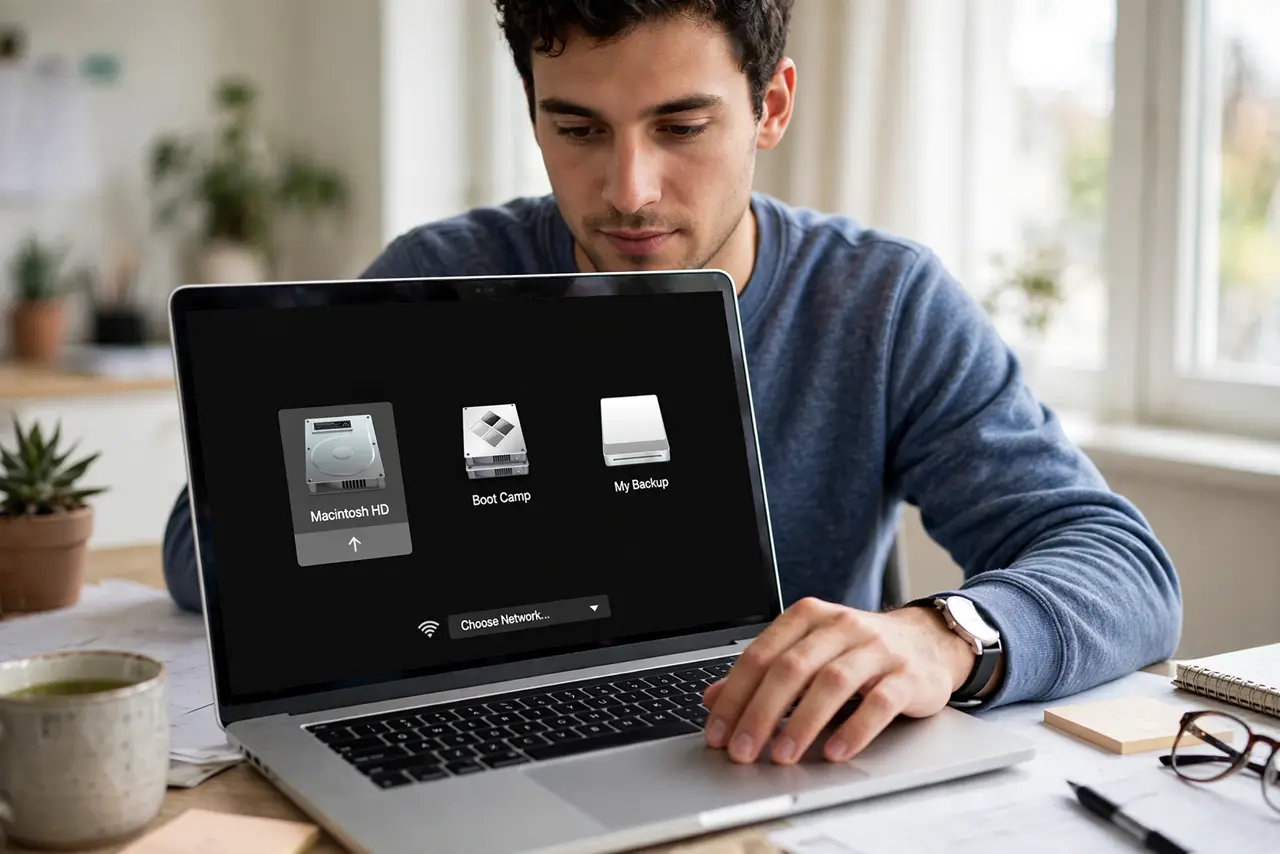
- Pick a disk at boot time. Restart and hold the Option key until drive icons appear, then click the macOS volume you want and press Enter. This boots it once without changing the default — check the disk-full warning signs if the drive you wanted is missing from the list.
- Set the default startup disk. Open System Settings, then General, then Startup Disk, click the lock, authenticate, select your macOS volume, and restart. The Mac now boots from it every time.
- Use the Startup Disk pane in Recovery if needed. If macOS will not boot at all, restart holding Command-R, open Startup Disk from the Apple menu, and choose a working volume. This reaches the same setting from outside the system.
- Check a missing volume in Disk Utility. If your expected drive does not appear, open Disk Utility and look for it in the sidebar. A volume that shows grayed out may need First Aid — do not erase anything while investigating.
- Reinstall macOS over a broken volume. If the volume is damaged, Recovery's Reinstall option lays a fresh system over it without touching your files. As a last resort, restore from your Time Machine backup before erasing anything.
What NOT to do
- Do not erase a volume just because it booted by surprise. An unexpected boot is a selection problem, not a disk problem — erasing destroys data for no reason.
- Do not leave installer USBs plugged in. The Mac may keep preferring them at every boot, creating a recurring 'wrong system' mystery.
- Do not set a Windows partition as default by accident. If you rarely use it, leave macOS as the default and pick Windows only at boot with the Option key.
- Do not ignore a startup disk that keeps changing back. A setting that will not stick can signal a failing drive or a dying PRAM battery — back up first.
Frequently asked questions
Why does my Mac keep booting into Windows?
Boot Camp sets its own default. Boot into macOS with the Option key, then set macOS as the default in System Settings, General, Startup Disk.
The drive I want is not listed. What now?
Check it in Disk Utility — a grayed-out volume needs First Aid, and a missing one may have a loose cable or a failed drive. Do not erase it until you have a backup.
Can I pick the startup disk on Apple silicon Macs?
Yes. Shut down, then press and hold the power button until 'Loading startup options' appears, and choose your volume.