Use Stickies Right
Stickies — the little yellow notes on the Mac desktop — look like a toy, but used right they beat a dozen open TextEdit windows for quick capture. Phone numbers, tracking codes, the thought you will forget in ten seconds: Stickies hold them where you can see them. This guide sets up a Stickies workflow that stays useful instead of turning into wallpaper, with floating notes, quick shortcuts, and cleanup habits. For longer writing, switch to plain text in TextEdit.

TL;DR / Quick Fix
Quick fix: open Stickies from Applications and press Command-N for a new note whenever something needs remembering for today. Use Arrange by color to group topics, and float important notes above other windows. Delete or file notes nightly — a desktop of fifty stickies helps no one.
Follow these steps
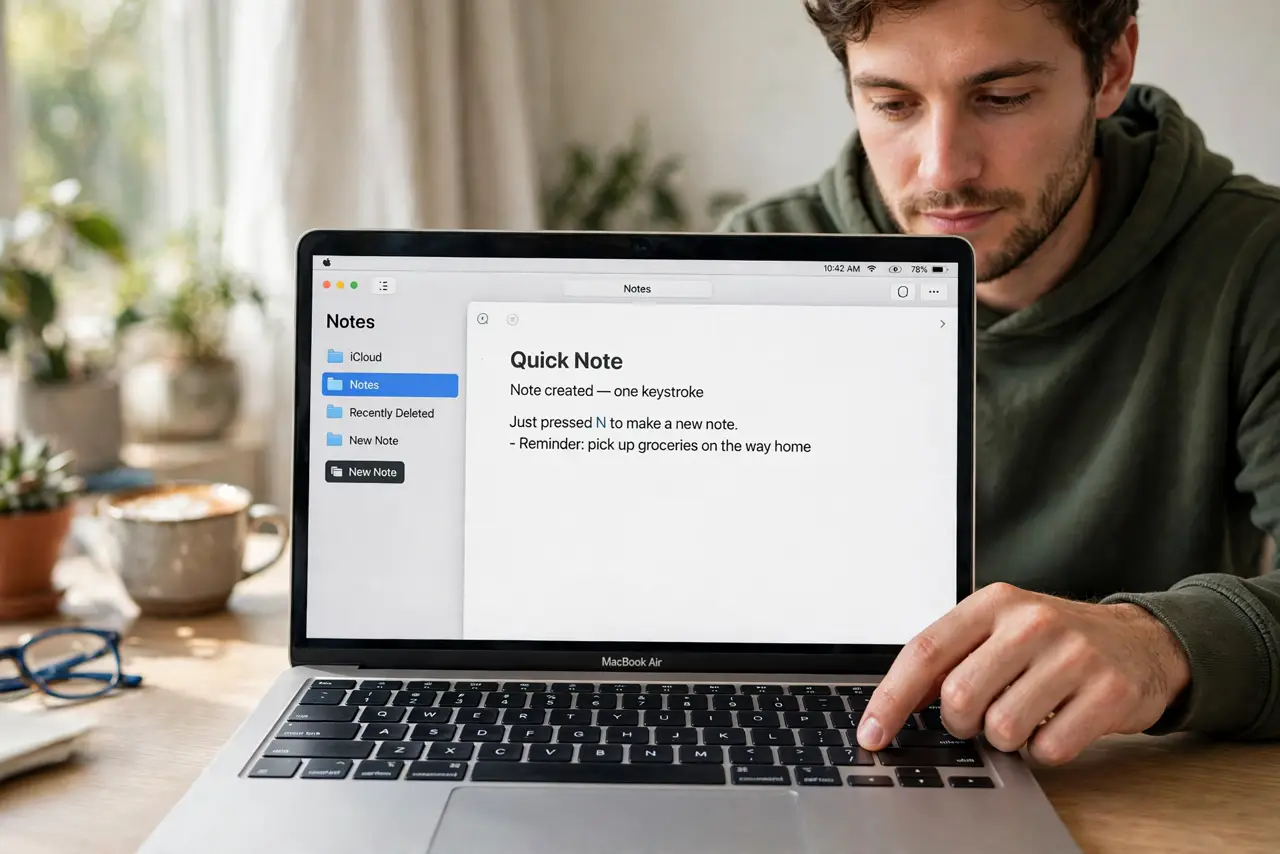
- Make a note in one keystroke. Open Stickies and press Command-N for a fresh note. Type the phone number, code, or idea immediately — Stickies win by being faster than any 'proper' app.
- Float the note that matters. Choose Window, then Float on Top for the note you need visible all day. It stays above every window, which is the whole point of a sticky note.
- Color-code by purpose. Use the Color menu: yellow for tasks, green for reference, pink for urgent. Three colors max — a rainbow of twelve colors is just noise.
- Shrink notes to their essence. Double-click the top bar of a note to collapse it to a one-line title bar. Collapsed notes form a tidy strip you can expand only when needed.
- Clean up nightly. Each evening, delete finished notes and move keepers into Notes or a document. Stickies are a today-tool; anything older belongs somewhere permanent.
- Back up what matters. Stickies live in your user library and sync nothing by default. Anything truly important gets copied to Notes or iCloud — treat Stickies as volatile by design.
What NOT to do
- Do not store passwords in Stickies. They sit unencrypted on the desktop — use a password manager for anything secret.
- Do not let fifty notes accumulate. An unreadable wall of yellow is worse than no system; nightly cleanup is the discipline.
- Do not use Stickies for long-term storage. They are a capture tool; archive anything older than a week into Notes or files.
- Do not skip the float option for all-day reminders. A note buried under windows is a note that does not exist.
Frequently asked questions
Do Stickies sync to my iPhone?
No — Stickies are Mac-only and do not sync. For notes across devices, use the Notes app instead.
Where are Stickies stored?
In a database inside your user Library folder. They survive restarts, but they are not backed up to iCloud automatically.
Can I search Stickies?
Not directly, which is another reason to keep them few and short. The Notes app is the searchable home for anything you need to find later.