Stop Joining the Wrong Network
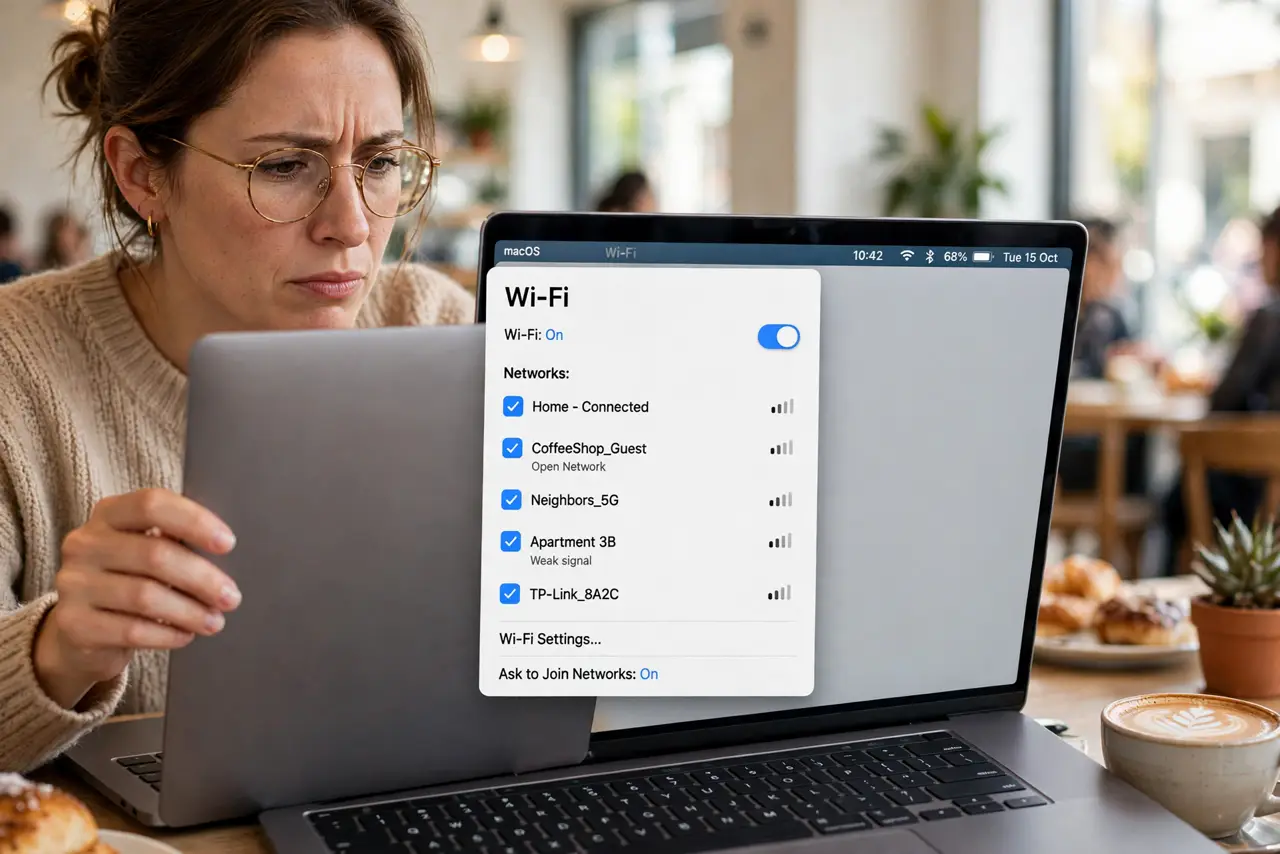
You open your Mac at the coffee shop and it cheerfully connects to 'CoffeeShop_Guest' — the weak, distant network from two doors down — instead of the strong one you are sitting under. macOS remembers every network you have ever joined and auto-joins them by priority, not by signal. A two-minute cleanup of the known-networks list fixes it permanently.
TL;DR / Quick Fix
Quick fix: your Mac auto-joins remembered networks by list order, not signal strength — so a weak distant network can beat the strong one beside you. Open Wi-Fi settings, review Known Networks, remove the ones you do not use, and drag your preferred networks to the top.
Follow these steps
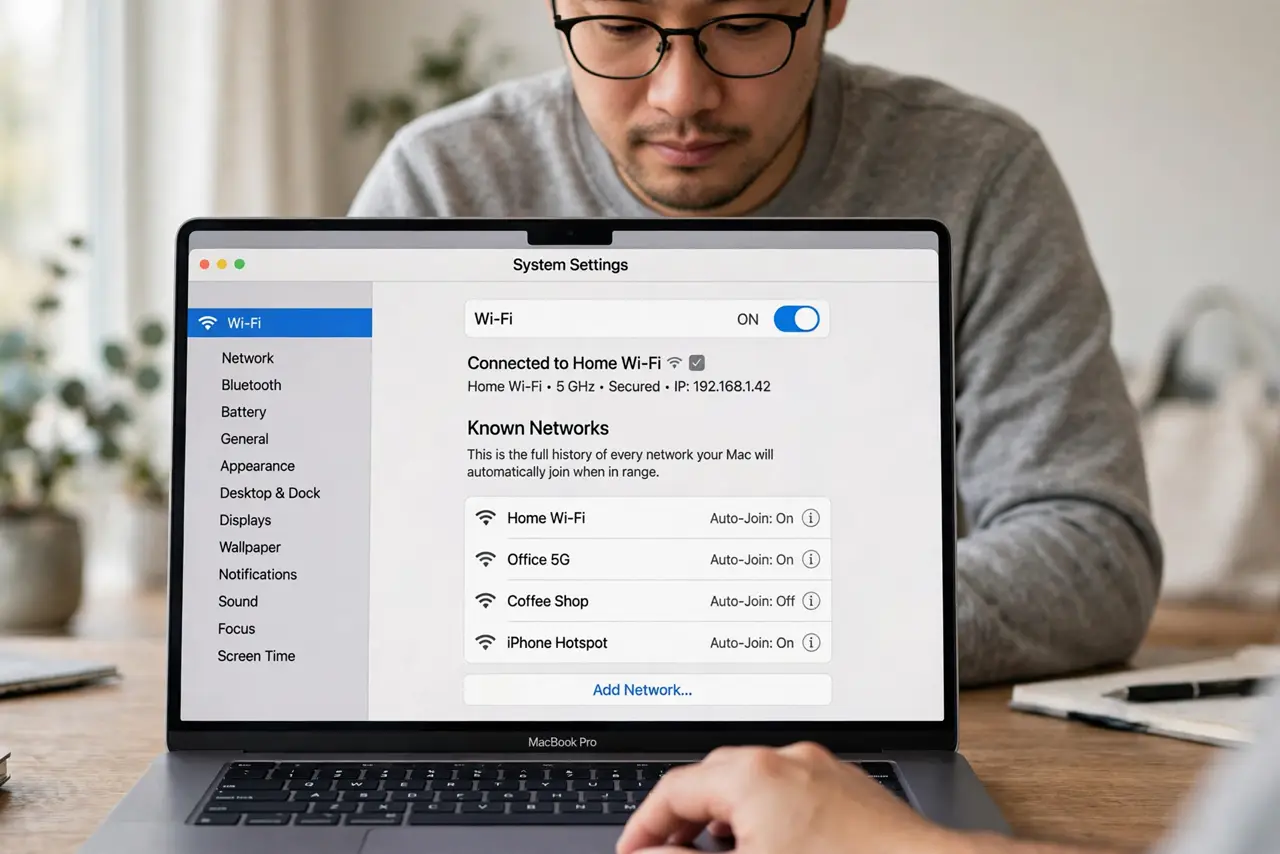
- Open the known networks list. Go to System Settings, then Wi-Fi, then click the details for Known Networks. This is the full history of every network your Mac will auto-join — most people are shocked at the length.
- Remove networks you do not need. Delete hotel, airport, and one-time networks you will never visit again. Every stale entry is a future wrong auto-join waiting to happen.
- Reorder by preference. Drag your home, office, and trusted networks to the top. macOS tries them in order — priority beats proximity, so put the good ones first.
- Turn off auto-join per network. For networks you want to keep but not auto-join — like a neighbor's or a weak public one — disable Ask to Join / auto-join on that specific network instead of deleting it.
- Disable 'ask to join' popups wisely. If the Mac keeps offering random networks, set Ask to Join to off or notification-only. Fewer popups, fewer accidental joins.
- Test the fix. Turn Wi-Fi off and on in the problem location. The Mac should now land on your preferred network — if it still picks wrong, a forgotten entry is still hiding in the list.
What NOT to do
- Do not just forget the network once and stop. Without reordering, the next new network you join can outrank the good one again.
- Do not leave dozens of stale networks in the list. Each is a potential auto-join to somewhere you no longer trust.
- Do not disable Wi-Fi entirely as the fix. You lose Handoff, AirDrop, and location accuracy — clean the list instead.
- Do not auto-join open networks blindly. A familiar name is not proof of legitimacy — evil-twin hotspots count on exactly this habit.
Frequently asked questions
Why does my Mac prefer the weak network?
Auto-join follows list priority, not signal strength. The weak network is simply higher in your known-networks order.
Will forgetting a network delete its password?
From that Mac's auto-join, yes — and from iCloud Keychain sync if you confirm. You can always rejoin manually later.
How do I stop the constant 'join network' popups?
Set Ask to Join Networks to Off in Wi-Fi settings. Your known networks still auto-join; strangers stop asking.