Terminal for Beginners?
Terminal is the Mac's text-based control panel — a window where you type commands instead of clicking. It looks intimidating, but a handful of safe commands (looking around, making folders) demystify it completely, and it unlocks fixes that have no button anywhere. This is the gentle on-ramp: what it is, the safe first commands, and the one rule that keeps you out of trouble.
TL;DR / Quick Fix
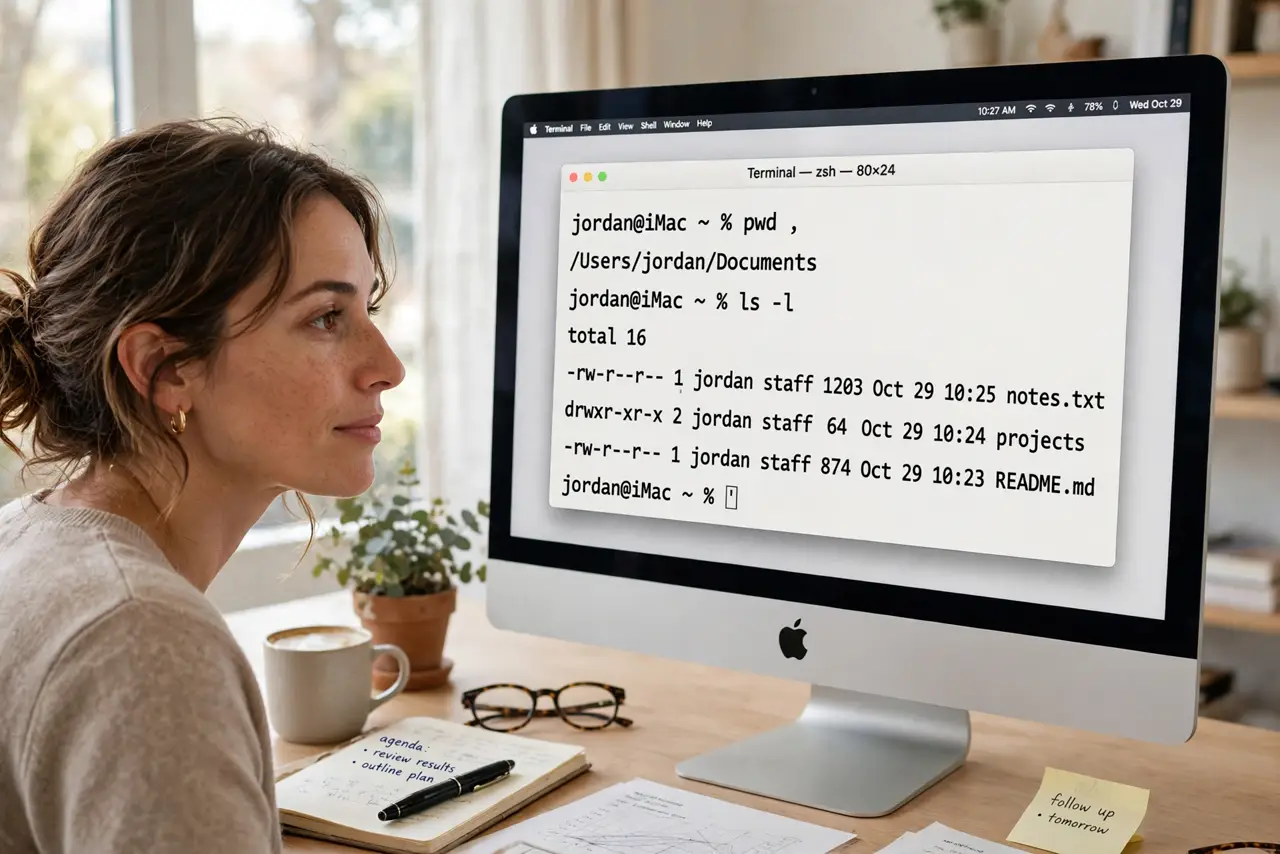
Quick fix: Terminal lets you control your Mac with typed commands — open it from Applications, then Utilities. Start with safe look-around commands like pwd and ls before changing anything. Never paste a command you do not understand; that is the one rule that prevents nearly every Terminal disaster.
Follow these steps
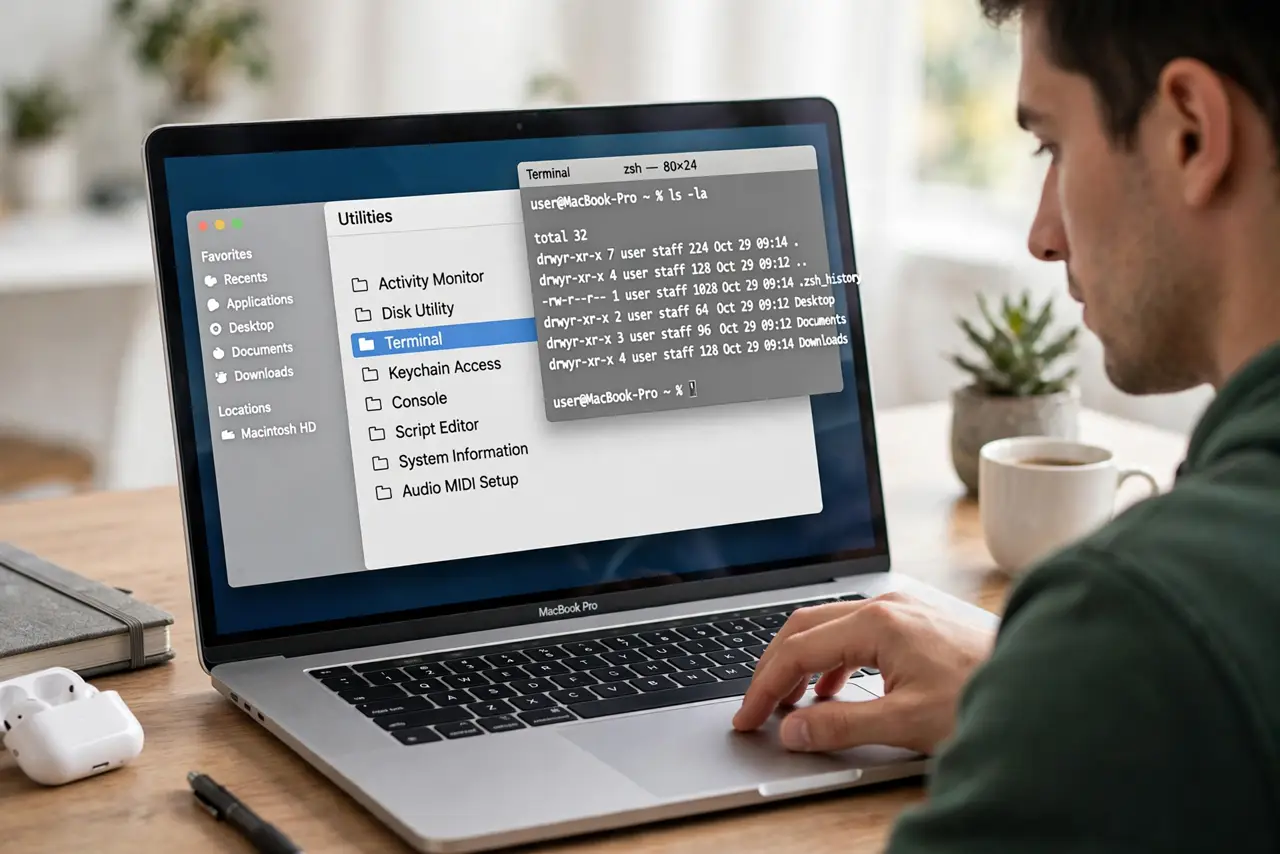
- Open Terminal safely. Find it in Applications, Utilities, Terminal — or search with Spotlight. It opens to a prompt showing your username and folder: you are in your home directory, and nothing has happened yet.
- Learn the look-around commands. Type 'pwd' (where am I), 'ls' (what is here), and 'cd Documents' (go there). These three commands only look — they change nothing, which makes them the perfect first steps.
- Understand the prompt. The text before your cursor shows user, computer, and folder. Knowing where you are prevents the classic beginner error of running a command in the wrong place.
- Never paste blind commands. The internet is full of 'paste this into Terminal' fixes. If you cannot explain what each part does, do not run it — malicious or mistaken commands here bypass every safety net. This is the one rule.
- Use man to learn. Type 'man ls' to read the manual for any command. It is dense but complete — and learning to read manuals is the real Terminal superpower.
- Automate a tiny task. Once comfortable, try a one-line loop or a simple script for a repetitive chore — the Shortcuts app is the friendlier automation path, and the two complement each other well.
What NOT to do
- Do not run commands with sudo unless you understand them. Sudo removes the safety rails — a typo with sudo can damage the system where the same typo without it just errors.
- Do not paste commands from strangers. 'Fixes' copied from forums can delete files or open security holes — understand before you execute, always.
- Do not fear the look-around commands. pwd, ls, and cd cannot hurt anything — the anxiety is normal but the commands are harmless.
- Do not start by trying to be a hacker. Learn navigation and files first; the impressive stuff comes naturally after the boring fundamentals.
Frequently asked questions
Is Terminal dangerous?
Only as dangerous as the commands you run. Looking around is harmless; deleting and system commands demand respect. The danger is never the window — it is uninformed commands.
What's the difference between Terminal and the Shortcuts app?
Terminal is precise text control for anything; Shortcuts is friendly drag-and-drop automation for common tasks. Learn Shortcuts first, Terminal when you need its power.
Do I need to learn Terminal to use a Mac?
No — macOS is fully usable without it. Terminal is for troubleshooting, automation, and curiosity; it is an unlock, not a requirement.